
Christopher James Palmer
Participant
July 7, 2023
Question

Stroke Path with Smudge Tool

  • July 7, 2023
  • 3 replies
  • 721 views

Hi all,


I'm trying to use STROKE PATH with SMUDGE TOOL. 

I set smudge brush default without any setting so it is totally fine when I use manually.. However if I use stroke path with smudge tool, it gives me bit odd result. I reset Photoshop from system preferance just in case but it doens't fix anything. Does anyone know how to fix it...?

I attached some screenshots below. It is Photoshop 2023(24.6.0) 


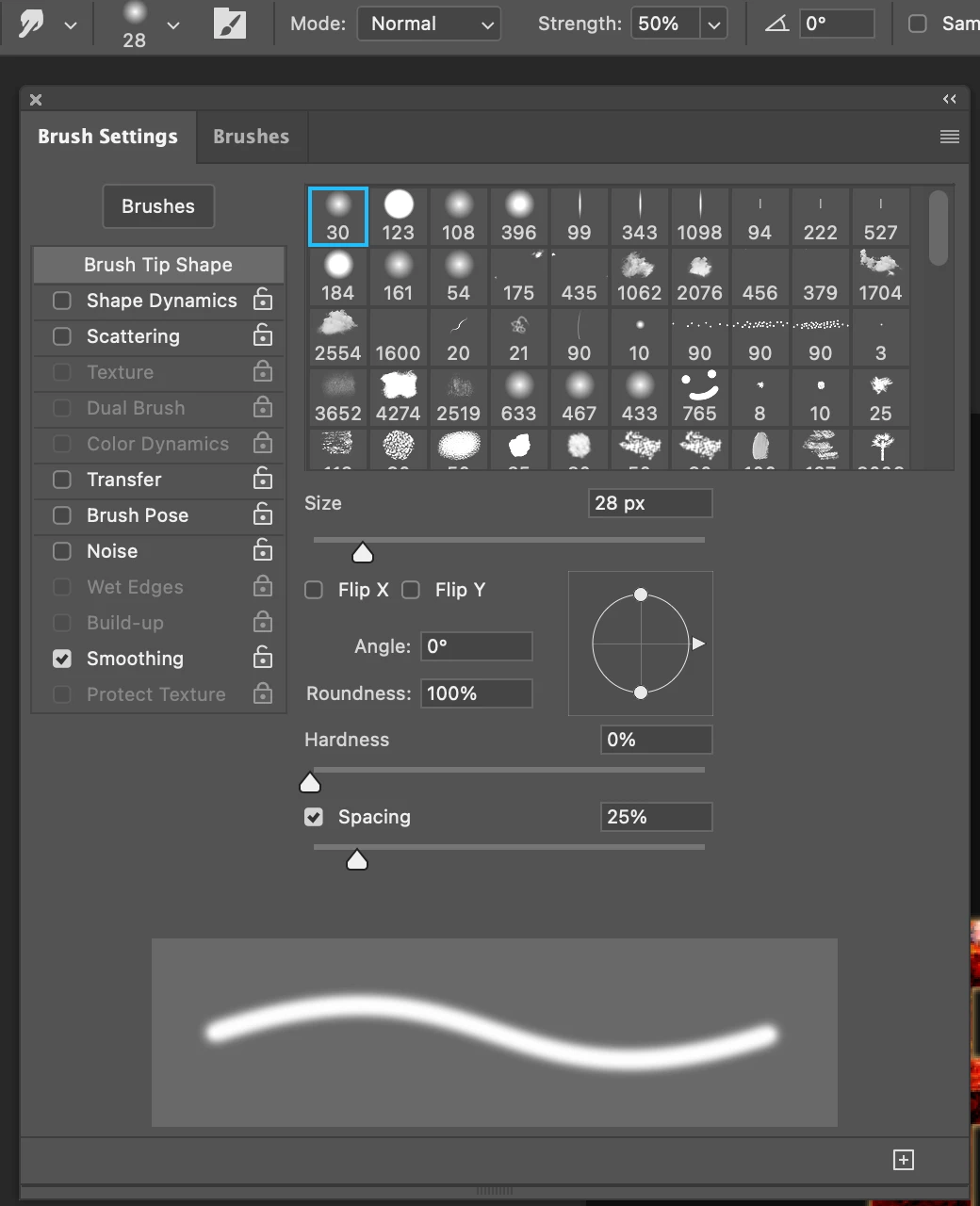
This is my smudge brush setting
 

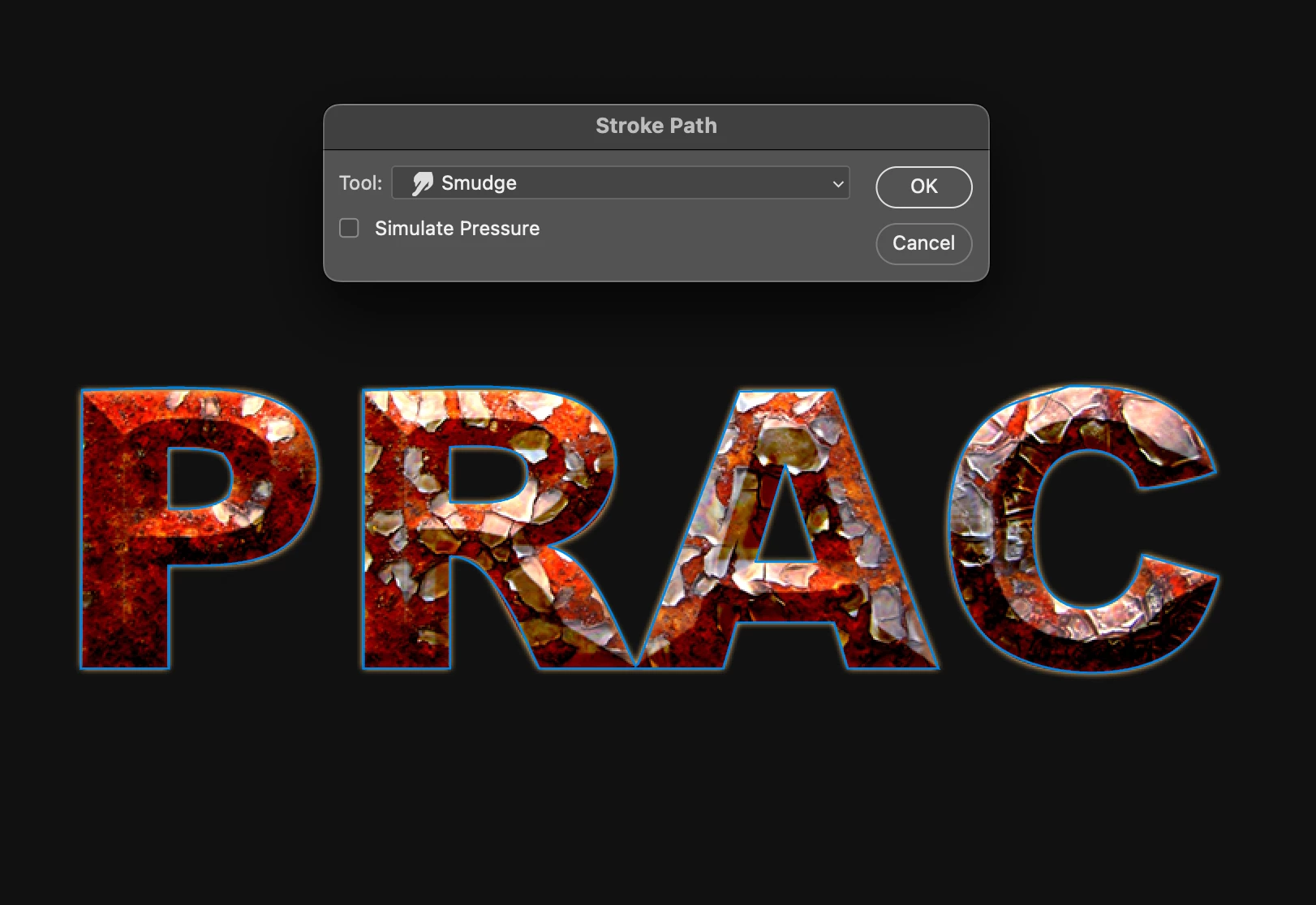
This is Stroke Path window
 

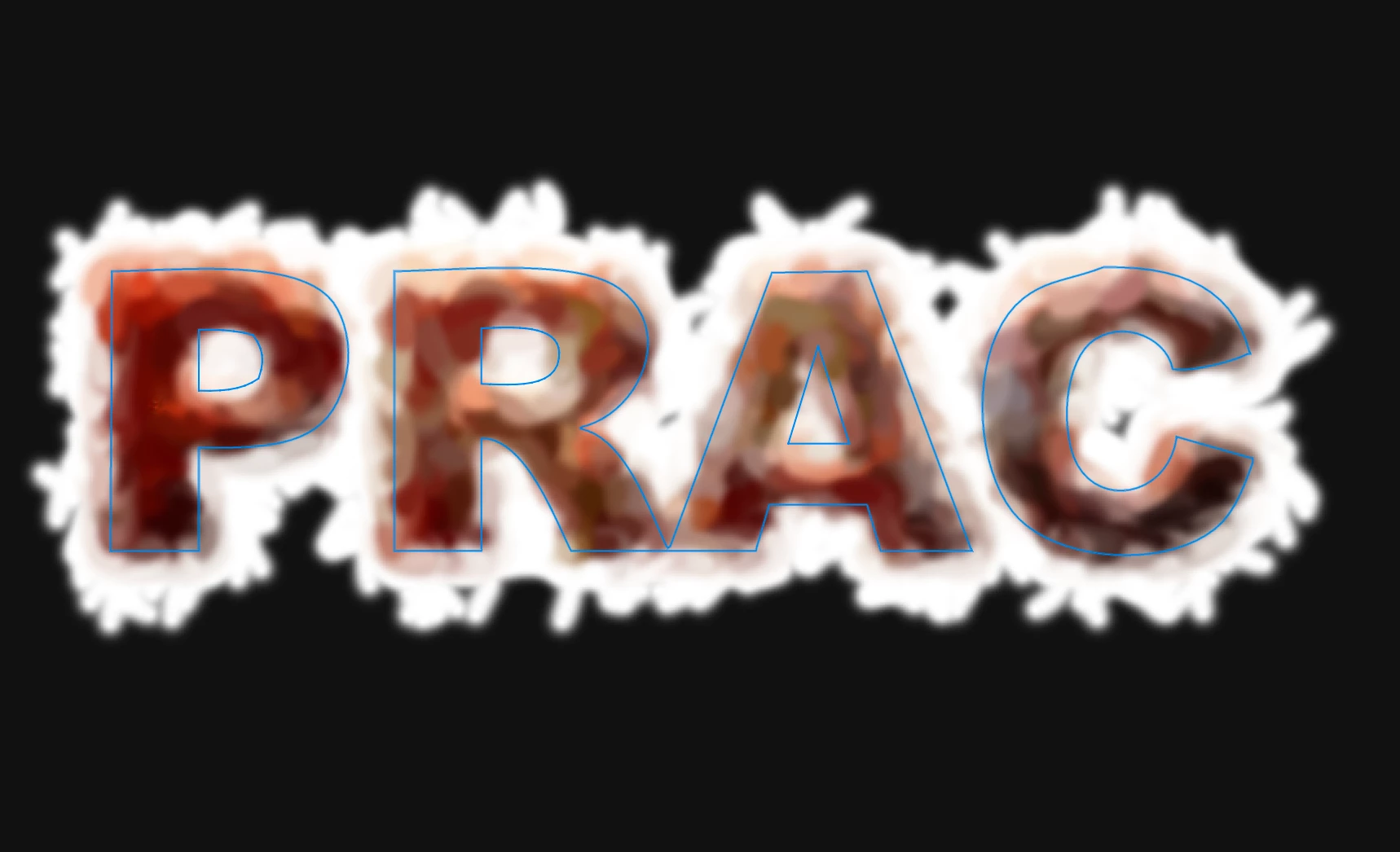
This is a result I got..
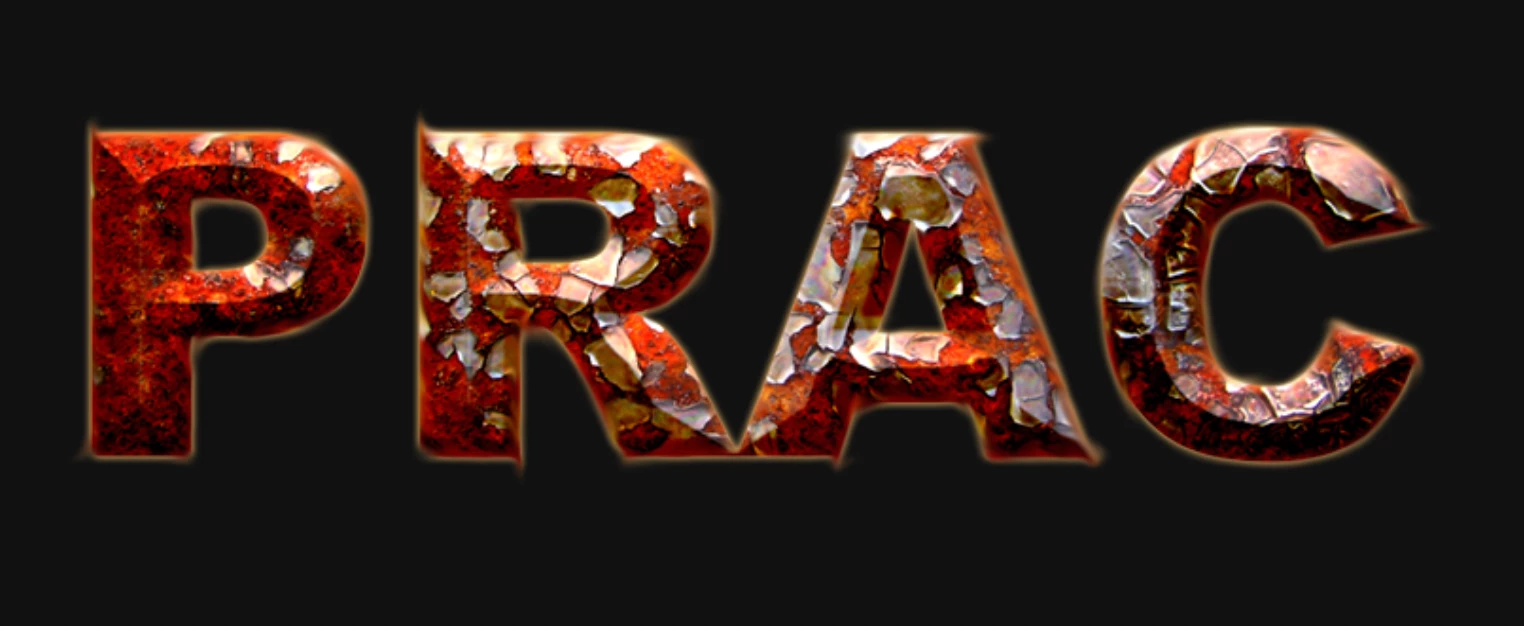
This is a result I expected.. 😕😕
 

Thanks


3 replies

Participant
November 1, 2023

I think it is bug, stroke path works on every tools but not smudge too

c.pfaffenbichler
Community Expert
Community Expert
July 7, 2023

Could you please post complete screenshots with the pertinent Panels (Toolbar, Layers, Options Bar, Brush Settings, Paths, …) visible? 

The corners in your »expected result« would not work out that way by the way. 


You seem to have created the Path via a Selection and »Make Work Path«, Type > Create Work Path should get a smoother result. 

Jeff Arola
Community Expert
Community Expert
July 7, 2023

Looks like it's being stroked with the Art History Brush using the default settings instead of the Smudge Tool.


If with both the Path and Smudge Tool selected, you press the enter key to Stroke the path, do you get different results?

Participant
October 30, 2024

This worked for me! with the path selected, I do not right click > stroke path, instead with the path selected then click the smudge tool and just press enter on the keyboard it applied the smudge along the path. perfect!