
Exit
  • Global community
    • Language:
      • Deutsch
      • English
      • Español
      • Français
      • Português
  • 日本語コミュニティ
  • 한국 커뮤니티
0

Talk Bubble saved wrong?

Community Beginner ,
Nov 18, 2020 Nov 18, 2020

I'm new to Photoshop. I added a talk bubble to a photo. On the screen it looked fine. But, the image saved to a file includes a partial rectangle around part of the bubble in the same fill color as the bubble. Why is Photoshop not saving the image properly, as it looked on the screen? Is this a bug or am I doing domwthing wrong? I am attaching a sample photo.
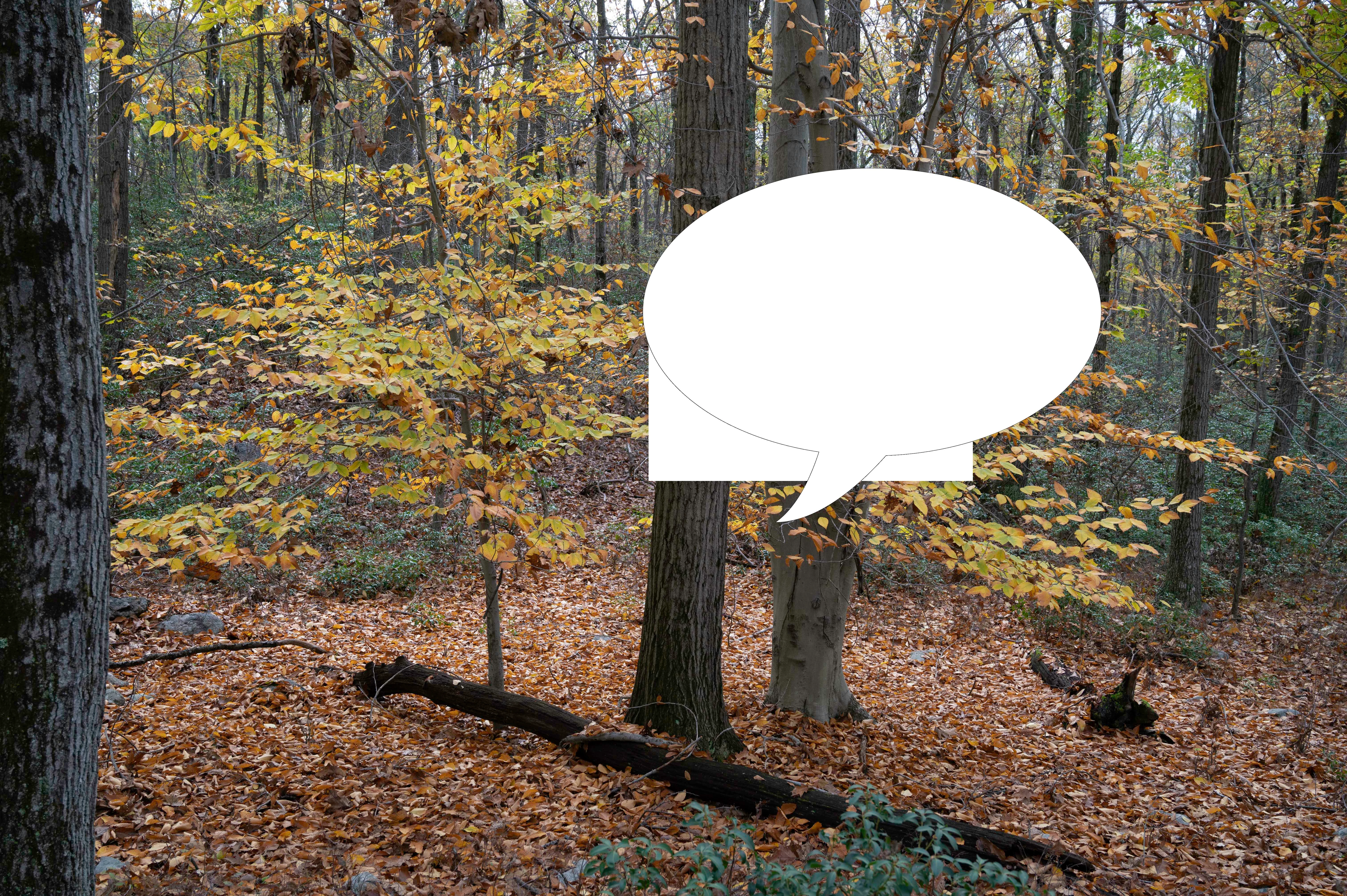
_RZ02295.jpg


367
Translate
Report
Community guidelines
Be kind and respectful, give credit to the original source of content, and search for duplicates before posting. Learn more
community guidelines
Adobe
Community Expert ,
Nov 18, 2020 Nov 18, 2020

Does turning off »Use Graphics Processor« in the Performance Preferences (Photoshop > Preferences > Performance > Graphic Processor Settings) and restarting Photoshop have any bearing on the issue? 

Could you please post a screenshot with the pertinent Panels (Toolbar, Layers, Channels, Options Bar, …) visible? 


Edit: And a little nit-picking: In the context (and with the image to boot) your point was clear but this type of graphic is usually rather called a »speech-bubble« or »-ballon«. 

https://en.wikipedia.org/wiki/Speech_balloon

Translate
Report
Community guidelines
Be kind and respectful, give credit to the original source of content, and search for duplicates before posting. Learn more
community guidelines
Community Beginner ,
Nov 18, 2020 Nov 18, 2020

Turning off the graphics processor and restarting didn't change anything. Regarding your nitpick, rather than the common terminology, I used the terminology within PS. The shape category is labeled as "Talk Bubbles."


Another saved image and a screenshot (not sure exactly what you wanted to see).

_RZ02295.jpg

Screenshot 2020-11-18 085857.jpg


Translate
Report
Community guidelines
Be kind and respectful, give credit to the original source of content, and search for duplicates before posting. Learn more
community guidelines
Community Expert ,
Nov 18, 2020 Nov 18, 2020

Just to make sure: You do keep the layered file as a psd, psb or tif? 


Do the artefacts affect flattened copies in all file formats? 

Do they also appear if you run Image > Duplicate with »Duplicate Merged Layres Only« checked? 

Translate
Report
Community guidelines
Be kind and respectful, give credit to the original source of content, and search for duplicates before posting. Learn more
community guidelines
Community Beginner ,
Nov 18, 2020 Nov 18, 2020

Being new to PS, I'm doing basic things. I'm simply dropping a shape on the image that was passed to PS from LR. The wrong image appears when I Duplicate.

Translate
Report
Community guidelines
Be kind and respectful, give credit to the original source of content, and search for duplicates before posting. Learn more
community guidelines
Community Expert ,
Nov 18, 2020 Nov 18, 2020

Does Layer > Merge Visible with the alt-key pressed (or more easily cmd-alt-shift-E) also produce the faulty result? 

Translate
Report
Community guidelines
Be kind and respectful, give credit to the original source of content, and search for duplicates before posting. Learn more
community guidelines
Community Beginner ,
Nov 18, 2020 Nov 18, 2020

Yes it does.

Translate
Report
Community guidelines
Be kind and respectful, give credit to the original source of content, and search for duplicates before posting. Learn more
community guidelines
Community Expert ,
Nov 18, 2020 Nov 18, 2020
LATEST

Please try converting the Shape to a Smart Object (Layer > Smart Objects > Convert to Smart Object) – does that have an effect on the resulting jpg? 


And I am aware that that is only a work-around, as for the underlying problem you could post a report (including the full OS, GPU and version data and, if possible, the file) over on: 

Photoshop Family

Translate
Report
Community guidelines
Be kind and respectful, give credit to the original source of content, and search for duplicates before posting. Learn more
community guidelines