
augustk94532170
Participant
March 31, 2017
Frage

Terrible Glitch Affecting My Artwork

  • March 31, 2017
  • 1 Antwort
  • 541 Ansichten

Hello, this is a question, with a hard to find answer.

First off: Macbook Pro, Processor 2.5 GHz, Memory 8GB,   258.96GB free of 499.05GB

               Ad Ph CS6 version 13.0.6

Im an Artist who often draws pen and ink, and colors digitally. A page from comic will look like this
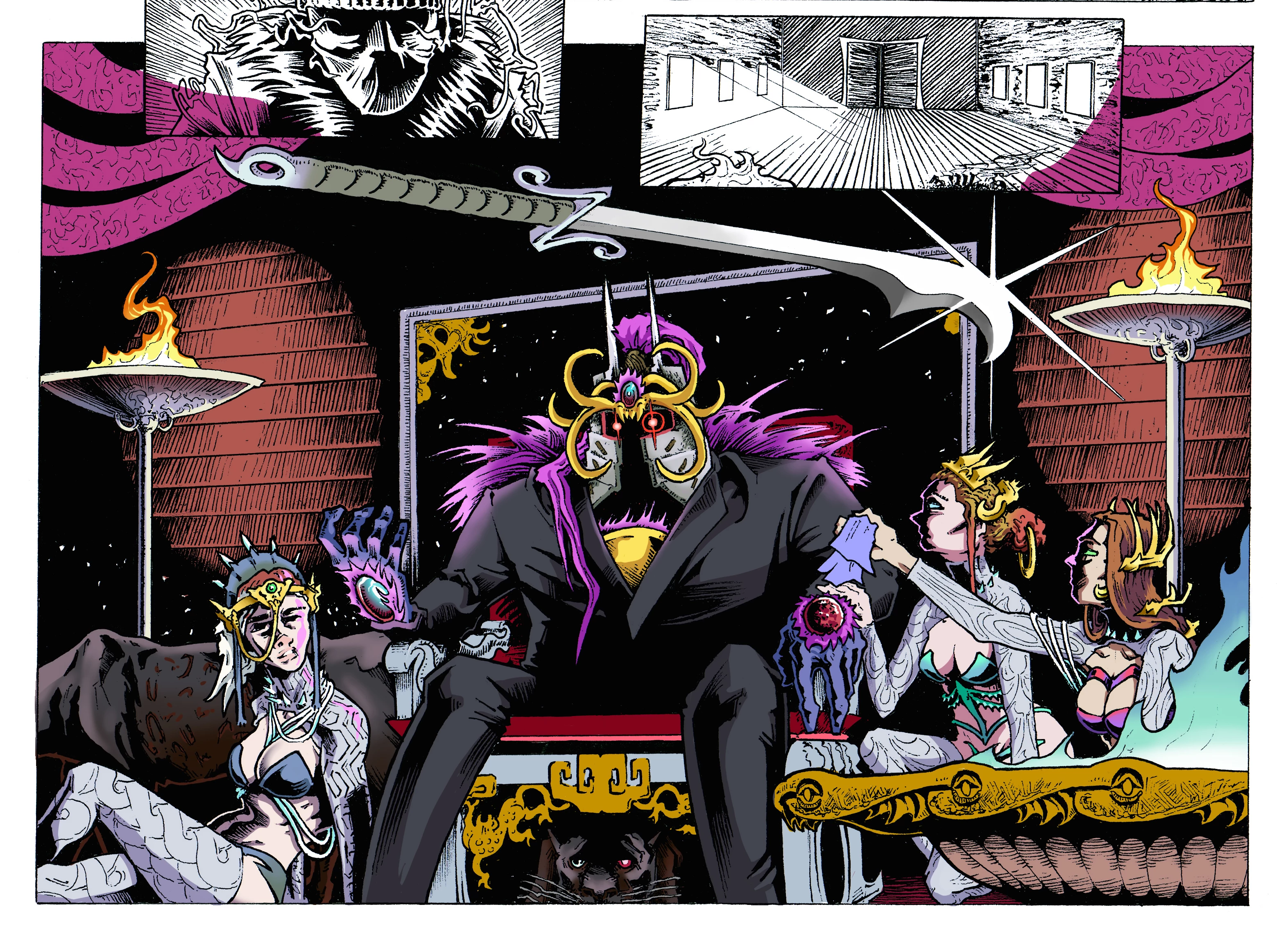
Very nice. Until a week or so will pass. Ill open up the file, and this will meet me....
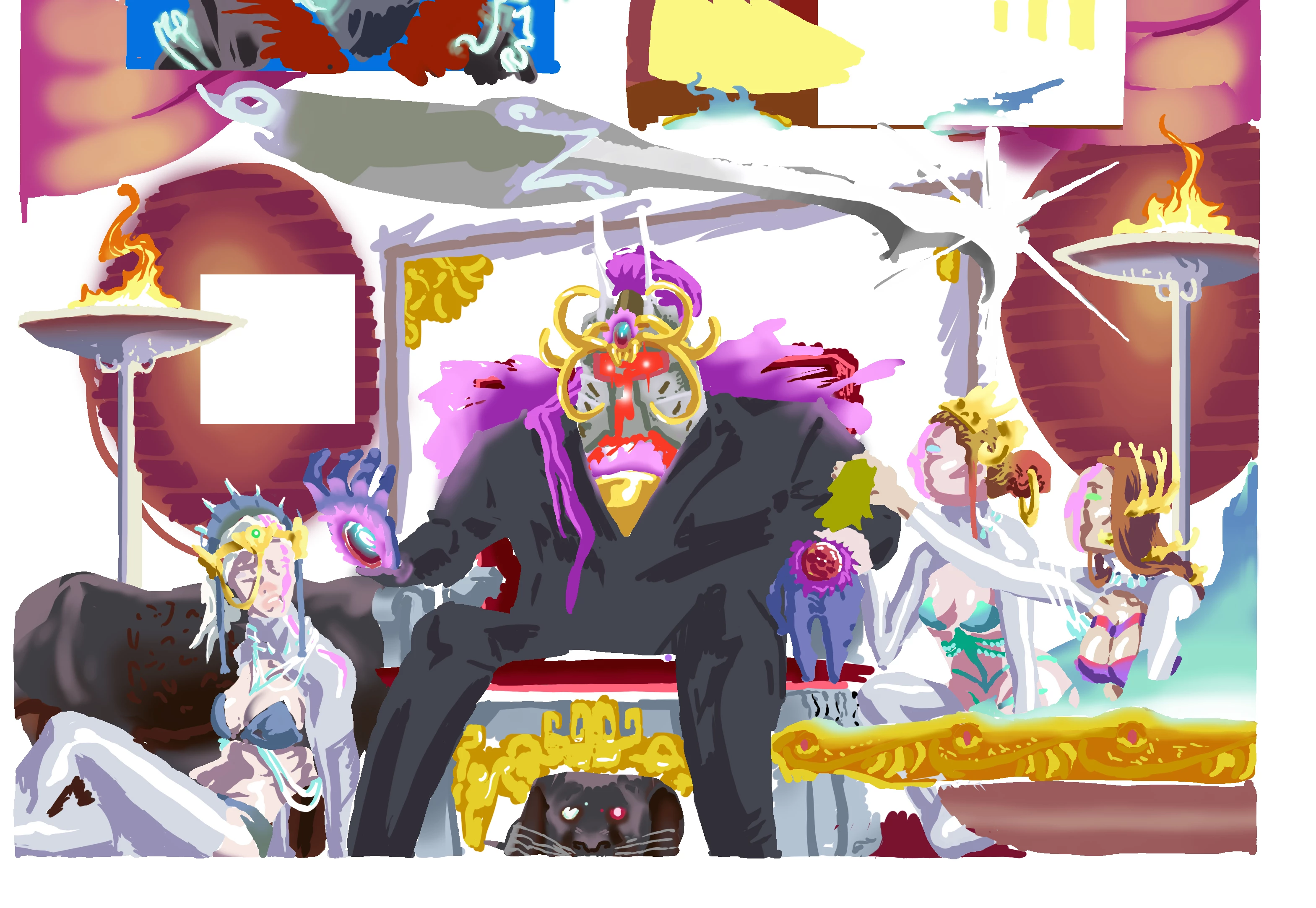
I dont know, and cant remember, any significant action of mine to affect my files like this. The top layer of linework vanishes, even tho the layer remains. (Its just empty now) and squares of colors will disappear. If you try to fill them in with color a glitch distortion will appear.

Please help, This has been happening for some time, and many of my pages have to be recolored after many hours of work. Thank you for any information you can give.

Dieses Thema wurde für Antworten geschlossen.

1 Antwort

Trevor.Dennis
Community Expert
Community Expert
March 31, 2017

The most obvious thing is blend modes, so if you had a layer high up the stack set to Screen for instance.

Turn off the layers one at a time starting from the top and you are bound to find the problem layer.

Nice artwork btw.

augustk94532170
Participant
March 31, 2017

Thank you. Thats not the answer tho. the only mode I use is Multiply, on the top ink layer. That way the Ink stays on top and I can color In the white.

augustk94532170
Participant
March 31, 2017

Your screen shots don't tell us anything.  You need to twirl open the groups to see the state of the contained layers.  As Dag has said, your screen shots don't look like artefact errors.  They look like you have layers turned off or opacity set to zero.

What is worrying is that I think you have indicated that layers you remember having content, now appear to be empty.  You are obviously a skilled and talented illustrator, so we have to assume you know what you are doing, but for the sake of completeness, open all those groups, and make sure all layers that should be turned on, are turned on, and that blend modes and opacity are set correctly.

Is this the only time you have had this problem?


Well as of double checking, all layers are normal with normal correct settings. All tho I did see something strange, all of the groups were set to "pass through." I set them all back to normal and nothing changed.

this isnt a "layer in wrong place with opasitt off" error, and yes it has happened many times, this is just my finale straw, and im just now trying to find a solution.

Here is another example, sorry for the explicit nature of the art, (albums covers)(its one of the only files with a before and after.)

This is a great example of how layers are affected. You can see only the black in the background is gone,

While all characters, except the pink, have holes. The very top layer, happened to be the red outlines of the money, and even though the layer remains, its empty.

I have plenty of other example, but unfortunately I dont have a clean/complete counterpart to show a before an after.