
Terrible rendering of Illustrator object with rotated text
Photoshop does a lousy job rendering fonts contained in Illustrator objects which are rotated. This problem exists for a while and while working on this hobby project I noticed it again. 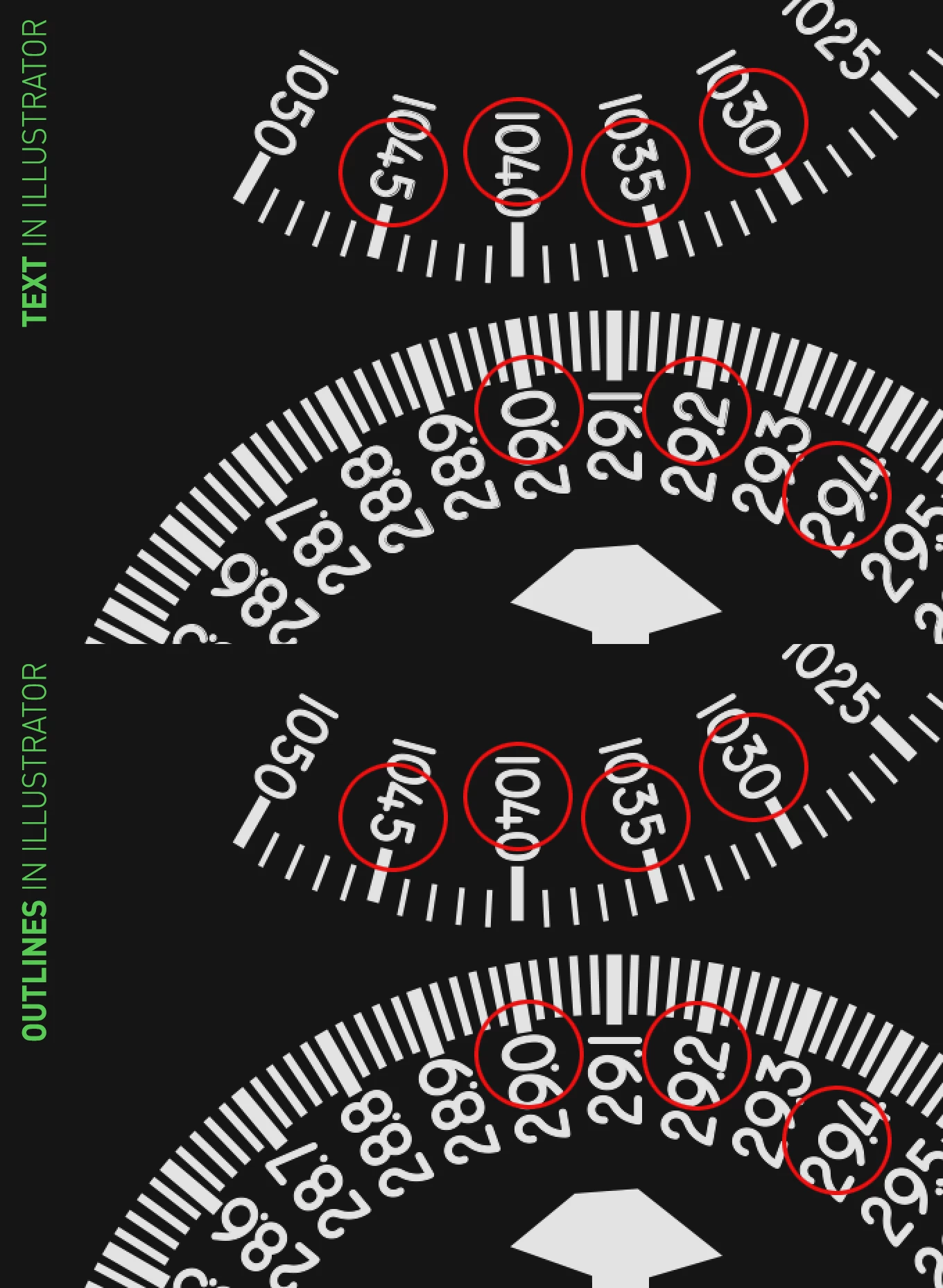
In the example above you see the same Photoshop file but once the object contains fonts (top) and once I converted the fonts to outlines in Illustrator (bottom).
At the top you see fonts appear with some double line and I don't understand why. While I can imagine it will have a bit different anti-aliasing it shouldn't render fonts this bad you actually will notice the bad quality on export.
Of course you can work around the issue by outlining the fonts but that's pretty annoying wastes a lot of time since the advantage of using smart objects is that you can change them if needed. Converting all fonts to outlines removes the easy editting of the Illustrator file.
I think the double line is caused by the fact the text in Illustrator has a thin outline to make it a bit bolder but that's still not an exuse to appear like this imo. The outline is also on the center so you shouldn't get a kind of gaps rendererd between the font and the outline. Looks like the rendering of it ain't precise enough. The file is placed at 100% in the PS doc but that really shouldn't make a difference.
While not a life threatening issue I think this is a bug though. An outline around text is pretty common to make a text bolder or for example create a bit of overfill while printing coloured text on a black background.
Platform: Windows 11 - 23H3 Build 22631.3155
Photoshop: 25.4.0
Illustrator: 28.2
GPU Driver: Nvidia Game Ready Driver 551.52
I hope my post can contribute a bit to better rendering of vector files inside Photoshop. Thanks!
 AdChoices