
Participant
November 13, 2019
Answered

text layer styles panel missing in Photoshop CS 6 [2019]

  • November 13, 2019
  • 3 replies
  • 2073 views

Hello,

I have just installed Photoshop CS6 on Windows 10 and find a strange bug now:

I can see the styles panel, but the texts are missing, so I cannot see whether it is bevel and emboss or inner shadow, etc.

Searching myself color blind as to what can possibly cause this. The same Photoshop worked just fine on my Windows 7 computer.
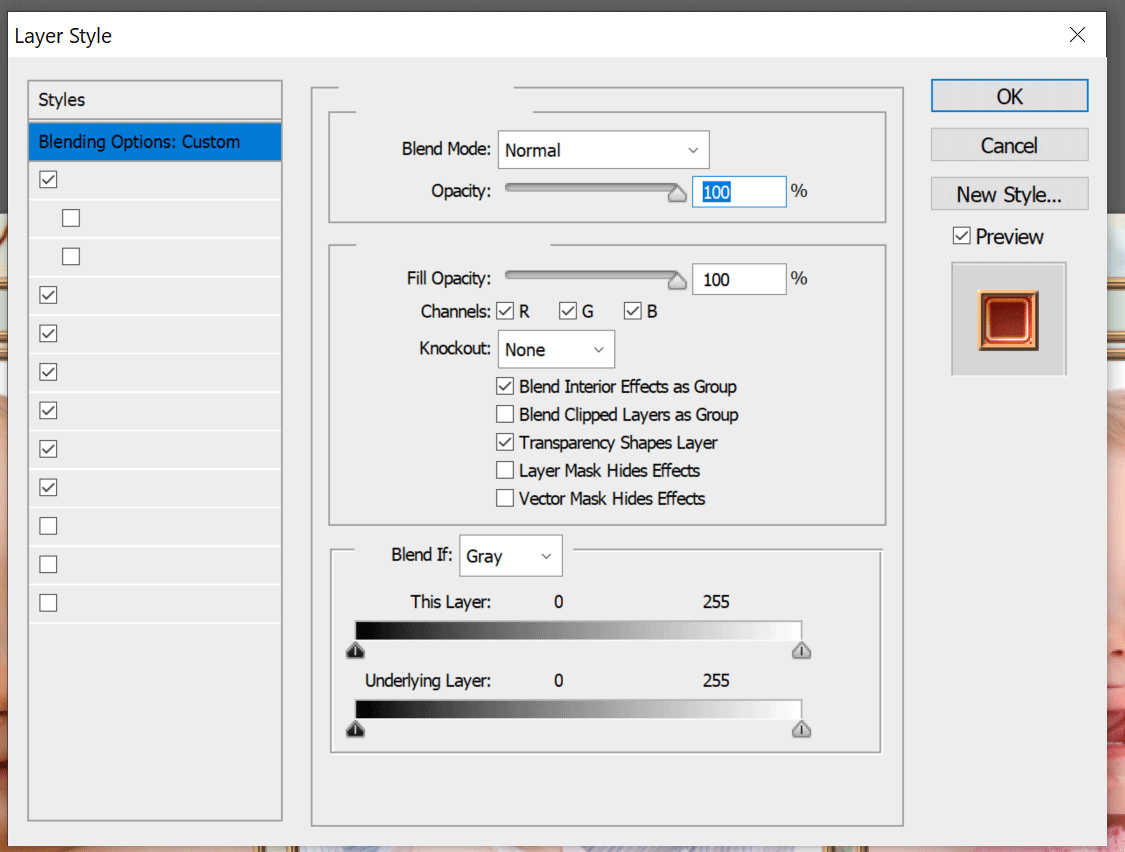
Any help appreciated, thanks!

Anne

Correct answer Peru Bob

Try resetting the tools and/or preferences.
To restore preferences quickly using a keyboard shortcut:

Press and hold Alt+Control+Shift (Windows) or Option+Command+Shift (Mac OS) as you start Photoshop. You are prompted to delete the current settings. The new preferences files are created the next time you start Photoshop.
Note: Using the keyboard shortcut, preference files for custom shortcuts, workspaces, and color settings will also be reset to default.

from here:

https://helpx.adobe.com/photoshop/using/preferences.html#restore_preferences

3 replies

Participant
September 18, 2023

Yes, for me at least. I have CS6 Ex using a 32" monitor. Some software including CS6 needs Photoshop DPI setting changed to allow viewing larger tools/fonts, etc.


So, go to C:\Program Files\Adobe\Adobe Photoshop CS6 (64 Bit) find the Photoshop.exe icon, right click, select Properties/Compatibility/Change high DPI setting set to CHECK Override high DPI setting behavior Scaling performed by and select System. That fixed my issue. HTH

jane-e
Community Expert
Community Expert
September 18, 2023
quote

Some software including CS6 needs Photoshop DPI setting changed to allow viewing larger tools/fonts, etc.

By @GArthurRoss


Thank you for your input, but the OP's problem in 2019 was not the size of the type in the dialog — it was that it was MIA. See the screenshot in the first post.


Jane

Known Participant
June 10, 2023

Have you ever figured this out? Happened to me once before and cannot remember how I solved it.


Peru Bob
Community Expert
Peru BobCommunity ExpertCorrect answer
Community Expert
June 10, 2023

Try resetting the tools and/or preferences.
To restore preferences quickly using a keyboard shortcut:

Press and hold Alt+Control+Shift (Windows) or Option+Command+Shift (Mac OS) as you start Photoshop. You are prompted to delete the current settings. The new preferences files are created the next time you start Photoshop.
Note: Using the keyboard shortcut, preference files for custom shortcuts, workspaces, and color settings will also be reset to default.

from here:

https://helpx.adobe.com/photoshop/using/preferences.html#restore_preferences

November 13, 2019

Moving to the Photoshop forum

Known Participant
January 26, 2020

This is the PS forum.