Inspiring
June 4, 2018
Answered

Text Tool Not working after 19.1.4 PS update

  • June 4, 2018
  • 2 replies
  • 934 views

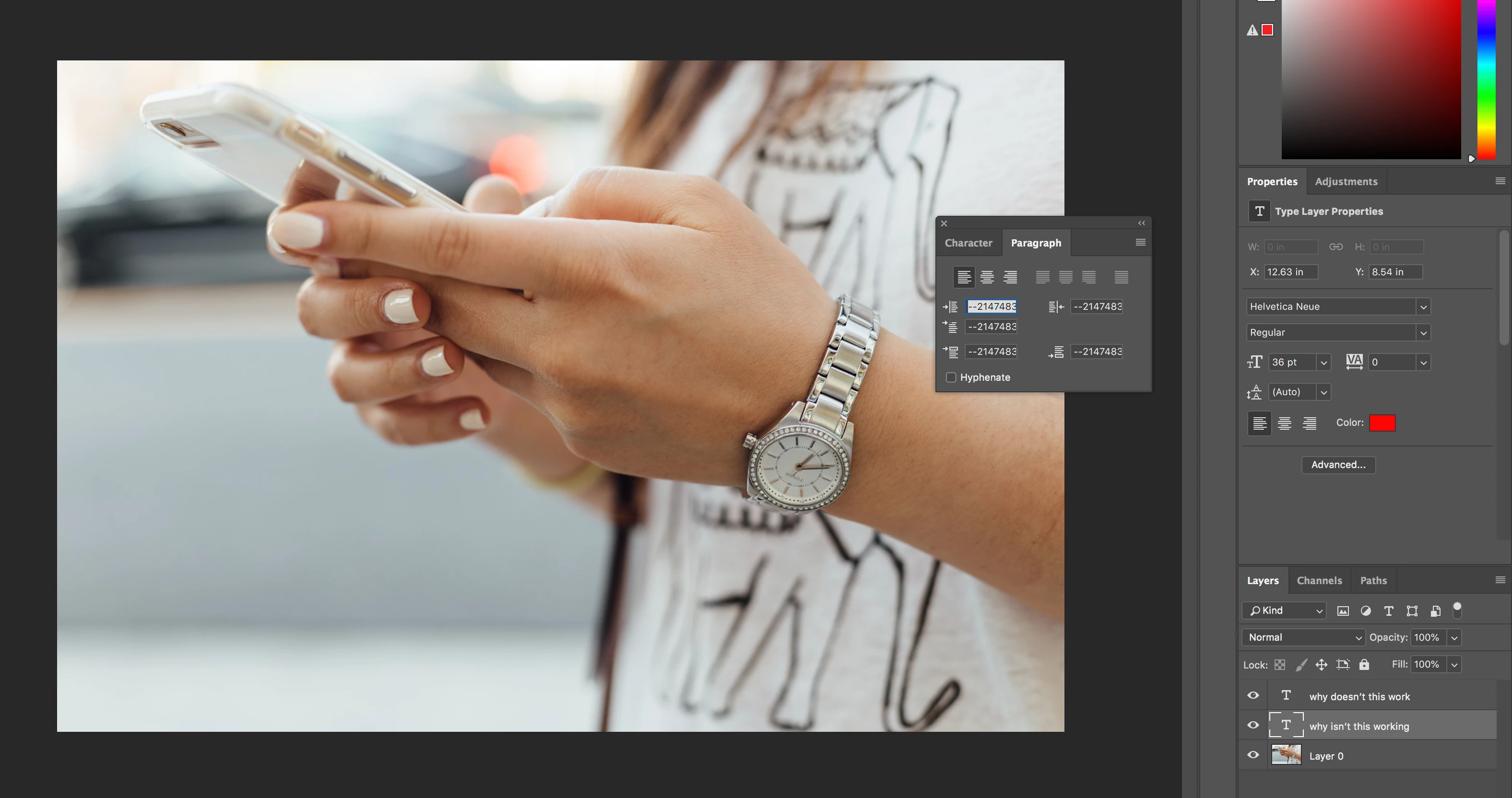
I can't type on top of a jpeg image after Photoshop update. There  seems to be a bug with the settings. I've attached a screen shot to show the weird numbers that are in the paragraph settings. This also happened in the text font size but i changed to see if the text would show up. It didn't!  Help!

    This topic has been closed for replies.
    Correct answer Trevor.Dennis

    I did as you said but the indents and spacing were already set to 0pt for all the options.

    Hmmm... so weird. I'm more annoyed that I would have to set everything to 0pts everytime i open the text tool.


    roaringdog  wrote

    I did as you said but the indents and spacing were already set to 0pt for all the options.

    Hmmm... so weird. I'm more annoyed that I would have to set everything to 0pts everytime i open the text tool.

    Have you fixed this yet?  If not then time to get serious.  Something is broken, and as far as I know, no one else has reported this problem, so I don't think it is a built in bug.

    First thing to do is reset Preferences. from the Preferences > General tab.
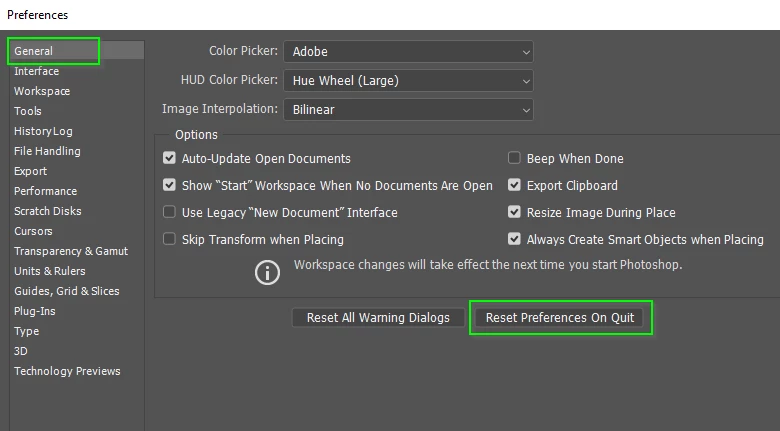
    My guess is this will fix it, but if it doesn't then I suspect it is going to be a complete reinstal, and run the Cleaning Tool between uninstalling and reinstalling.  But like I said, I think a Preferences reset willl do the job.

    Use the Creative Cloud Cleaner Tool to solve installation problems

    Good luck.

    2 replies

    Trevor.Dennis
    Community Expert
    Community Expert
    June 4, 2018

    Goodness knows what the two en dashes are about, but the values are in the indent field.

    Double click one of those type layers to select it, and use Ctrl 0 to expand the canvas.  I suspect you'll see something like this.

    As Eugine has said, changing those values to zero should fix things, but try resetting the tool if the fix is only temporary.

    Eugenio.NYC
    Participating Frequently
    June 4, 2018

    Hi, if you see you have those numbers on the paragraph panel

    try changing those numbers to 0pt and let me know if that works

    Regards

    E

    Inspiring
    June 4, 2018

    I reset the tool and I changed the values to zero but nothing.

    They keep wanting to revert to this weird series of numbers. Only happened after the update. So strange.

    I've attached more screenshots to show what the text settings are when I activate the tool

    Inspiring
    June 4, 2018

    Hi there

    Please if you can go to the paragraph style panel (from the windows menu) and double click on the basic paragraph

    Inside go to the indents options an reset everything to zero

    Let me know if that works

    Thanks


    I did as you said but the indents and spacing were already set to 0pt for all the options.

    Hmmm... so weird. I'm more annoyed that I would have to set everything to 0pts everytime i open the text tool.