elizabethhannan
Participant
November 6, 2022
Question

text will not wrap to path/shape photoshop

  • November 6, 2022
  • 3 replies
  • 1443 views

After 3 days and 70 articles in support, I have run out of options to try.

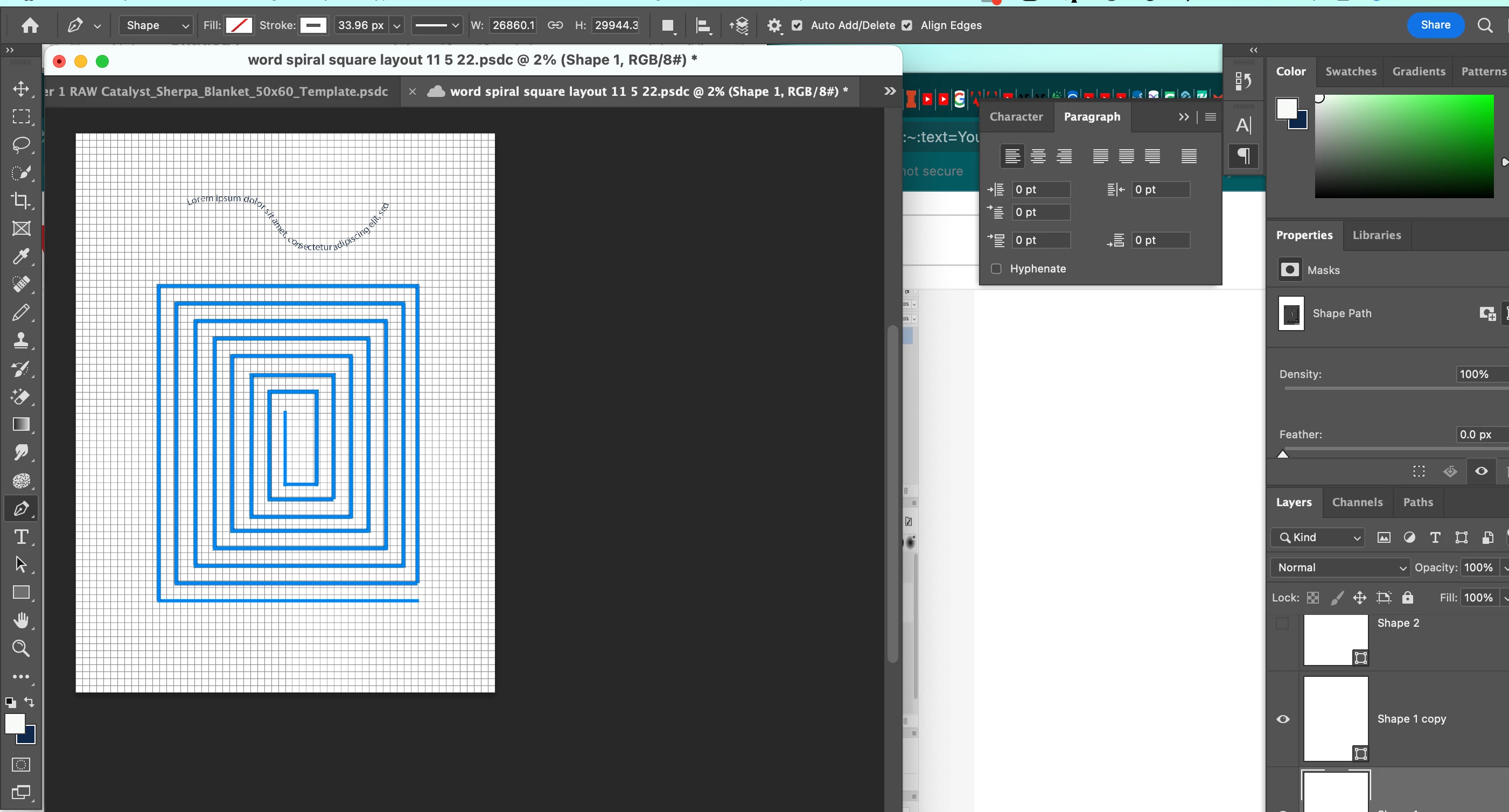
- I designed a path and even converted it to a shape in another failed attempt to get the text to follow a path. A somewhat simple task but an Adobe Photoshop nightmare.

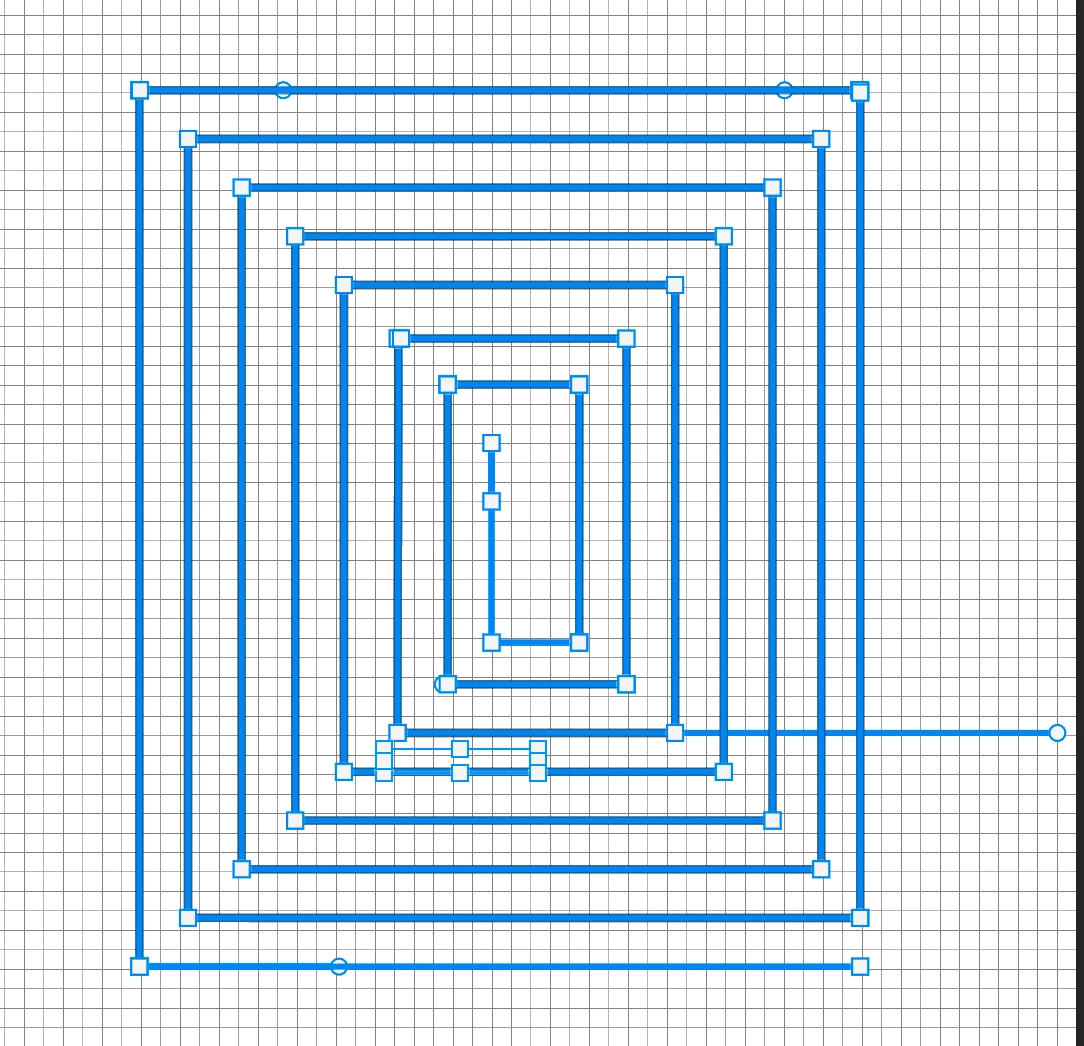
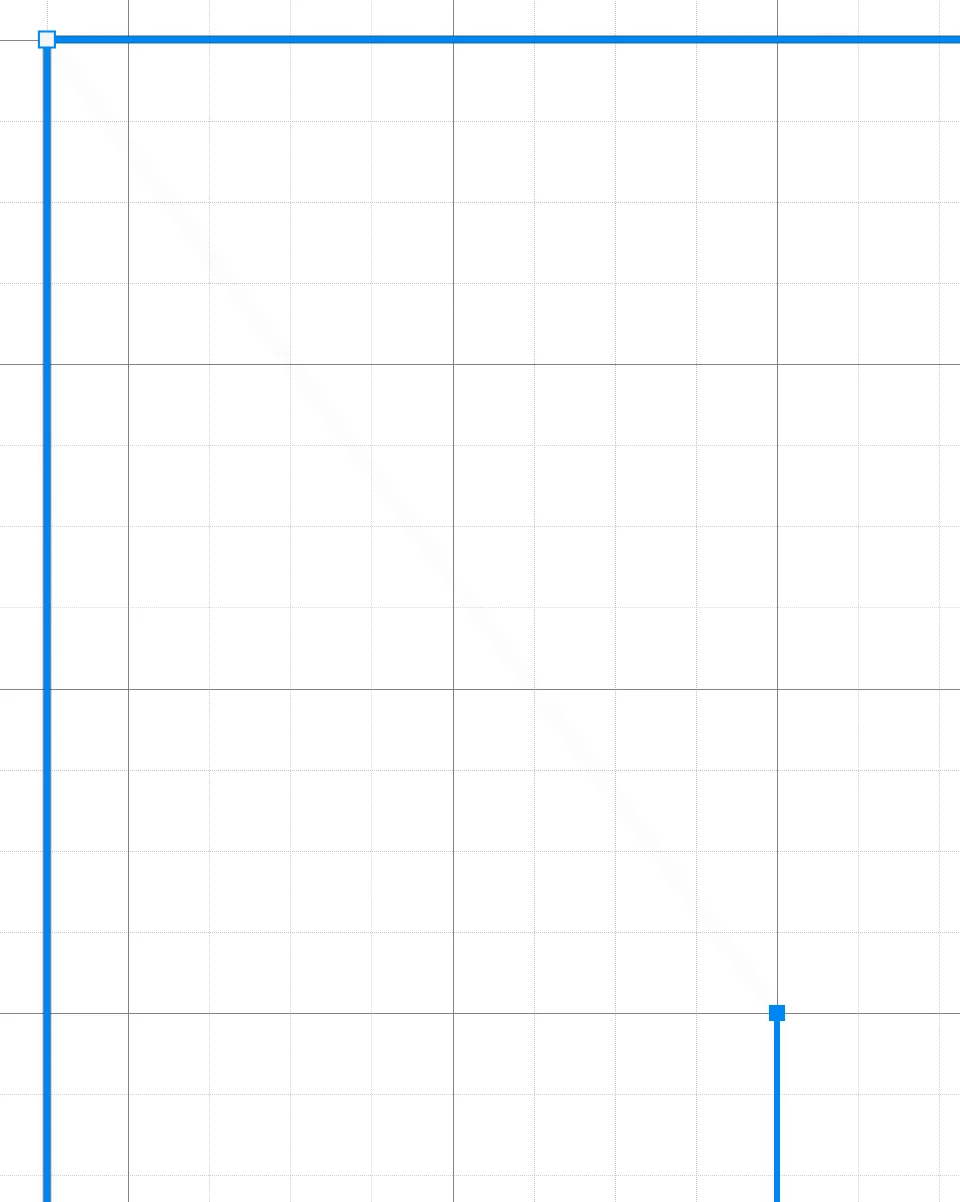
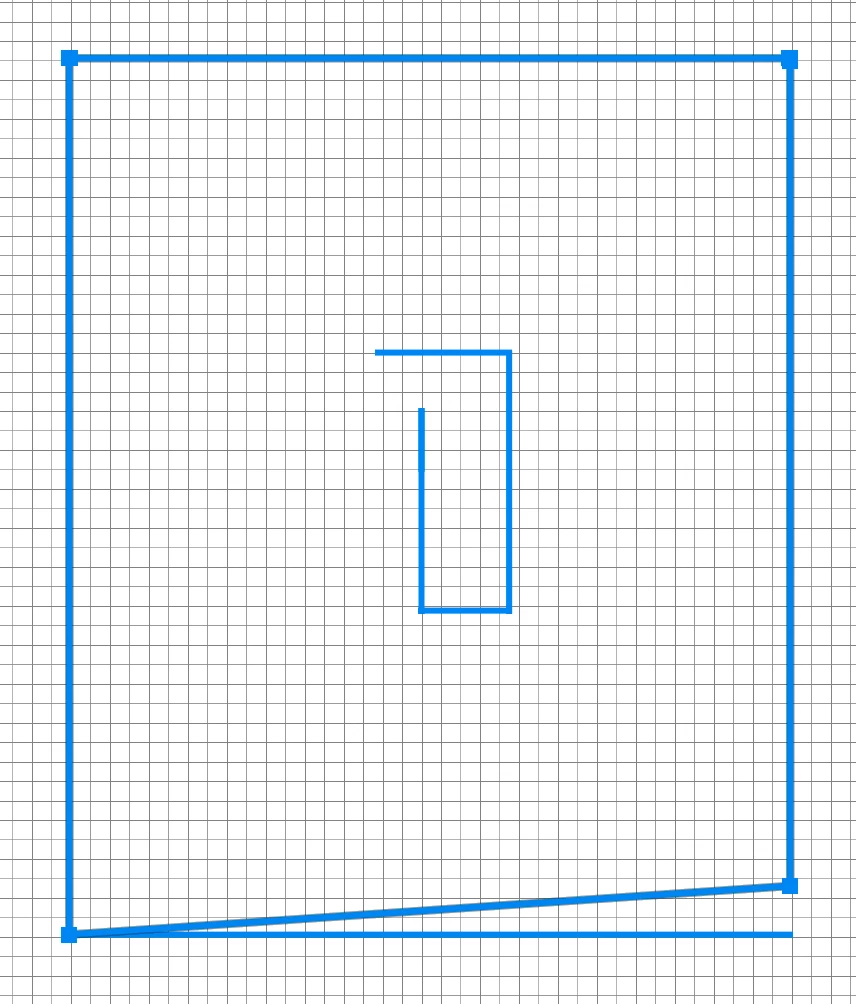
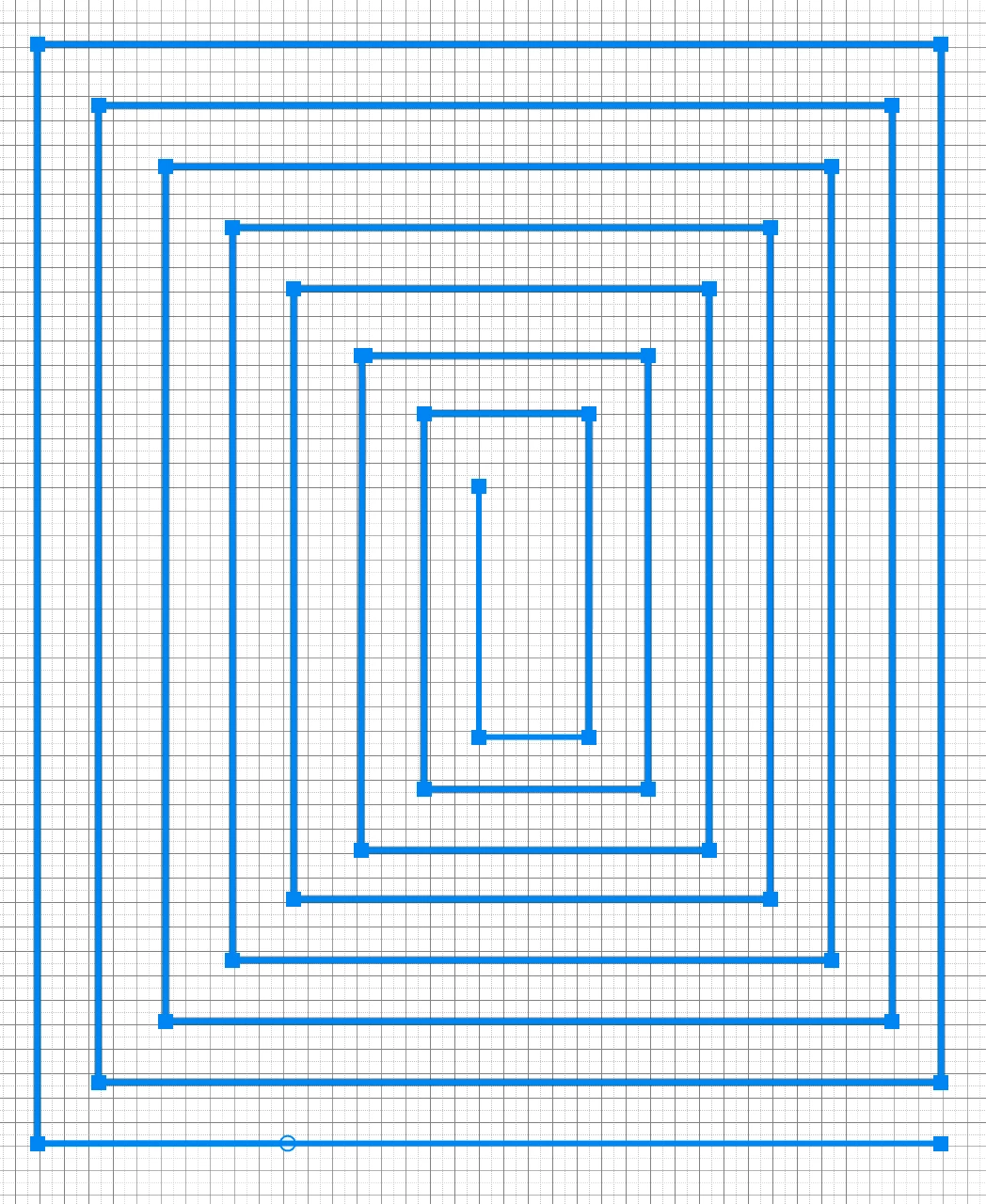
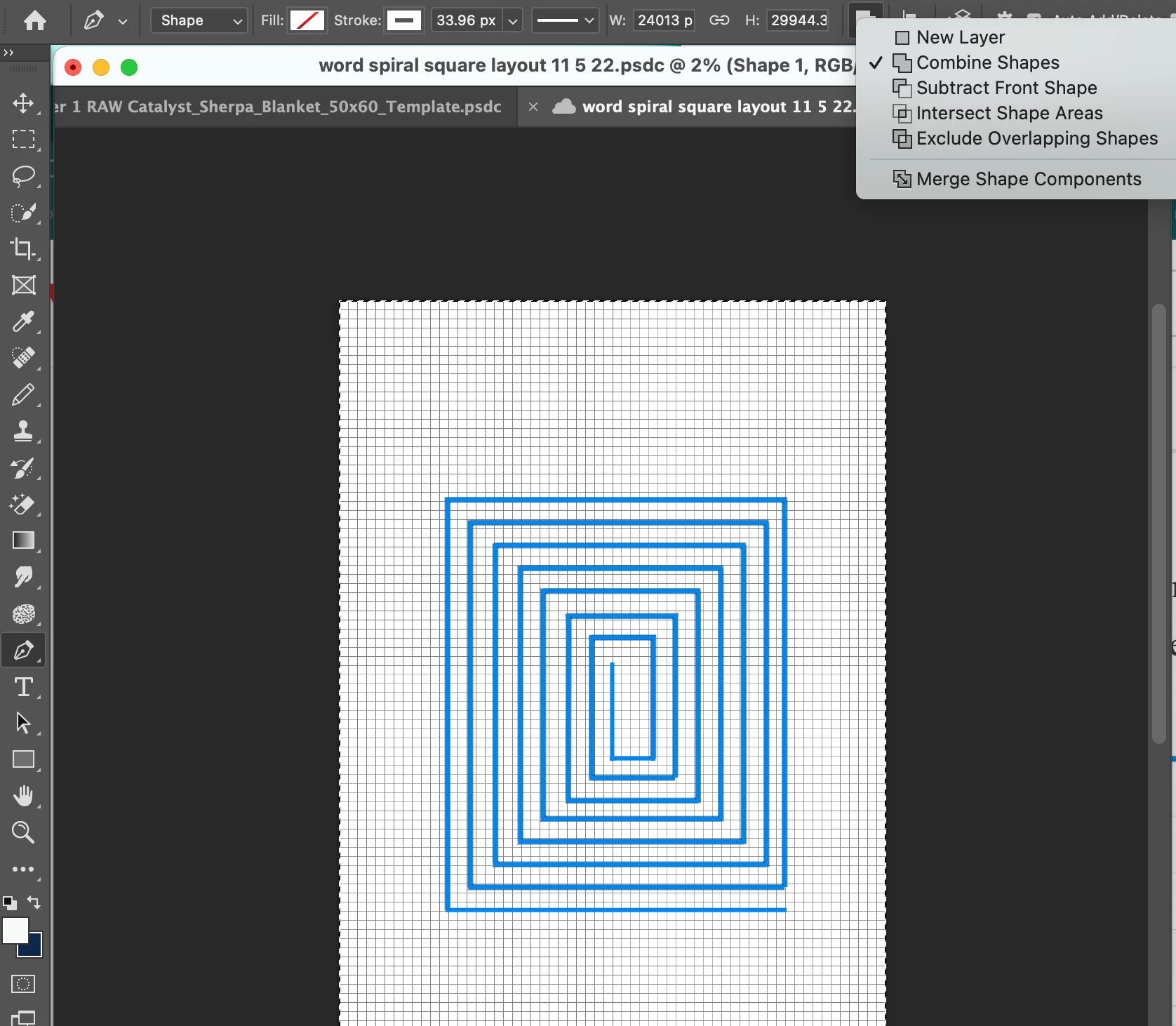
- I want the text to follow the wrapping path. It is a rectangle spiral set to a grid layout. I have verified all "corners" of the path are seamless. Sometimes, the path just adds in its "own" line paths. (not helpful)

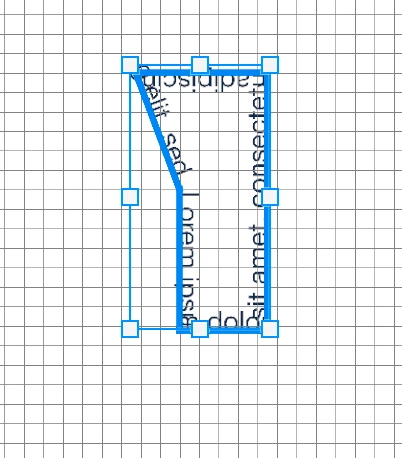
All tools preset have been reset, and the left paragraph is set. I have already tried another open path (image) where the text aligns nicely.

-The text does not ever complete the path from start to finish.

It creates either an outer ring of text or an inner ring of text. Never start (middle) to (outside ring) finish. 


All ideas are welcome on how to get the text to rap from the middle to the farthest outside path.

(Images) attached. 
 

This topic has been closed for replies.

3 replies

Bojan Živković11378569
Community Expert
Community Expert
November 7, 2022

No problem either, it is possible to readjust path, text will automatically follow path.

You must have path active. Activate Type tool and move icon over path. When you see wavy line below cursor as on my screenshot, click once to set type on path. As already suggested, ensure that you have single, connected path.

pixxxelschubser
Community Expert
Community Expert
November 7, 2022

@elizabethhannan 

Please check if your path consists of a single path/shape. In your last screenshot it looks like there are several single paths ...

Myra Ferguson
Community Expert
Community Expert
November 6, 2022

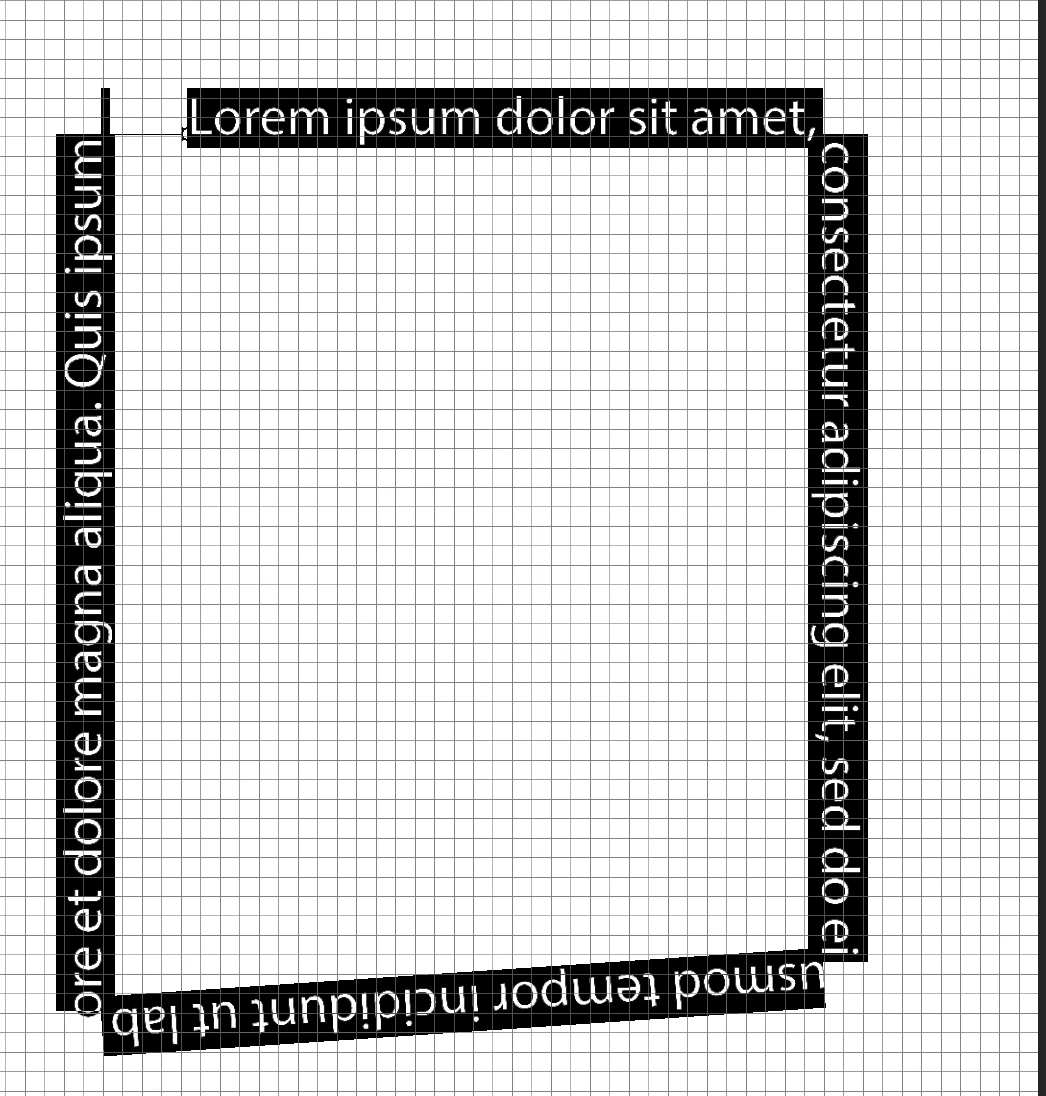
If I understand what you're wanting to do, I was able to make the following:


Here's what I did:

  1. Make the angled spiral with the Pen tool (I had it set to Shape in the Options bar)
  2. Select the Horizontal Type tool
  3. Click on the path in the inside
  4. Select the Path tool and adjust the length and positioning of the text


The tricky part may be adjusting it with the Path tool. You may need to adjust the area where the text is and make sure that it's on the right side of the path.