

The Colour Splash Effect in Photoshop 2021
Before and After

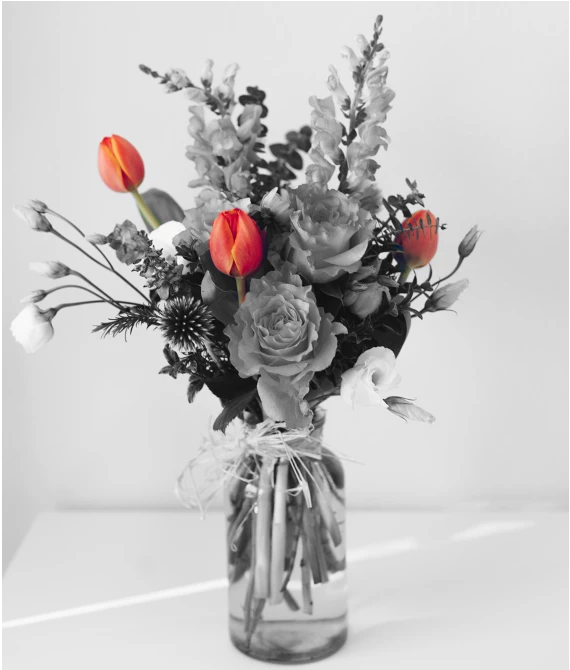
Instructions:
It’s understood that you will have a project loaded already.
1. Locate to the Layers Panel.
2. Right-Click on the layer. From the Drop Down Menu select Duplicate Layer. You will now see two layers.
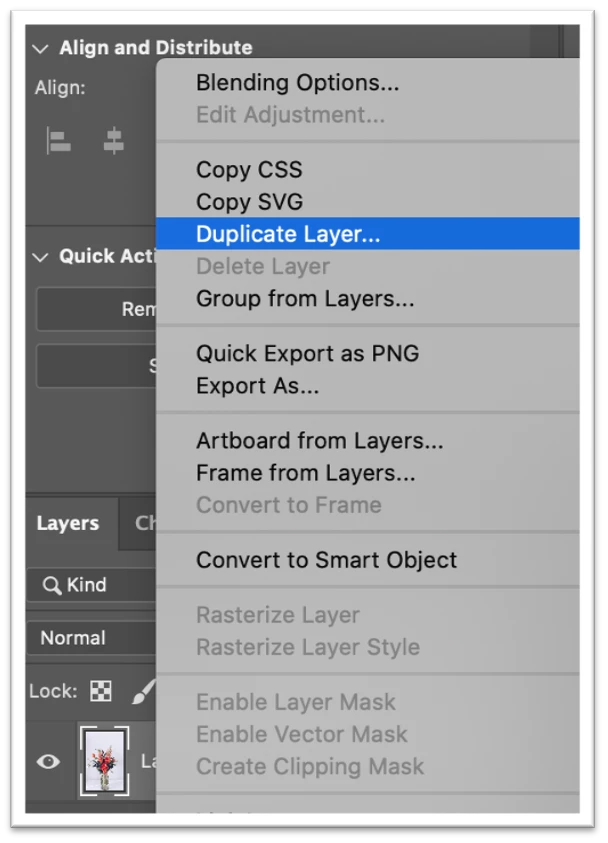
3. Select the top Layer
4. Locate the Menu Bar at the top of the screen
5. Locate Image
6. Select Image
7. From the Drop Down Menu select Adjustments.
8. From the Drop Down Menu select Black and White.
9. A new dialog box will appear. Please select Ok.
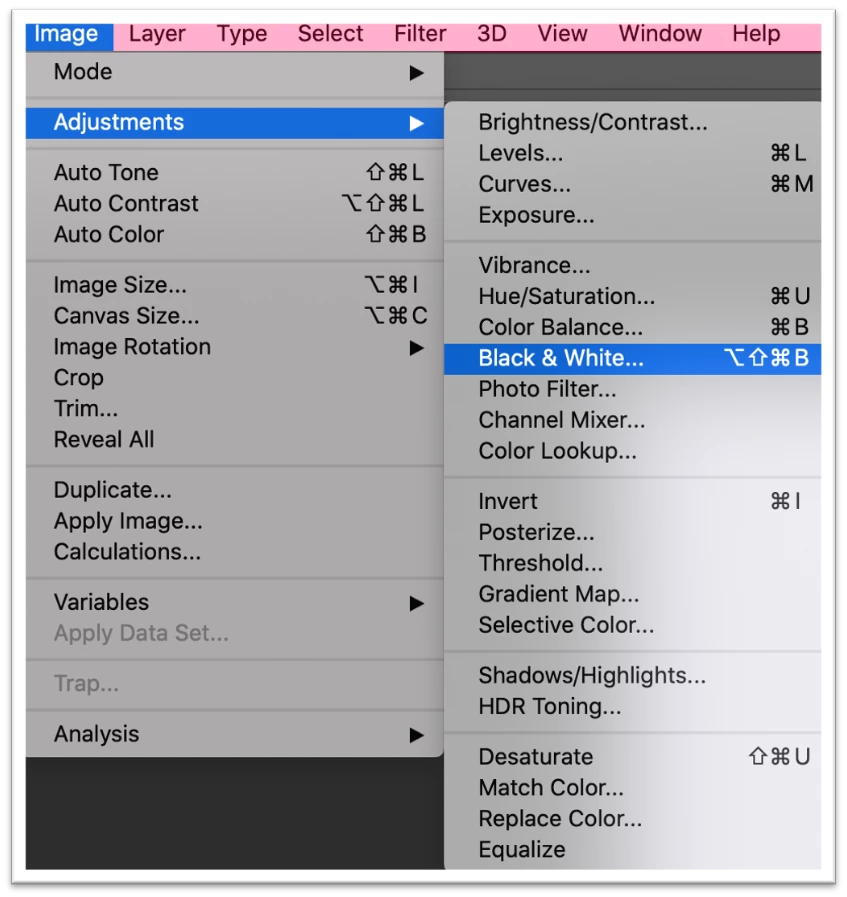
10. With the top layer still selected
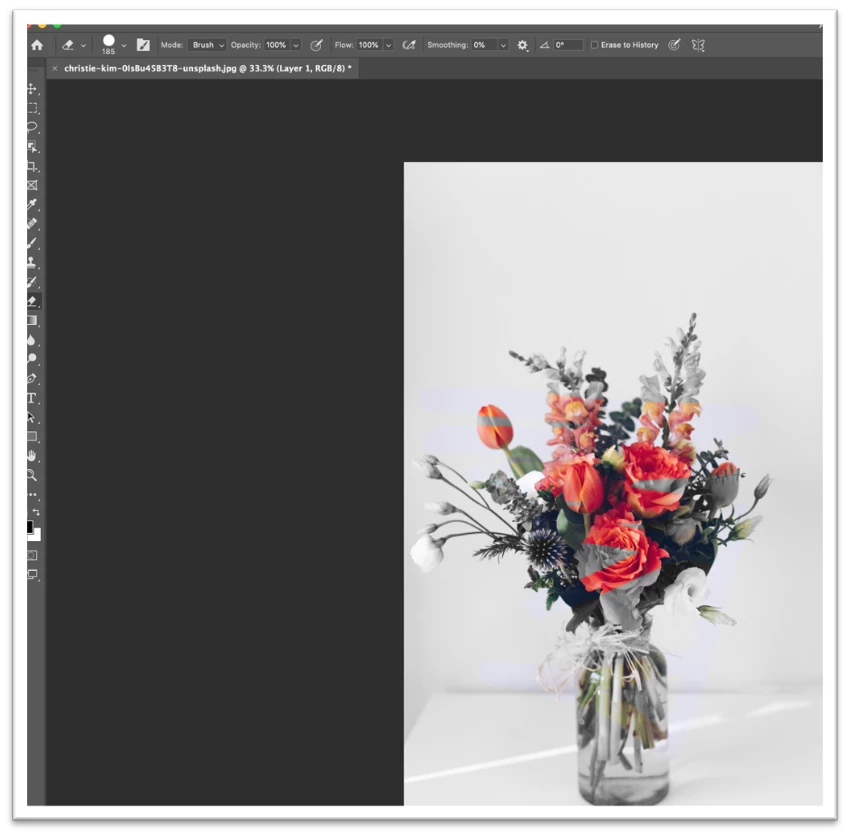
11. Locate to the Tools Panel
12. Locate the Eraser Tool
13. Edit the tool properties in the properties panel located a the top of the screen
14. Select the Eraser Tool
15. Paint over the image which you want to be colour
*You will now see the colour appear through the black and white image. Edit to your preference.
 AdChoices