
Participant
June 20, 2025
Answered

The gradient map looks vastly different in preview and once applied.

  • June 20, 2025
  • 1 reply
  • 596 views

Hi there.

I am editing these pictures and I was messing around with the gradient map. I've used it before and never encountered this issue before.


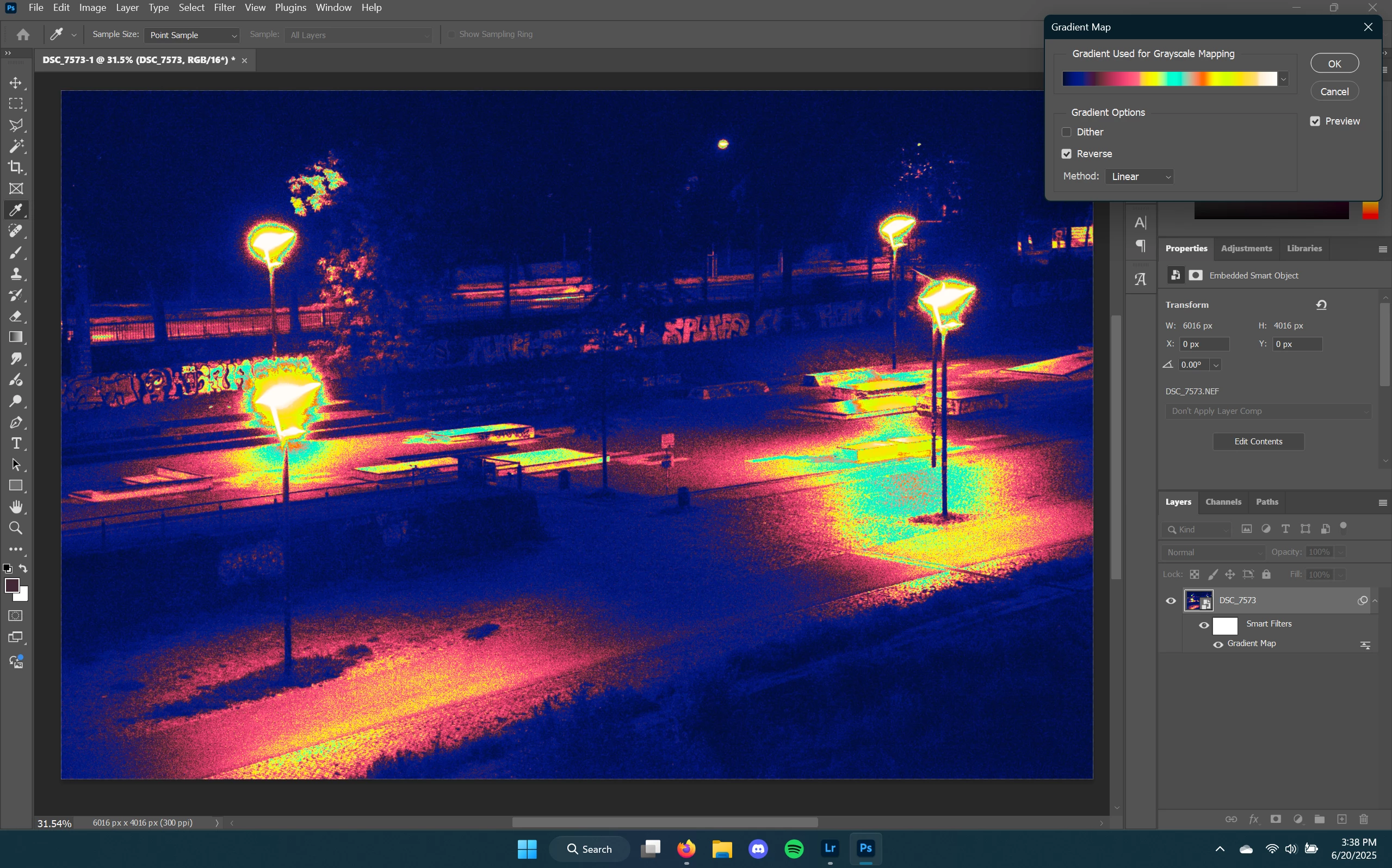
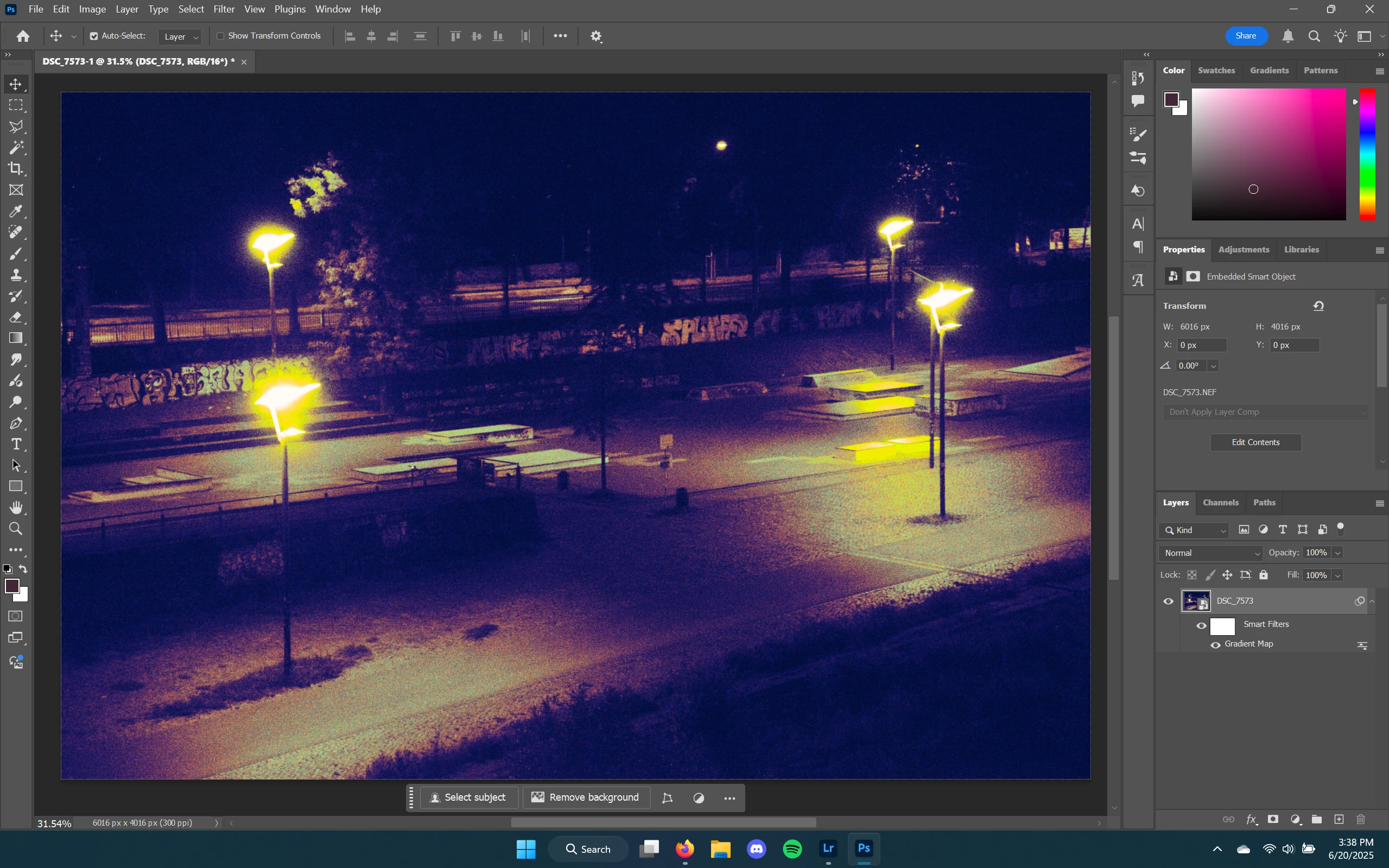
When previewing the gradient map, the image looks completely different compared to when the map is actually applied, whether this is done to a rasterized image or a smart object.

This is the image in the preview.

This is the image after applying.

I have other examples too if needed. Can anyone help me find a way to achieve exactly what I have in the preview? Thank you.

- Tibi

Correct answer davescm

Sure thing.
The following link should lead you to a google drive that has the photoshop file.
https://drive.google.com/file/d/1D060NKKEHNQJ4BU8pfPDx5k5b1L0PArG/view?usp=sharing


I downloaded your file and it was as I expected. Viewed at 100% zoom, the gradient map preview and the result when clicking OK are identical. Only when zoomed out do they differ and that is for the reasons stated above.

So to get the result you require:
a. Zoom to 100% (Ctrl+1)
b. Set up your gradient map to get the effect you want (do not zoom out while setting this up - it will show you an incorrect preview of your gradient map effect)
c. Once done, click OK


Alternatively, to keep the gradient that you have already made, add a slight gaussian blur (say 0.5px) and move it ahead of the gradient map (i.e. below it in the filter stack in the layers panel). That will simulate what is happening when you zoom the preview out. 

Dave

1 reply

davescm
Community Expert
Community Expert
June 20, 2025

What happens when you view both preview and applied gradient (i.e. before and after) at 100% zoom?


The reason I ask is that when zoomed out for preview, pixels are combined then the gradient applied. As with blending, it is done that way for speed (imagine a 300,000 x 300,000 pixel image with multiple layers being calculated completely for every change). However on applying, each pixel is mapped and blended individually.
100% zoom maps 1 image pixel to 1 screen pixel, so they should look identical.

This change when zoomed out affects all images to an extent, but on most, the effect is very small. However on images with fine noise, the difference becomes very apparant.


Dave

Participant
June 20, 2025

I checked what you suggested and I see exactly what's happening now. Thank you for explaining that.

My only question is how would I achieve the gradient that I did create? Because after all that is what I want for the picture. Is there a way to tell photoshop to not blend them, so as to maintain the desired gradient?

davescm
Community Expert
Community Expert
June 20, 2025

Set the preview to 100% zoom then set up your gradient map without zooming out (no problem panning around the canvas). You should see no change that way.

Dave