

Elinbirgis
Known Participant
February 5, 2021
Answered

The move tool can't move

  • February 5, 2021
  • 1 reply
  • 3171 views

So I don't know why but I'm unable to move my smart objects. This wasnt always a problem but please fix this! 


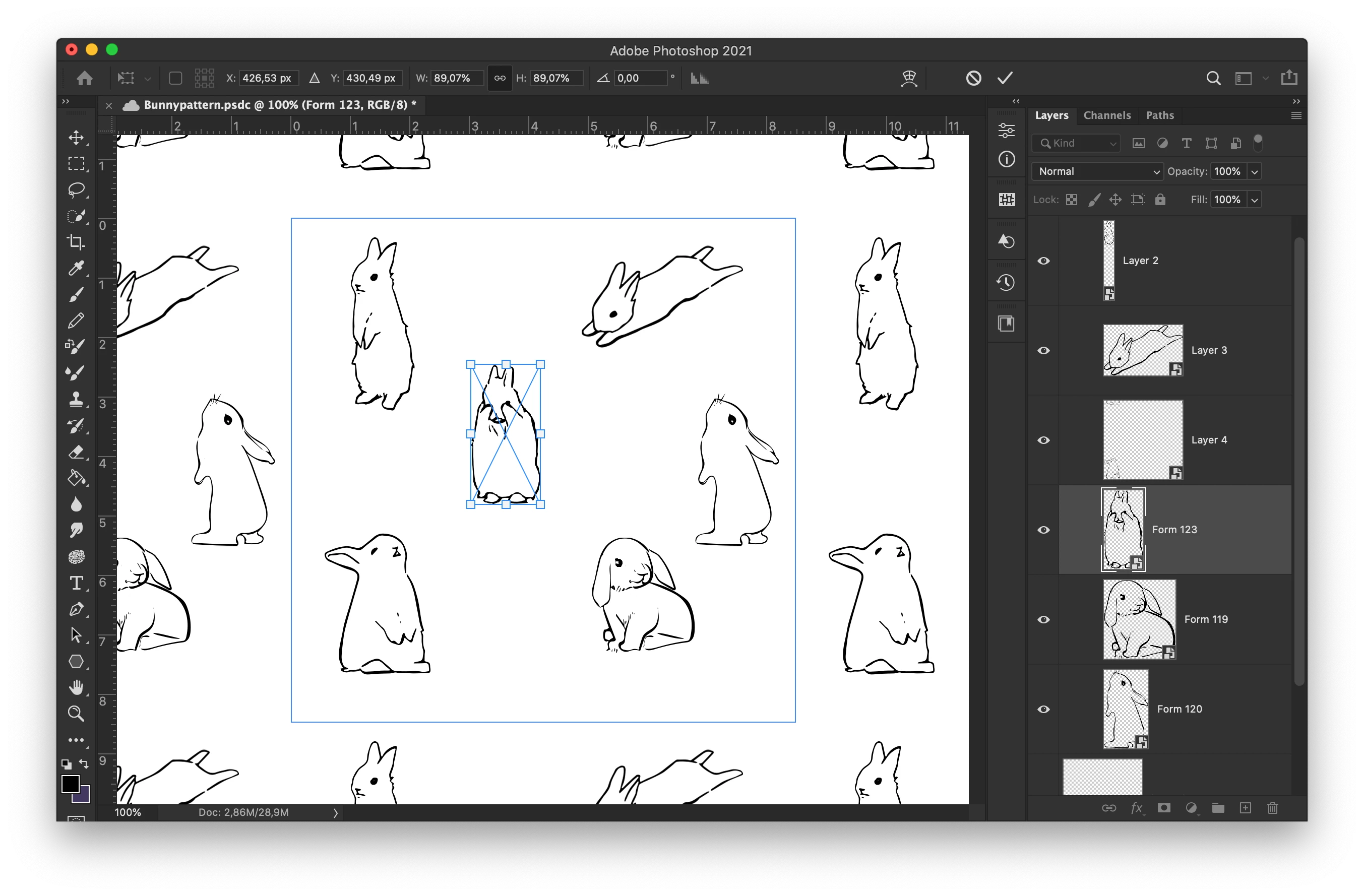
Using the move tool I should be able to select any object when auto select is checked, but I can't, it wont recognice the objects. It does sometimes mark the object but it behaves very weird, and I cant drag the objects. I can however use free transform and then rest the object, but thats just an extra step of work. Please fix this problem
This topic has been closed for replies.
Correct answer c.pfaffenbichler

thank you! and while I have your attention Id like to ask why the thumbnails change to incorporate its duplicates just because I move object outside of the pattern box? I want a clear view of the objects Im working with, is there any way to stop the thumbnail from changing? When I go into edit the smart object its back to original bounds, but in the thumbnail the canvas is stretched and making it hard to see what object im working with. 


That is interesting, I usually have the Thumbnail Contents set to »Entire Document« and not »Layer Bounds« and I didn’t notice that. 


I suspect this may merit being called a »bug« and you could post a Bug Report over on 

Photoshop Family

I would not be too optimistic about a quick fix, though. 

1 reply

c.pfaffenbichler
Community Expert
Community Expert
February 5, 2021

This is a user Forum, so you are not really addressing Adobe here, even though some Adobe employees thankfully have been dropping by.


Could you please post screenshots with the pertinent Panels (Toolbar, Layers, Channels, Options Bar, …) visible? 

Elinbirgis
Known Participant
February 5, 2021

c.pfaffenbichler
Community Expert
Community Expert
February 5, 2021

I wonder if you keep selecting the Background because the illustrations are not filled and you might sometimes miss the lines by a pixel or so.