
Participant
November 13, 2019
Question

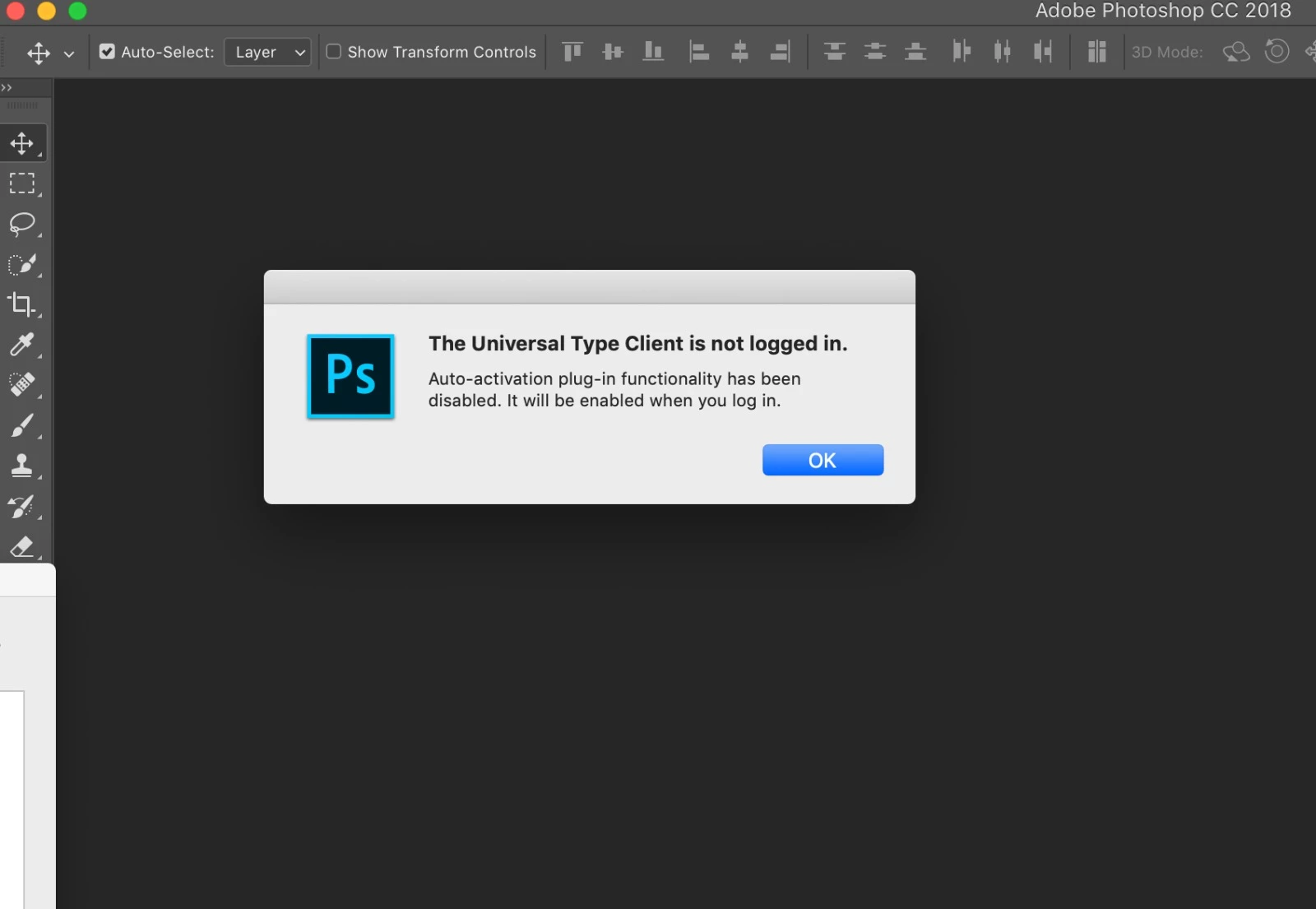
the universal type client is not logged in photoshop cc 2018
  • November 13, 2019
  • 1 reply
  • 8782 views

Hi, one of my colleague is receiving this error whenever she opens up Photoshop CC 2018. Also, she mentioned that she is unable to Open files for Editing.

OS: Mac MoJave


What are the things or settings that needs to be checked?

This topic has been closed for replies.

1 reply

Akash Sharma
Legend
November 13, 2019

Hi there,


Sorry that you're getting an error "universal type client is not logged" while opening Photoshop 2020.


Here's how to Resolve the Issue


1) Missing or incorrect plug-in installed

Remove and re-install the missing plug-in using the following steps:

Mac:

  • Close all Adobe applications
  • Locate and remove the previous versions of the Extensis plug-ins from the following location(s):
    • Applications/[Adobe Application Name]/Plug-ins/Extensions/ExtensisFont....
  • Once successfully removed, open the Universal Type Client application
  • Select the Universal Type Client drop-down menu in the upper left corner next to the Apple menu.
  • Then select Manage Plug-ins.
  • Select the Adobe versions of the plug-ins you would like installed and click Done.
  • Now launch your Adobe application(s) and see if everything is working as intended. 


Windows:

  • Close all Adobe applications
  • Then locate and remove the previous version(s) of the Extensis plug-ins from the following location(s): 
    • C:\Program Files\Adobe\{Adobe Application Name}\Plug-ins\Extensions\Extensisfont...
  • Once the plug-in has been successfully removed, open the Universal Type Client application
  • Select the Tools Drop-down Menu in the Universal Type Client application.
  • Then select Manage Plug-ins.
  • Select the Adobe versions of the plug-ins you would like installed and click Done.
  • Launch the Adobe application(s) and see if everything is working as intended.


 2) Wrong or Missing font


  • Ensure the font trying to activate is the correct font listed in your Universal Type Client application.


  • NOTE – QuickFind only searches the current Workgroup selected. Using the full Find feature is recommended when searching all fonts (Choose Edit > Find Fonts.)
  • TIP – Searching by the Font Sense ID will give you a 100% match. Using the Postscript Name may show duplicate fonts with the same name(s) if they are installed in Universal Type Client.


 3) Incorrect Workgroup or Library selected


  • Certain creative applications have Universal Type Client Plug-in settings that allow you to activate by Workgroup.
    • Example - You can access these features in InDesign by selecting the following menu path: Type> Universal Type Client  > Select Workgroup


  • Make sure you have the Library of fonts selected or select All Libraries from the menu


Source: https://help.extensis.com/hc/en-us/articles/115010624808-Font-Activation-Issues-or-Auto-activation-failed-Universal-Type-Client-6


Thanks,

Akash