Participant
March 26, 2020
Answered

tiling images
  • March 26, 2020
  • 1 reply
  • 1692 views

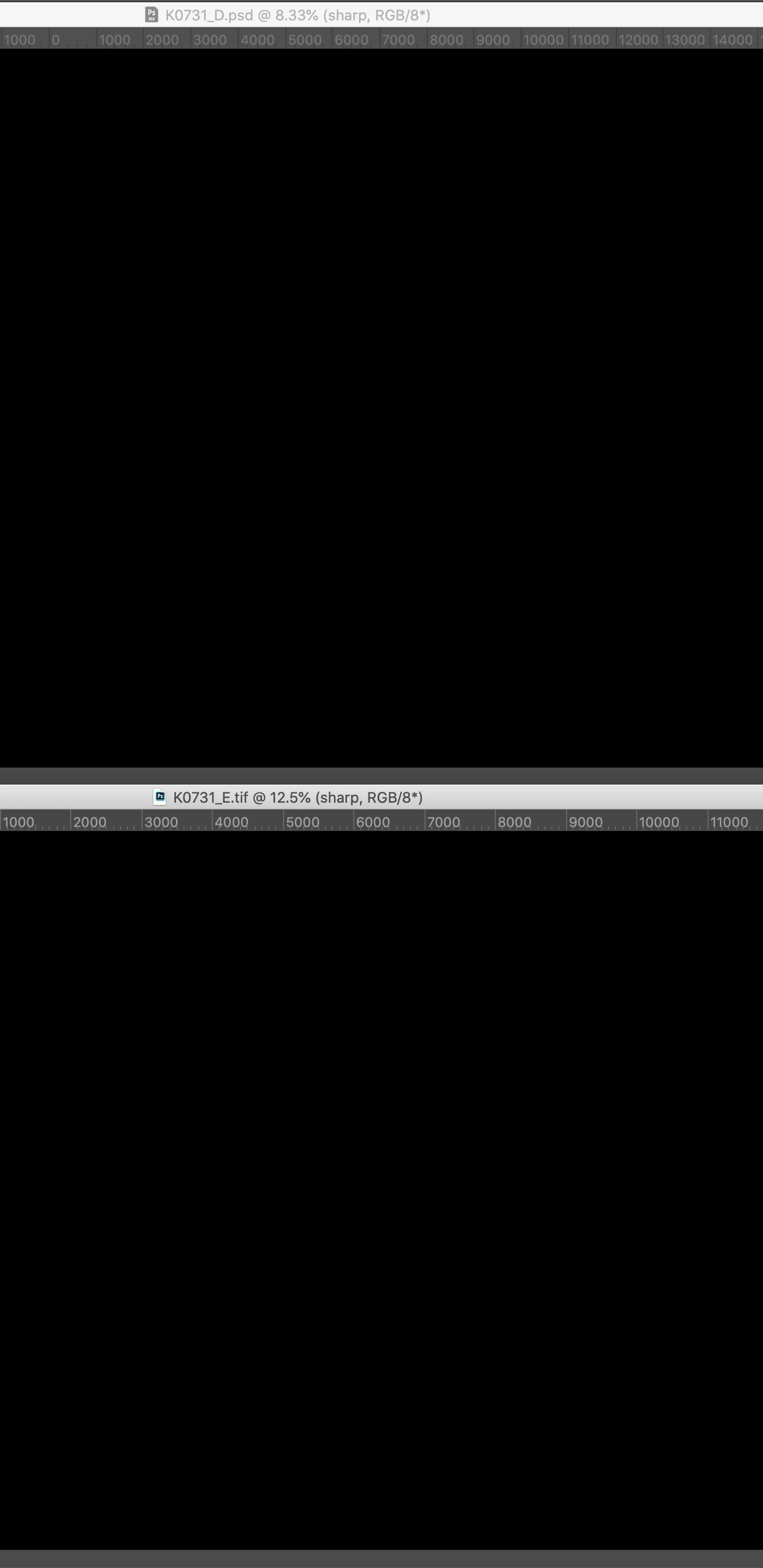
Images are blacked out when I tile images in all configurations. Fix This.

This topic has been closed for replies.
Correct answer c.pfaffenbichler

This is a user Forum, so you are not really addressing Adobe here, even though some Adobe employees thankfully have been dropping by.


Try hiding and showing the Rukers (cmd-R). 

Otherwise does turning off »Use Graphics Processor« in the Performance Preferences (Photoshop > Preferences > Performance > Graphic Processor Settings) and restarting Photoshop have any bearing on the issue? 

1 reply

c.pfaffenbichler
Community Expert
c.pfaffenbichlerCommunity ExpertCorrect answer
Community Expert
March 26, 2020

This is a user Forum, so you are not really addressing Adobe here, even though some Adobe employees thankfully have been dropping by.


Try hiding and showing the Rukers (cmd-R). 

Otherwise does turning off »Use Graphics Processor« in the Performance Preferences (Photoshop > Preferences > Performance > Graphic Processor Settings) and restarting Photoshop have any bearing on the issue? 

k_m_rAuthor
Participant
March 26, 2020

Thank you- you fixed it. Turning off the graphics processor worked.

Participating Frequently
July 24, 2020

Try to check the GPU maker’s site for newer (or older – unfortunately also an option) drivers later. 


Just updated Photoshop to 21.2.1 which supposedly had a fix for this bug, but it doesn't work any differently. Tile view still doesn't show the whole image; "Show Rulers" fixes it in one image at a time; Disable Graphics Processor is also a partial solution.