Exit
  • Global community
    • Language:
      • Deutsch
      • English
      • Español
      • Français
      • Português
  • 日本語コミュニティ
  • 한국 커뮤니티
0

Timeline view

Engaged ,
Nov 26, 2018 Nov 26, 2018

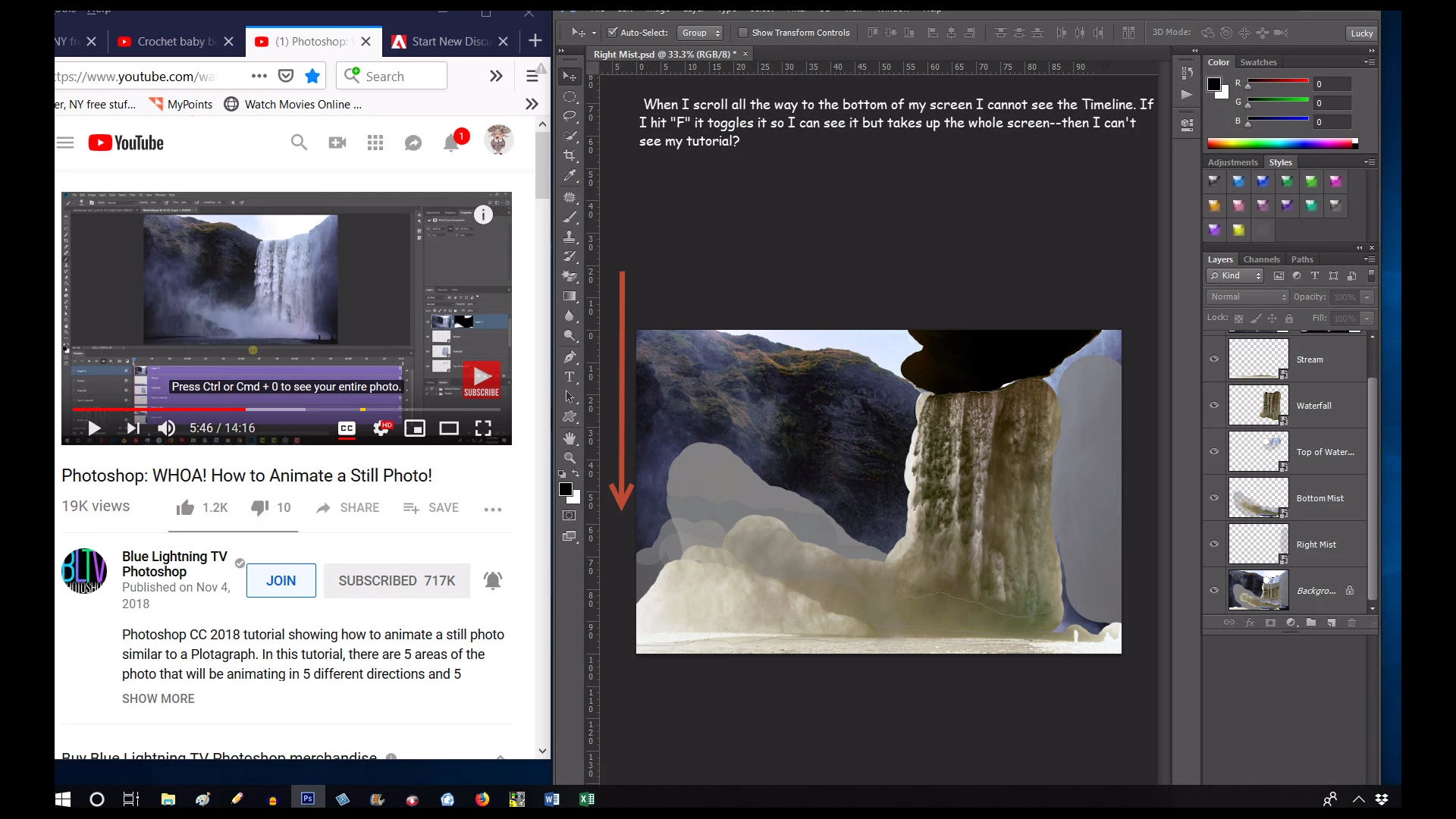
I like to keep my tutorial along side Photoshop. I can't see my Timeline unless I expand Photoshop, covers over tutorial. Is there a way I can drag my Timeline up in Photoshop without expanding the screen?

2.0K
Translate
Report
Community guidelines
Be kind and respectful, give credit to the original source of content, and search for duplicates before posting. Learn more
community guidelines

correct answers 1 Correct answer

Community Expert , Nov 26, 2018 Nov 26, 2018

lucienp8924865  wrote

If I click on the little square at the top right of screen it expands to show the Timeline. What I want to do is squish it to the right without hiding the Timeline?

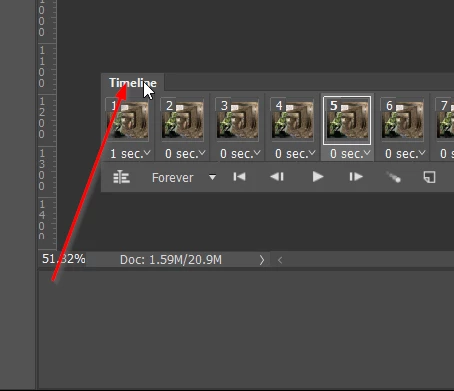
You need to 'float' the Timeline before  reducing the Photoshop window.  Just drag it via its tab (the word Timeline) out of its holding panel.  It  will collapse as soon as you  drag  it free and after that you can move it where you like.
I have discovered since my post  #3 that saving the workspace does not affec

...
Translate
Adobe
LEGEND ,
Nov 26, 2018 Nov 26, 2018

I am seeing a display bug. Expand the width of Photoshop until the timeline appears.

Translate
Report
Community guidelines
Be kind and respectful, give credit to the original source of content, and search for duplicates before posting. Learn more
community guidelines
Engaged ,
Nov 26, 2018 Nov 26, 2018

If I click on the little square at the top right of screen it expands to show the Timeline. What I want to do is squish it to the right without hiding the Timeline?

Translate
Report
Community guidelines
Be kind and respectful, give credit to the original source of content, and search for duplicates before posting. Learn more
community guidelines
Community Expert ,
Nov 26, 2018 Nov 26, 2018

lucienp8924865  wrote

If I click on the little square at the top right of screen it expands to show the Timeline. What I want to do is squish it to the right without hiding the Timeline?

You need to 'float' the Timeline before  reducing the Photoshop window.  Just drag it via its tab (the word Timeline) out of its holding panel.  It  will collapse as soon as you  drag  it free and after that you can move it where you like.

I have discovered since my post  #3 that saving the workspace does not affect the main window, so you'll need to do that manually, and then switch to your saved workspace.

Translate
Report
Community guidelines
Be kind and respectful, give credit to the original source of content, and search for duplicates before posting. Learn more
community guidelines
Engaged ,
Nov 26, 2018 Nov 26, 2018

Floating the Timeline did the trick!

Translate
Report
Community guidelines
Be kind and respectful, give credit to the original source of content, and search for duplicates before posting. Learn more
community guidelines
LEGEND ,
Nov 27, 2018 Nov 27, 2018
LATEST

good to hear.

Translate
Report
Community guidelines
Be kind and respectful, give credit to the original source of content, and search for duplicates before posting. Learn more
community guidelines
Community Expert ,
Nov 26, 2018 Nov 26, 2018

You should be able to construct an ideal  workspace.  The screen shot below is a bit big pixel wise, so click to expand it.

Make a column of minimised panel icons on the right of the main screen (I am guessing you only have the one screen?)  Drag panels to the bottom and move up till you see the blue bar that anchors it to your new tool bar. You can click to expand and click again to collapse.

Incidentally, I hate the Ato show/collapse options that give panels a mind of their own, so I always turn them off.  I  suggest you also turn off Large Tabs, and enable Narrow Options Bar.  Anything to optimise  your half screen workspace.

Start with the Motions workspace, and drag the timeline up so it floats.  Do this before  narrowing the workspace, or you won't be able to see and drag it. 

Merge Layers, Paths and Channels, and float that group  so you can drag it while you work.    When happy, save it as a New Work Space.  Note: the Motion workspace has a different set of shortcuts.   If  you want to change any or make your own,  save them with the New Workspace.   

This  should give you quick access going forward.  A second  screen would obviously be a boon in this situation.  At least two (that I know of) forum regulars use three  large screens.  I have a 32" main screen, with a 24" in portrait  mode either side.   I dramatically speeds up your workflow in Photoshop.

Translate
Report
Community guidelines
Be kind and respectful, give credit to the original source of content, and search for duplicates before posting. Learn more
community guidelines
Engaged ,
Nov 26, 2018 Nov 26, 2018

What do I click on to see the Auto Collapse option? I am embarrassed to say how long I have been trying to float the Timeline. Awesome--thanks again for your help!

Translate
Report
Community guidelines
Be kind and respectful, give credit to the original source of content, and search for duplicates before posting. Learn more
community guidelines
Community Expert ,
Nov 26, 2018 Nov 26, 2018

lucienp8924865  wrote

What do I click on to see the Auto Collapse option

Preferences > Workspace.  Check the first two options.

The way they work is that Auto Show will cause a collapsed panel to open when you hover the cursor over it.  Auto Collapse will cause it to collapse as soon as the cursor move outside the panel.  Like I said above, I find those options annoying, and I prefer to click to open, and have then stay open until I click to collapse them again.

Translate
Report
Community guidelines
Be kind and respectful, give credit to the original source of content, and search for duplicates before posting. Learn more
community guidelines
Engaged ,
Nov 26, 2018 Nov 26, 2018

I had to Google to find Preferences, under Edit. I hope my brain can handle all this! I did have to make a change although my dialogue box is a bit difference than yours.

Translate
Report
Community guidelines
Be kind and respectful, give credit to the original source of content, and search for duplicates before posting. Learn more
community guidelines