
Participant
March 29, 2022
Answered

Transform control won't disappear, even for deleted items

  • March 29, 2022
  • 6 replies
  • 639 views

Version: 23.2.2

Issue: After placing an object (image, vector graphics, etc.) the transform controls stay indefinitely. Even if the object's layer is hidden or deleted. Even when "show transform controls" is off. See attached screenshot. 

Method to recreate:

-Create a new file

- Embed an image and resize it to be larger than canvas.

-Delete the image and see its controls stay.

Tried to update the program, restart it, restart my computer, create new files. Nothing helps. 
This topic has been closed for replies.
Correct answer Ged_Traynor

Hi

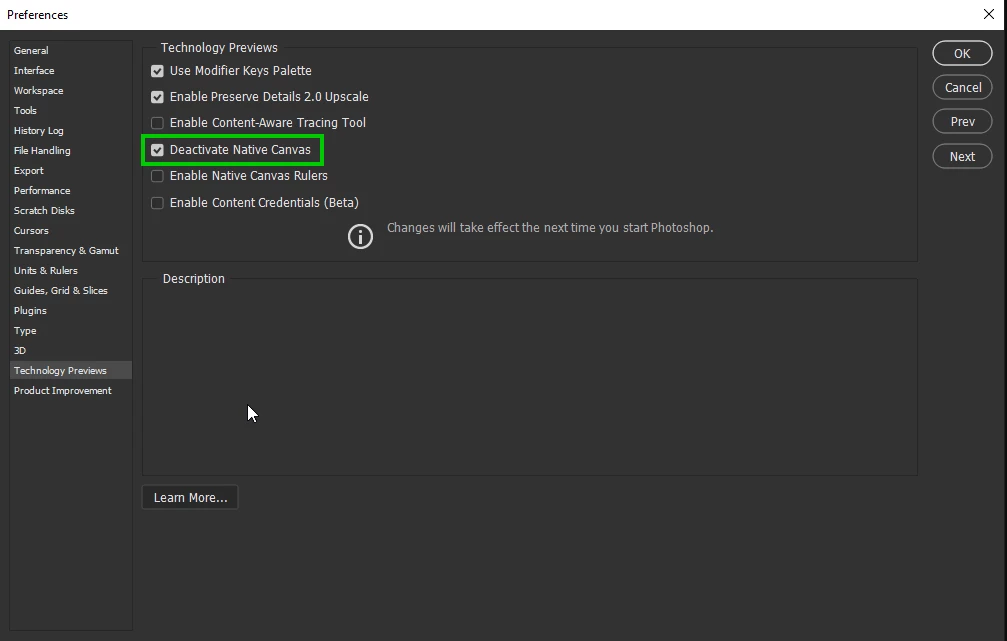
Try enabling this option in preferences and restarting Photoshop to see if it helps

6 replies

Mark.Dahm
Community Manager
Community Manager
September 7, 2022

@sharonz29741777,


This issue appears to be Photoshop falling out of GPU mode, revealing CPU-only issues. We made several changes in this area to improve GPU stability over the last releases and ask that you let us know if you continue to run into any issues with the native canvas enabled.


Note that older GPU cards without DirectX 12 support (prior to mid 2015) will, often by design, fall back to CPU-only mode, and GPU-related features (listed here) may not be reliably available on those systems. While we continue to work to keep Photoshop running reliably on older systems, modern GPU hardware remains a vital component for your system configuration.

Ged_Traynor
Community Expert
Community Expert
March 29, 2022

@sharonz29741777 

You're welcome 🙂

Participant
March 29, 2022

Ged, Thank you, it worked!! 

Participant
March 29, 2022

manal, I know the layers are hidden, but the transform controls are still showing for them for some reason...

manal shanableh
Legend
March 29, 2022


I see all your layers are hidden!!

Ged_Traynor
Community Expert
Ged_TraynorCommunity ExpertCorrect answer
Community Expert
March 29, 2022

Hi

Try enabling this option in preferences and restarting Photoshop to see if it helps