Known Participant
December 5, 2021
Answered

Transform Selection no longer working (ipad)

  • December 5, 2021
  • 8 replies
  • 1740 views

Hi,

I've just upgraded to iOS 15.1 -  ipad pro 4th gen. I've tried deleting and re-installing the PS app. The transform selection no longer is working so I can't scale or rotate a selection.... which is a pretty big function to lose!

Please help!

Correct answer jane-e


"So I will select a portion of a drawing > Transform Selection and try
scaling or rotating but its just moving around an empty selection marquee.
The drawing doesn’t change."

By @MaloryArcher


I agree that there is a disconnect between what you are trying to say and what we are hearing. One issue that I see is that in this sentence you say that Transform Selection is not working because the drawing does not change. It's not supposed to change. Only the marching ants (selection marquee) will change as in the image below. In Photoshop for Desktop, this command is in the Selection menu.
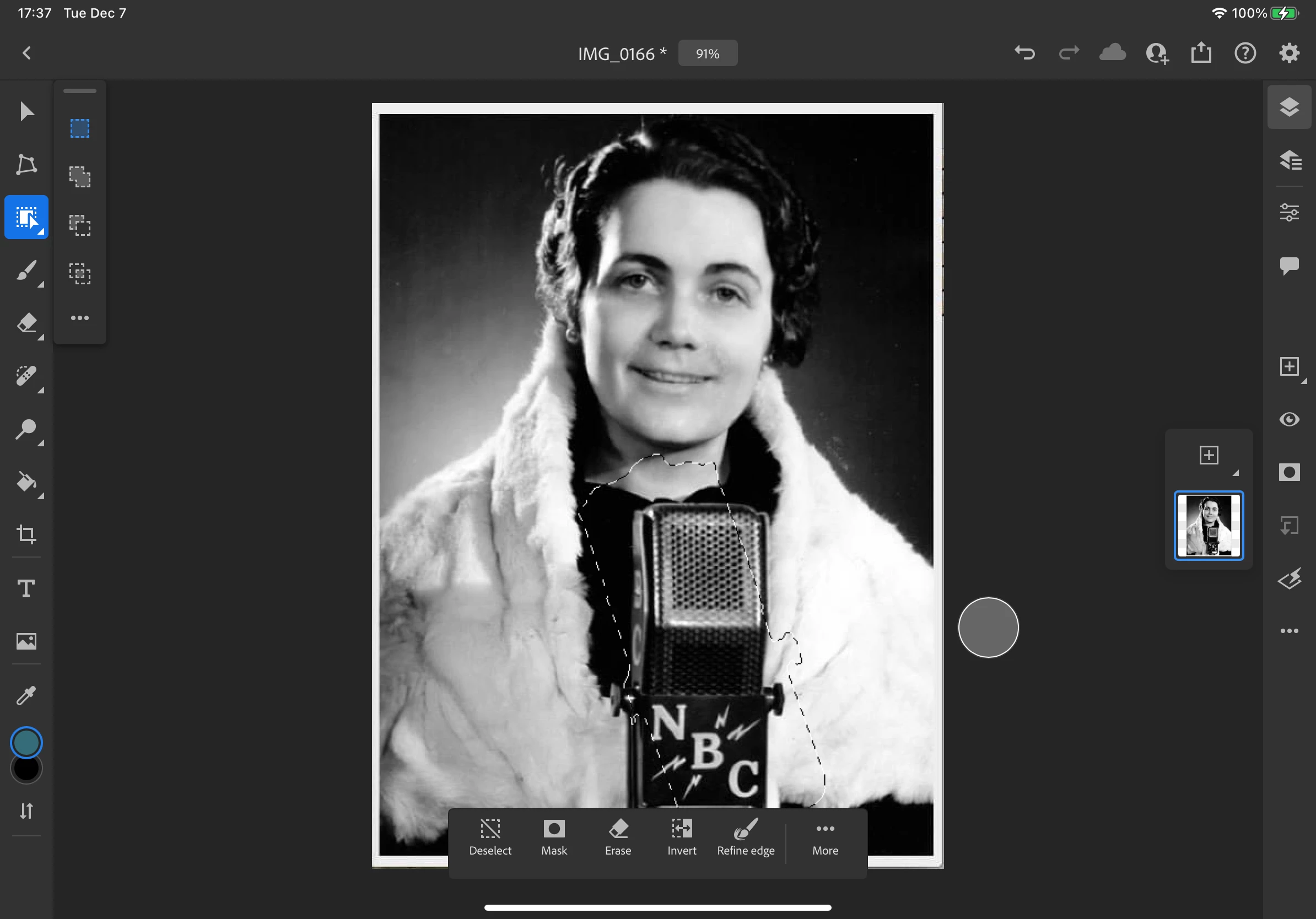


"There are 2 ways to activate the transform tool, one is through the tool bar, and the other is "... more" at the bottom which takes you to transform selection as well which is typically how I'd access the transform tool but no longer works."


The other thing I see is that you say there are two ways to activate the Transform tool. That is not true, as these are two different tools that do different things.

  • The Scale and Rotate tool (in the toolbar on the left and circled earlier) will transform the pixels, or "drawing" in your words. It is equivalent to Edit > Free Transform.
  • The Transform Selection tool from the Heads Up Display (HUD) will transform the marching ants. It is equivalent to Select > Transform Selection.


Jane

8 replies

jane-e
Community Expert
Community Expert
December 7, 2021


@MaloryArcher said:

"If that's the case then Adobe should update the UI to be: ...more > "Trasnform Marquee" rather than Transform Selection... It's misleading."


Oh, I agree 100%! I've been teaching Photoshop since version 3 (1994) and I can't begin to tell you of the hundreds and hundreds of new users who find this distinction very confusing. Renaming the commands would be extremely helpful — both in desktop and iPad.


I'm glad it's sorted for you now. 😊


Jane

Participant
February 7, 2025

Oh my gosh - this is EXACTLY what I needed! Thank you all for persevering with the issue and going from clear communication to even more clear communication - and not anger - with a spirit of helpfulness. I am a new PS iPad user and have been struggling to learn how to do this for 7 hours! You solved my issue, taught me something important about PS and how to get help, and saved my piece which I'm donating for a fundraiser. Grateful!!!!!

Known Participant
December 7, 2021

Hmm after re-reading the responses, perhaps I had a bug where it wasn't supposed to behaving the same as the toolbar but was and here I thought that was the feature all along... If that's the case then Adobe should update the UI to be: ...more > "Trasnform Marquee" rather than Transform Selection... It's misleading. Also, currently - when you click either tool, both say "Transform" at the top like they are the same.


Well at least the toolbar is working for me now. Thanks.

jane-e
Community Expert
jane-eCommunity ExpertCorrect answer
Community Expert
December 7, 2021


"So I will select a portion of a drawing > Transform Selection and try
scaling or rotating but its just moving around an empty selection marquee.
The drawing doesn’t change."

By @MaloryArcher


I agree that there is a disconnect between what you are trying to say and what we are hearing. One issue that I see is that in this sentence you say that Transform Selection is not working because the drawing does not change. It's not supposed to change. Only the marching ants (selection marquee) will change as in the image below. In Photoshop for Desktop, this command is in the Selection menu.


"There are 2 ways to activate the transform tool, one is through the tool bar, and the other is "... more" at the bottom which takes you to transform selection as well which is typically how I'd access the transform tool but no longer works."


The other thing I see is that you say there are two ways to activate the Transform tool. That is not true, as these are two different tools that do different things.

  • The Scale and Rotate tool (in the toolbar on the left and circled earlier) will transform the pixels, or "drawing" in your words. It is equivalent to Edit > Free Transform.
  • The Transform Selection tool from the Heads Up Display (HUD) will transform the marching ants. It is equivalent to Select > Transform Selection.


Jane

Known Participant
December 7, 2021

Hi, I'm aware of how to transform a selection. been a PS user since 2007 and have use the ipad PS app for nearly a year now.


I don't know how to make it any more clear. There are 2 ways to activate the transform tool, one is through the tool bar, and the other is "... more" at the bottom which takes you to transform selection as well which is typically how I'd access the transform tool but no longer works.


Previously, neither were working but after testing again, the toolbar one is working. I don't know if something updated but anyway. The previous way I use to transform still isn't working.


Attaching image for ref.

jane-e
Community Expert
Community Expert
December 7, 2021

@MaloryArcher 

To transform the pixels instead of the selection marquee, click the Select and Rotate button.


Jane


Adobe Employee
December 7, 2021

The "Transform Selection" option is only used to actually transform the selection (bounding area) of what is selected. It will not transform the actual layer item. To do that, you would need to make your selection, then use the actual Transform tool located in the tool bar.

Known Participant
December 7, 2021
Hi,

My Photoshop version was the latest on iPad. I first had issues with the
Transform Selection so I tried to update iOS and that didnt work to fix it.
Issues persisted even after iOS update.

So I will select a portion of a drawing > Transform Selection and try
scaling or rotating but its just moving around an empty selection marquee.
The drawing doesn’t change.
Adobe Employee
December 6, 2021

Hi there, just to understand this a bit more, are you saying that Transform stopped working after you updated to iOS 15.1 or after updating to the current version of Photoshop?

Also when you say scale and rotate dont work, do you mean the actual tool doesn't do what it's supposed to, or is it not saving the results?