
Participant
March 3, 2019
Question

Transparent background issue

  • March 3, 2019
  • 2 replies
  • 6279 views

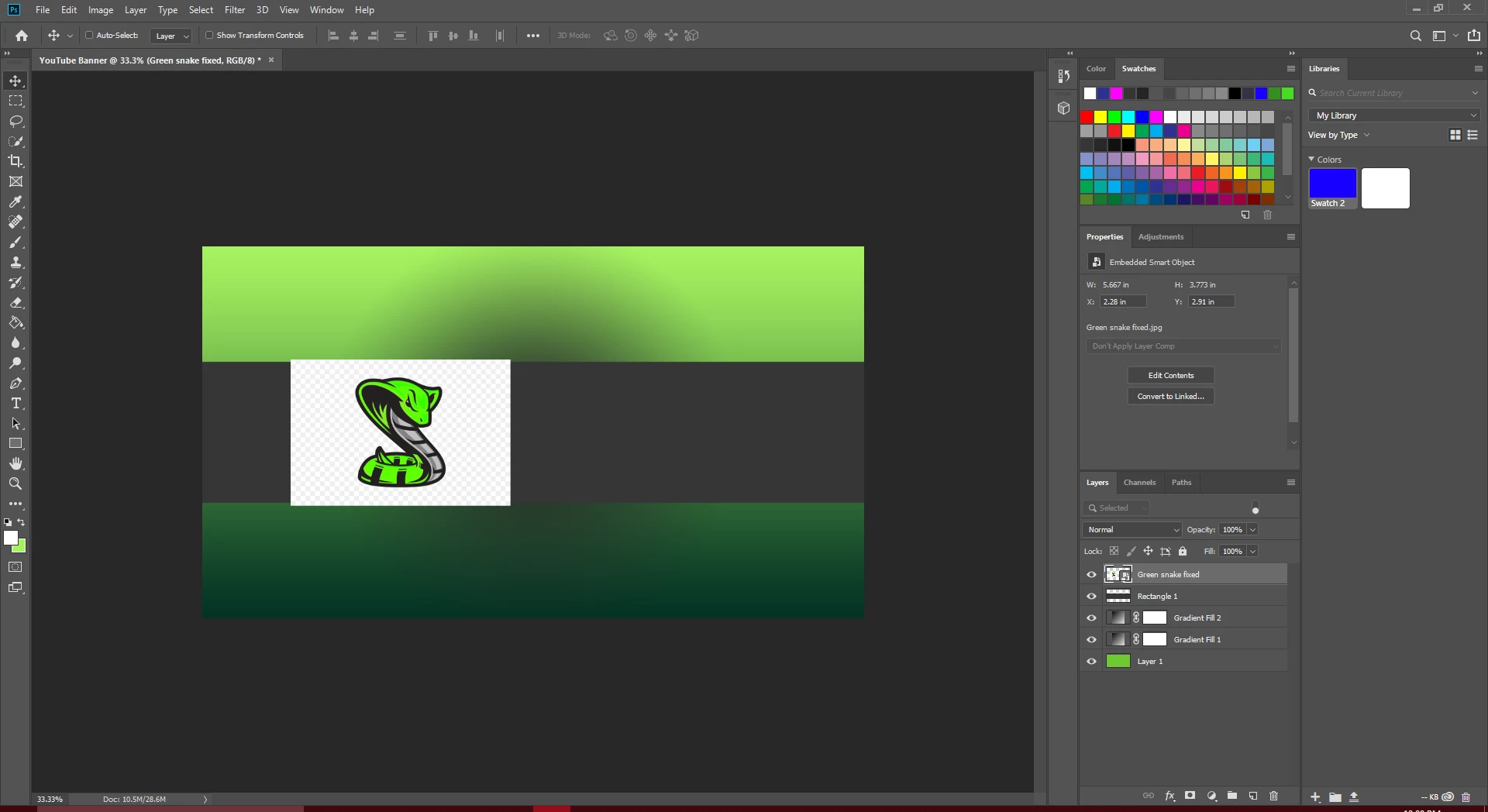
I'm very new to Photoshop and sort of learning as I go. When importing this specific image the transparent background doesn't blend in and is visible on top of all the other layers. Here is a picture of the issue I am having
This topic has been closed for replies.

2 replies

Michael Bullo
Community Expert
Community Expert
March 3, 2019

I think the problem is that the snake isn't on a transparent background but an opaque checkerboard pattern. Zooming in on the thumbnail of the snake in the Layers panel I believe also confirms this.

The snake image is inside a Smart Object. Double click on the thumbnail to edit that image. You should be able to make a quick selection and either delete or mask away the background. Then save and close the Smart Object.

Bojan Živković11378569
Community Expert
Community Expert
March 3, 2019

Good catch, it is probably screenshot saved as PNG file and used for advertising purpose to showcase file or something. Screenshot is captured with snake on transparent background (checkerboard) what is visible when placing image in Photoshop.

Michael Bullo
Community Expert
Community Expert
March 3, 2019

Hi Bojan,

I think we've all been caught out getting prematurely excited when we see that checkerboard pattern in a Google image search

Michael

Leslie Moak Murray
Community Expert
Community Expert
March 3, 2019

What does "fixed" mean here? Is the snake layer a .png?

Participant
March 3, 2019

Yes it is a .png file. I took the original picture and used the saturation tool to change the color from yellow to green and that’s just the title I out after I saved it. I don’t want the white part of the image showing I just want the picture of the snake itself to show.