

Elise_Claire
Inspiring
November 13, 2025
Question

Transparent Pixels Along Edge when Cropping to Full Width or Height

  • November 13, 2025
  • 1 reply
  • 183 views

Hello,


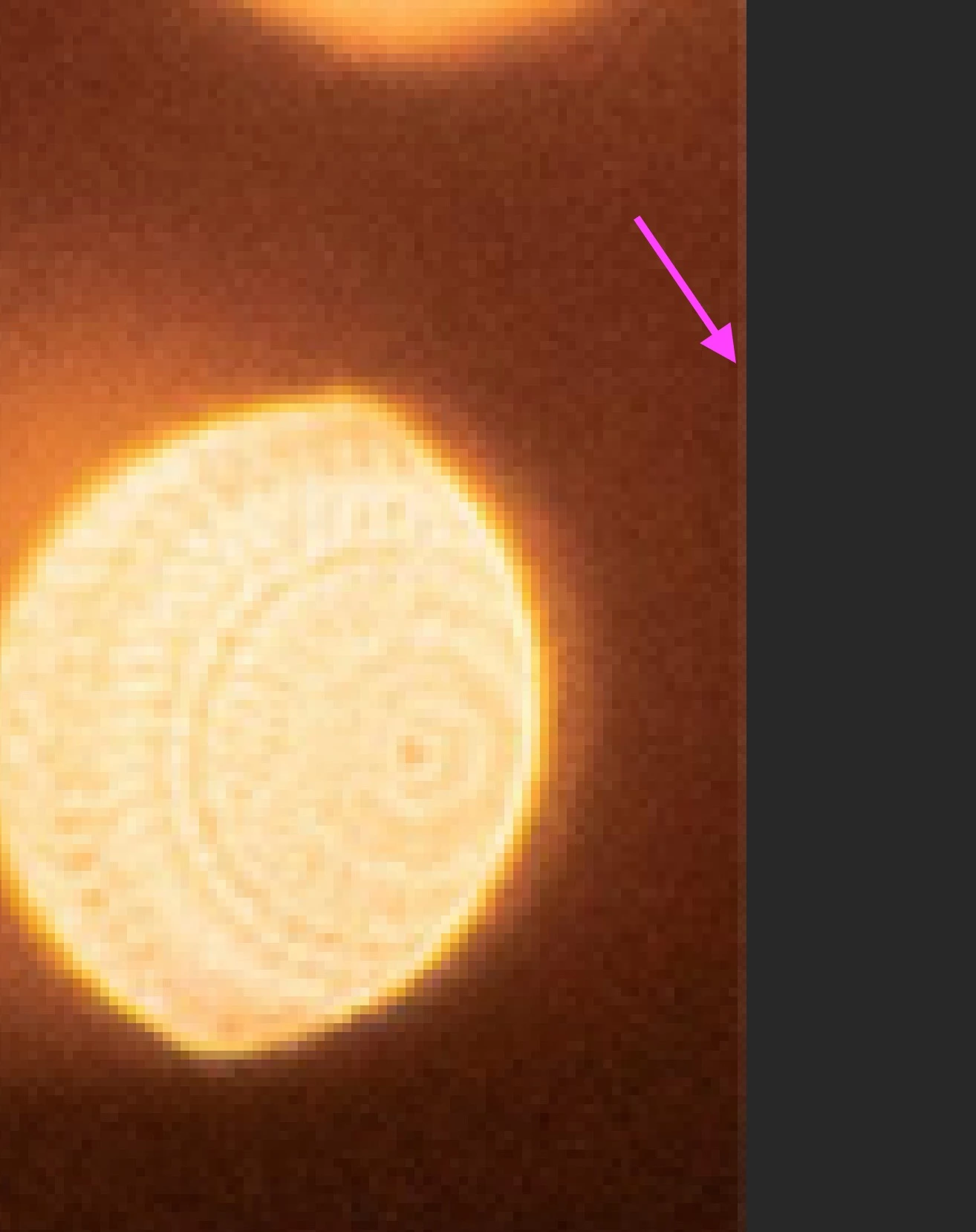
When cropping images to the full height or width of the image (or crop along any side of the original canvas), then a 1px semi-transparent edge appears. For dark images, this causes a light strip when flattening/saving as a new JPG.


For example, if I crop the image like this, going all the way to the left and right edges of the image:
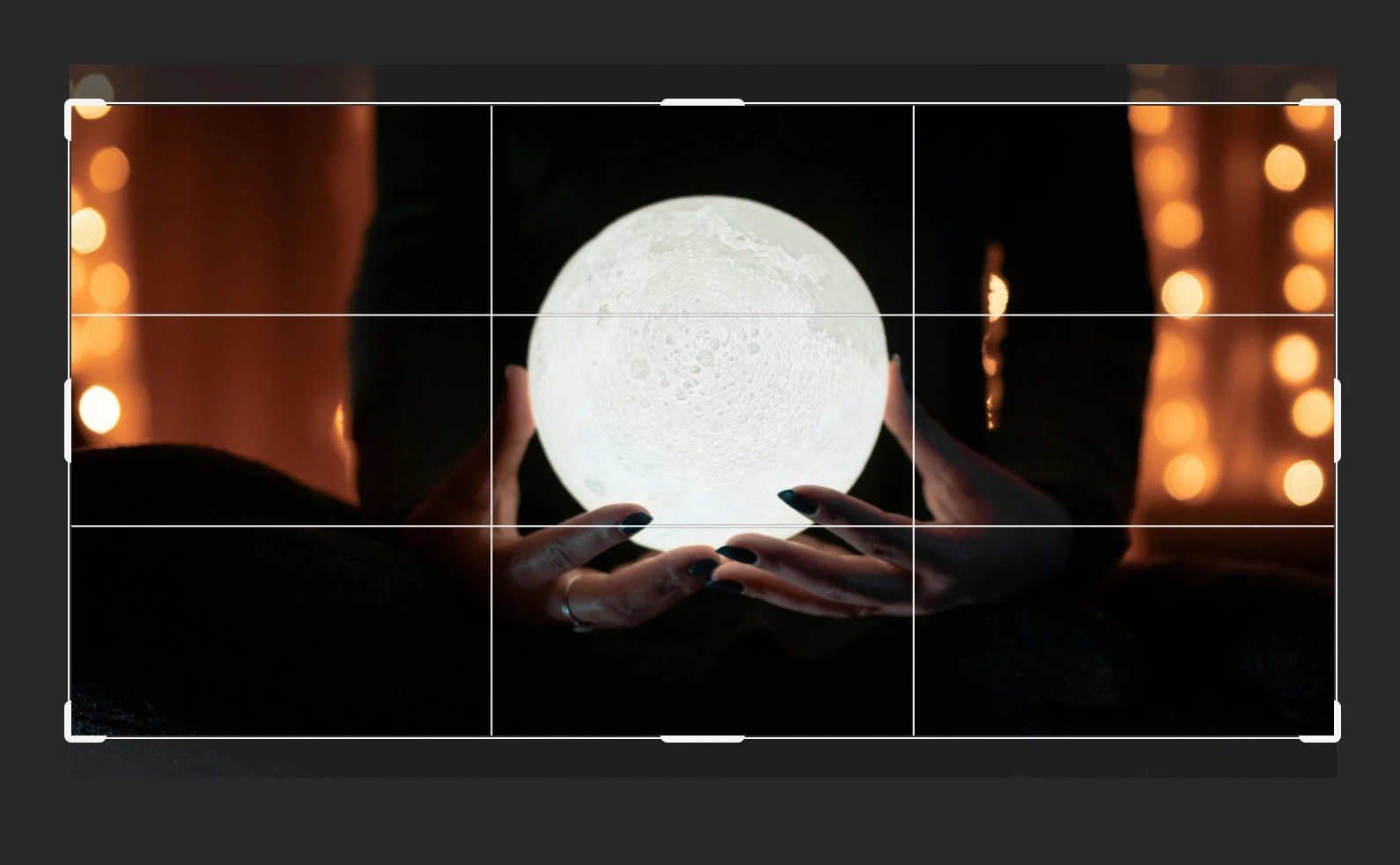
 

Then a transparent strip appears along the left & right sides:
 

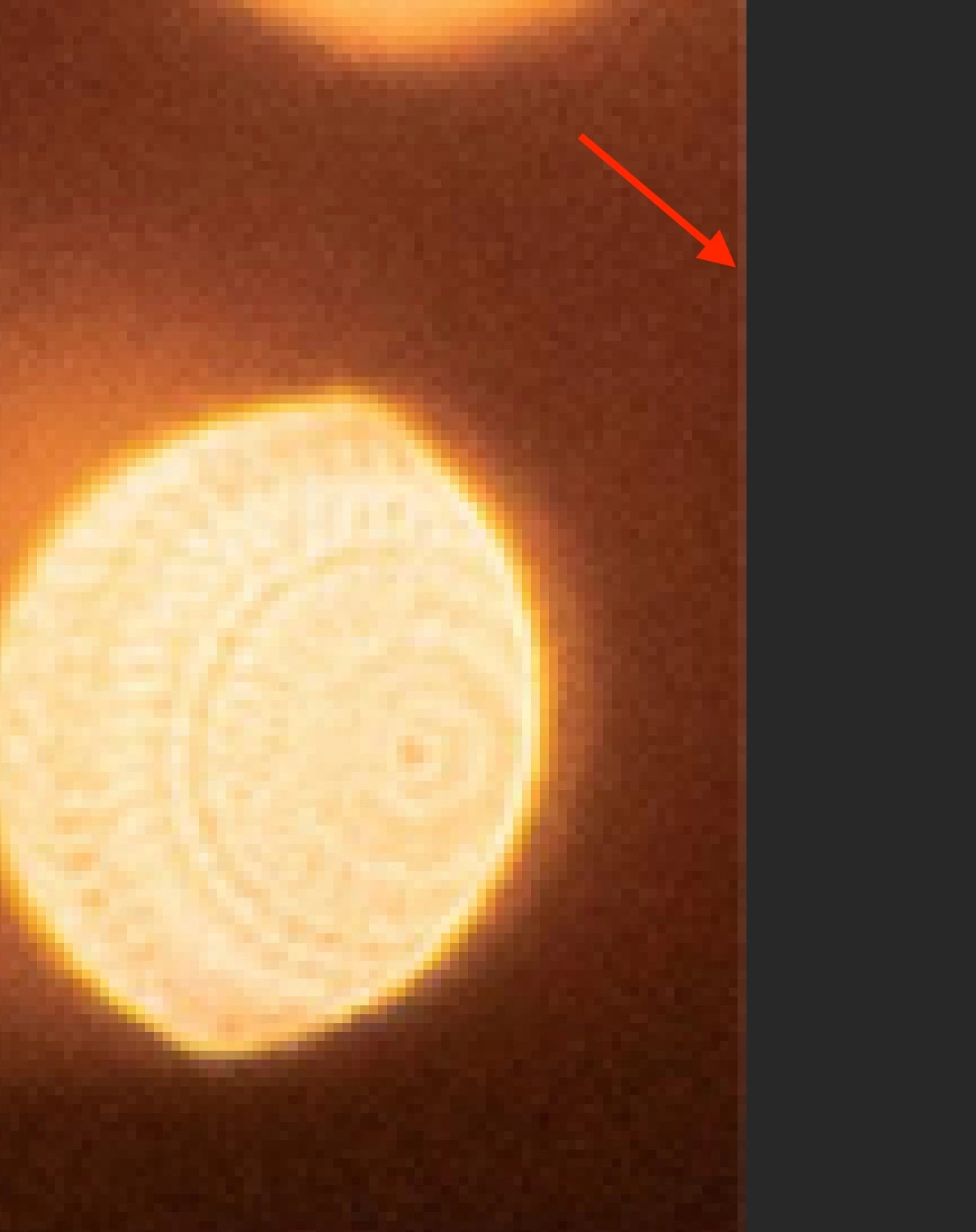
When flattened to save as a new JPG, it's still visible:
 

This doesn't happen if I check "Delete Cropped Pixels", but then I can't finesse placement after cropping. It also doesn't happen if I bring the crop handles in a few pixels from the edge, but it's very tedious to do that for the high volume I work with, it's much more efficient to let it snap to the full width/height of the canvas. I tried adding a black fill layer below, which helps a little, but there's still a visible line. 


Is there any other way to avoid this?

1 reply

Community Manager
November 13, 2025

Hi @Elise_Claire, thanks so much for reaching out!
I tried reproducing this on my end but haven’t had any luck. Could you let us know which version of Photoshop you’re using and, if possible, share a quick screen recording of the issue? That would really help us understand what’s going on.
Thanks a lot!
Alek

*(If you mention me with an @, like @Aleke, I’ll get a notification and can respond faster.)*
Participant
November 20, 2025

@Aleke I'm able to replicate this issue, and my estimation is that it is directly related to the resampling function as described below by @D Fosse .

Steps to reproduce (tested under PS 26.11.0):

Cropping with ratio, no resampling, no resulting artifacting:

  1. Open any JPG.
  2. Set the Crop tool to Ratio, choose any value (eg 16:9). Enable Delete Cropped Pixels.
  3. Snap Crop bound to the edge (let's use left or right edge) of the frame
  4. Apply crop
  5. View at 100% zoom
  6. Note complete fidelity & 100% opacity within the outermost column of pixels when compared to original image. Performance as expected.


Cropping with specific width x height x DPI, inherent resampling, resulting in artifacting at edge:

  1. Open any JPG
  2. Set the Crop tool to W x H x Resolution, choose any value (eg 1280px 720px 72 px/in). Enable Delete Cropped Pixels.
  3. Snap Crop bound to the edge (let's use left or right edge) of the frame
  4. Apply crop
  5. View at 100% zoom
  6. Note artifacting (specifically, as pointed out by @Elise_Claire , a lower opacity, as demonstrated in steps below) within the outermost column of pixels when compared to original image. Performance is degraded.


Supporting evidence process for decreased pixel opacity at frame edge after crop & resample function:

  1. Open any JPG
  2. Duplicate Background via Layer via Copy.
  3. Create new Color Fill layer. Set color fill to 06ff06 (a bright green, but use whatever is contrasty to your source image)
  4. Set the Crop tool to W x H x Resolution, choose any value (eg 1280px 720px 72 px/in). Enable Delete Cropped Pixels.
  5. Snap Crop bound to the edge (let's use left or right edge) of the frame
  6. Apply crop
  7. View at 100% zoom
  8. Note introduction of increased green values at frame edge when viewed at 100%. 
  9. Adjust Color Fill layer's color. Note column of pixels is affected by the color change. Performance is degraded.


Participant
November 20, 2025

I forgot to mention one step above in the final step-by-step - between steps 3 and 4, move the Color Fill layer beneath the new Layer 1 that resulted from the Background layer via copy.