July 30, 2020
Answered

Trim isn't trimming all transparent pixels

  • July 30, 2020
  • 7 replies
  • 13476 views

I have a .png which has some transparent pixels to the right. If I go to trim and select transparent pixels, it doens't work. If I select the image (leaving the transparent pixels) and go to "crop", then it doesn't crop to the image and leaves the transparent pixels. What am I doing wrong? 

Correct answer Conrad_C

Thanks for the input but the white in image that I am working with have been sampled and are clean, see attached.
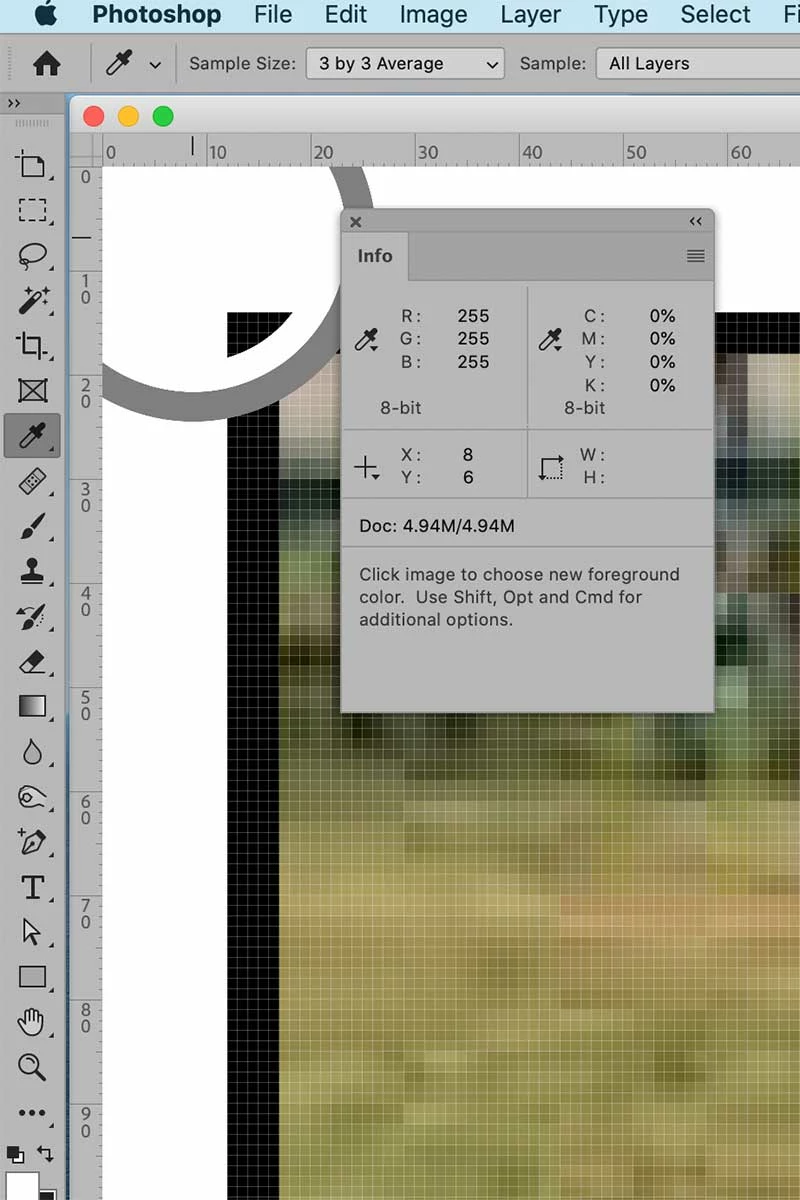

I also looked at the posted image, and I agree: Sampling with the Eyedropper tool is flawed because it measures only the value where the pointer is, or a small area around the pointer. But if the non-white pixels are widely spaced, it’s too easy for the Eyedropper tool or color sampler to miss them.


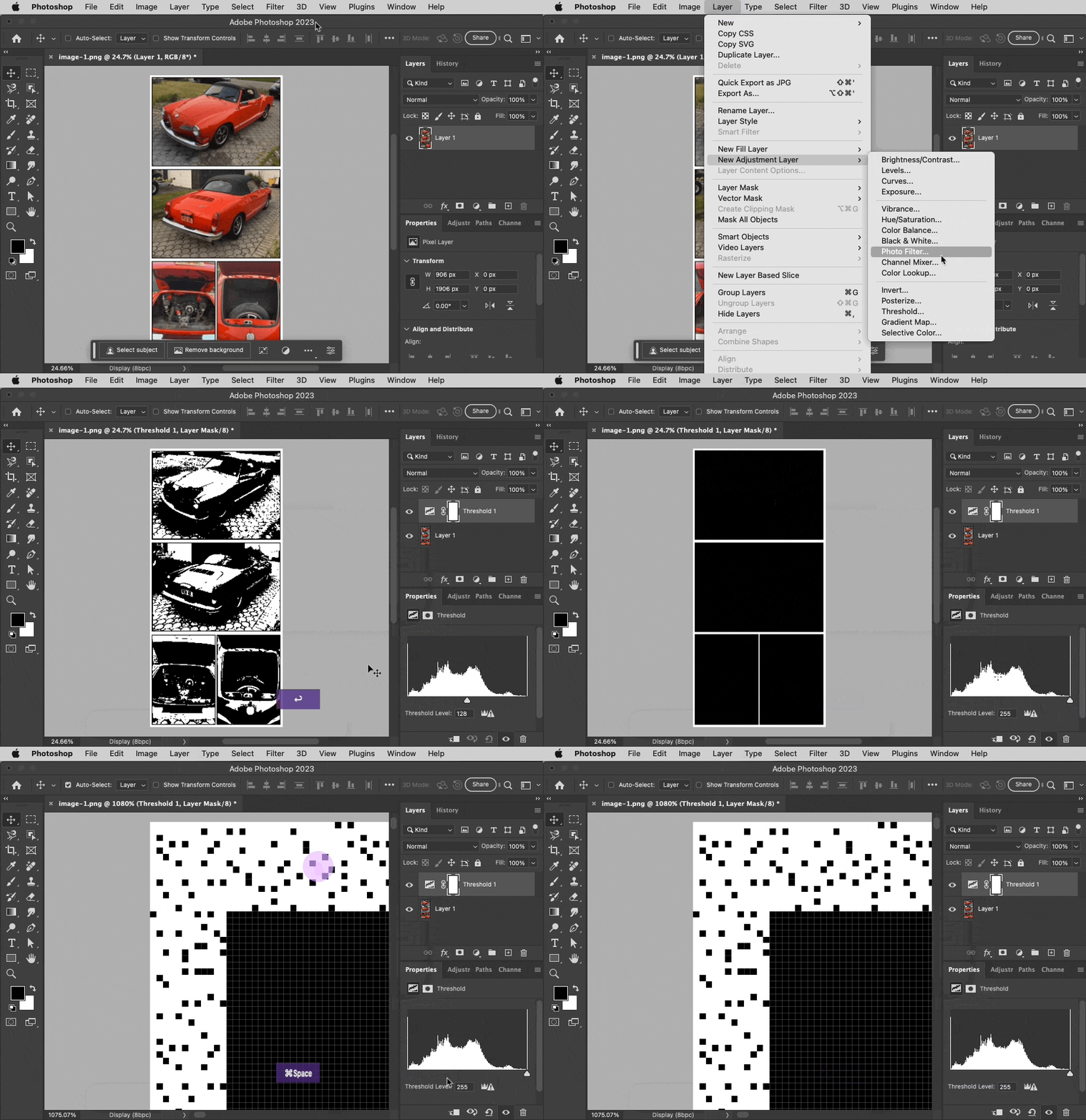
When troubleshooting the Trim command, another useful method is to use a temporary Threshold adjustment layer, and drag the slider across the entire tonal range while looking at the image edges. Setting the Threshold Level to level 255 clearly reveals all non-white pixels as solid black, no matter how small or widely spaced they are. For this image, we can now see that there are non-white pixels right up at the current edges of the image, so Trim would decide to not bring them in at all.


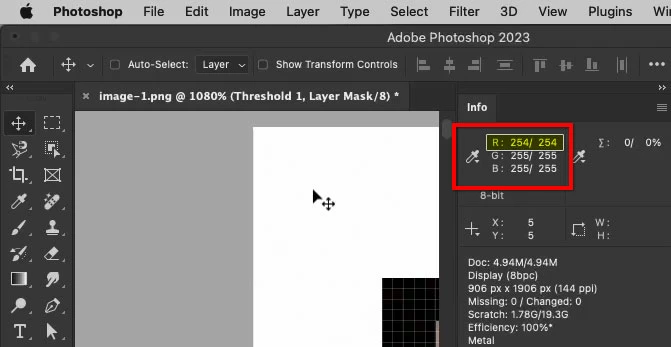
When one of those pixels is inspected with the Eyedropper tool, the problem is revealed: Some pixels are just one level away from white, in only one channel: RGB(254,255,255). It is the smallest possible difference from white, but that is all it takes for Trim to say “nope.”


So the problem is, again, in the image…not a bug in Photoshop.

7 replies

Inspiring
September 17, 2023

The trim command is broken. Simple as that. People will tell you it's because some pixels are left with different colors, but the truth is that the trim command has been a wreck for years.

Conrad_C
Community Expert
Community Expert
September 17, 2023

Can you post an example image where the Trim command is definitely broken?

Inspiring
September 18, 2023

Well, this one for example.

In my Photoshop it will leave a row of 16 pixels top and bottom when trimmed based on transparent pixels all sides.

Participating Frequently
July 9, 2023

I've been experiencing this issue as well for probably the past year. I have worked on a newsletter for over 20 years that has a classified section. When posting the classified section online, I would screen captire the images from the pdf newsetter which were in a blue 1 pt frame on a white background. Then I would simply hit Image>Trim>Top Left Pixel Color to remove the white from the page and I would have neat jpgs in their blue frames without the white background from the original page. Now I have to manually trim or crop since the discussed feature no longer works for me. Anyone figure this out yet?

c.pfaffenbichler
Community Expert
Community Expert
July 10, 2023

Please provide at least one of the images that doesn’t produce the expected result. 

c.pfaffenbichler
Community Expert
Community Expert
July 10, 2023

Thanks for the input but the white in image that I am working with have been sampled and are clean, see attached.


quote

Thanks for the input but the white in image that I am working with have been sampled and are clean, see attached.

I have checked the image you provided and your claim is demonstrably false. 


Your faulty reading seems to be caused by you setting the Eyedroper Tool to a Sample Size of 3x3. 

DutyFlick
Participating Frequently
January 11, 2023

I encountered this issue while trimming a few .png files today, though I was able to crop. I had already done a pixel search to see if there were any stray effects but did not find any, then tried the other steps suggested in this thread which did not work for me. What I ended up doing is using paint bucket to put a background color around the image (in this case, white), increased the canvas size (didn't matter how much, just increased all 4 sides), then used the magic wand to erase the white background. After clearing all of the white background, I used magic wand to select the entire area I wanted transparent to verify there were no strays and hit delete for good measure. After that I was able to trim normally.

I don't know if it will work for anyone else but it seemed to take care of the issue for me.

Participant
August 22, 2021

I encountered this issue too and this is what I was doing wrong.


I was using the marquee rectangle to select a part of a square image, I then cleared the selection so I had transparent pixels, then went to trim them and nothing happened.


Turns out I had FEATHER set to 1px on the marquee selection, so there was an fuzzy edge to the clear, meaning the trim wouldn't work.

hartandvine
Participant
April 8, 2021

The trim command hasn't been working for me for a while either. Seems like a bug.

Participant
May 18, 2021

I also tried to Trim as well today and it's not working.  I did as suggested and add a black background and a white background and nothing seems to be out of line.

It seems that every time I try to work with Photoshop some element is always not working and I need to stop and Google the issue.  
This program has so much power, but it obviously has broken elements that need to be fixed.


Thanks.

Bojan Živković11378569
Community Expert
Community Expert
July 31, 2020

Can you post screenshot please with Layers panel and problem on canvas visible?

JJMack
Community Expert
Community Expert
July 31, 2020

It would be better if the could post the psd or PNG.  However they state they also can not crop it.  They have some kind of issue with Photoshop or that document. What prevents you from cropping a Document.

JJMack
JJMack
Community Expert
Community Expert
July 30, 2020

Are you sure the area is fully empty that there are no low opacity in there. Add a bottom layer Black then white  if any pixel show.


This looks like it should Trim but should not because  I put a 1% opacity gray pixels in layer 1 canvas top left and  bottom right corners.

JJMack
July 30, 2020

@JJMack - thanks for your suggestion. I put a black and a white background behind the image, but I don't see any pixels. The image otherwise only has 1 layer. I can't crop to selection either.

JJMack
Community Expert
Community Expert
July 31, 2020

If you can not crop try resetting all tools and if you still can not crop reset your Preferences.

JJMack