jessek80090225
Participant
January 2, 2022
Question

Trouble exporting correct opacity in Photoshop to png

  • January 2, 2022
  • 3 replies
  • 495 views

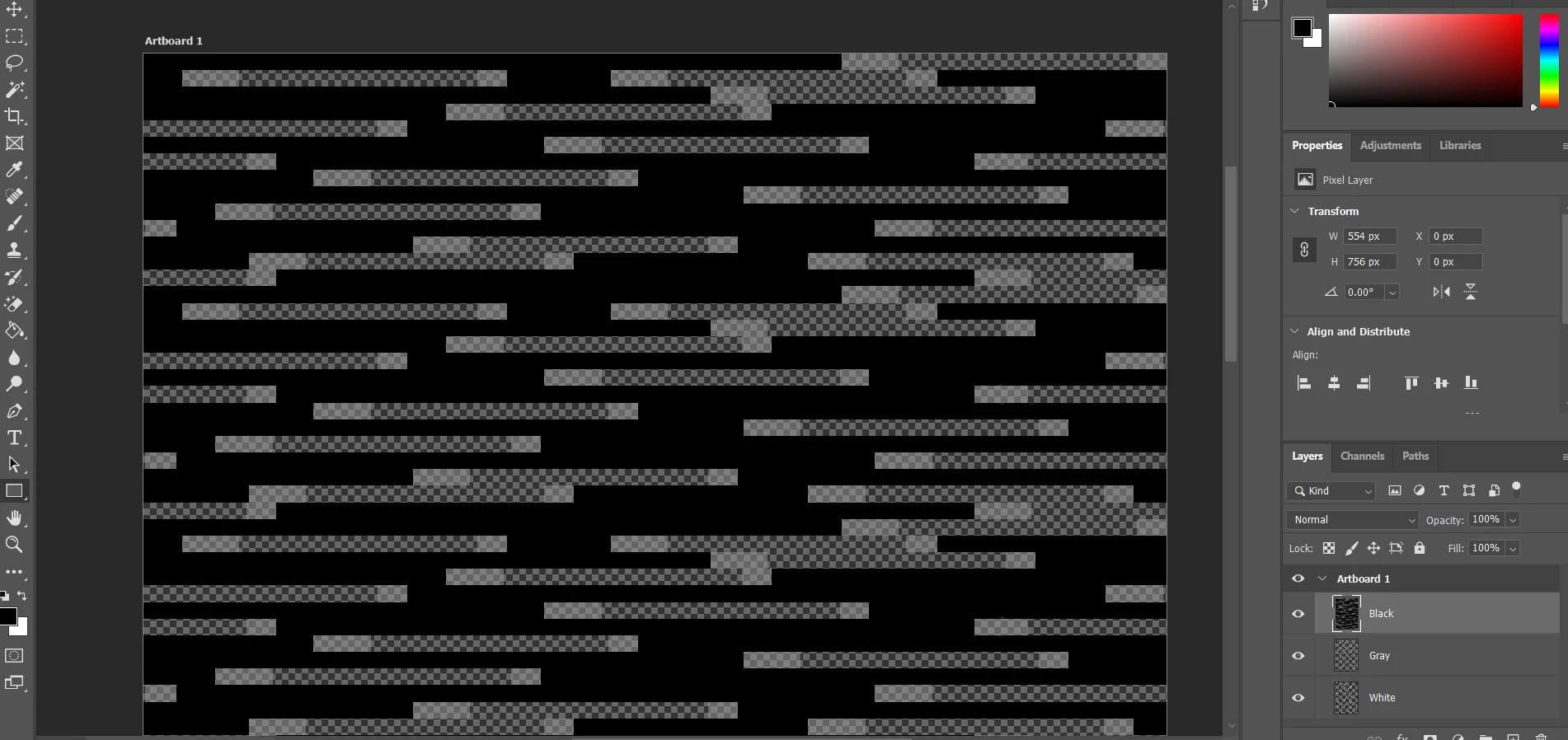
I am working in Photoshop 2022 and have a simple 3 layer desing with black, white and gray blocks. The black blocks are at 100% opacity, the gray at 20% and the white at 10%.  There is also some areas with no blocks showing the translucent background.  Everything is fine until I go to export and around the gray and white blocks there is a darker border. My goal is to get the exported png to look like the design in PS. What can I do to acheive this?


Please see pictures for an example.


Thanks

 

This topic has been closed for replies.

3 replies

jessek80090225
Participant
January 3, 2022

Thank you for the replies. I have attached a screenshot of the export process. Also, if I open the exported png in PS it still looks correct. It is when I open it in other programs that it shows the variation. Thanks

c.pfaffenbichler
Community Expert
Community Expert
January 3, 2022

Which application produces the problematic display. 


What is the original image’s Color Space and bit depth? 

Could you post the png? 

jessek80090225
Participant
January 3, 2022

Bojan Živković11378569
Community Expert
Community Expert
January 3, 2022

Also, can you open exported file back in Photoshop to preview whether everything is ok or exported file is wrong? 

Michael Bullo
Community Expert
Community Expert
January 2, 2022

Can you please provide some specific details on what method you are using to export? A screen shot including relevant options would be very helpful.