Participant
May 5, 2022
Answered

Trying to create an action that will fill shape with colour automatically sampled from layer below.

  • May 5, 2022
  • 3 replies
  • 1326 views

Hello! I have an issue I'm hoping someone can help me with. 


I've been using a very simple action for a few years which converts a selection into a vector shape.


In the screenshot you can see I have selected the bottom layer of this leaf group using the magic wand,  then the action creates a shape in a new layer above from the selection.  


I want to try and improve this in two ways ideally:


1. sample the colour of the intially selected layer (the layer I take the selection from is always a single-colour layer.) and use this as the colour of the new shape (at the moment the action is set to the orange as that what the forground colour when I first created the Action.)


2. Less of a proiority - have the action change the layer order when the shape has been created - so move the shape layer down so it becomes the layer that the others are clipped to. I do this manually at the moment but it would be great to know how to make an action that does this. 


I hope this makes sense - maybe there's a much simpler way to do this - essentially I suppose I want to convert my hand drawn layer into a vector using an action, and keep the layer placment and colour. 


thank you! 
This topic has been closed for replies.
Correct answer Bojan Živković11378569

"sample the colour of the intially selected layer (the layer I take the selection from is always a single-colour layer.) and use this as the colour of the new shape (at the moment the action is set to the orange as that what the forground colour when I first created the Action.)"


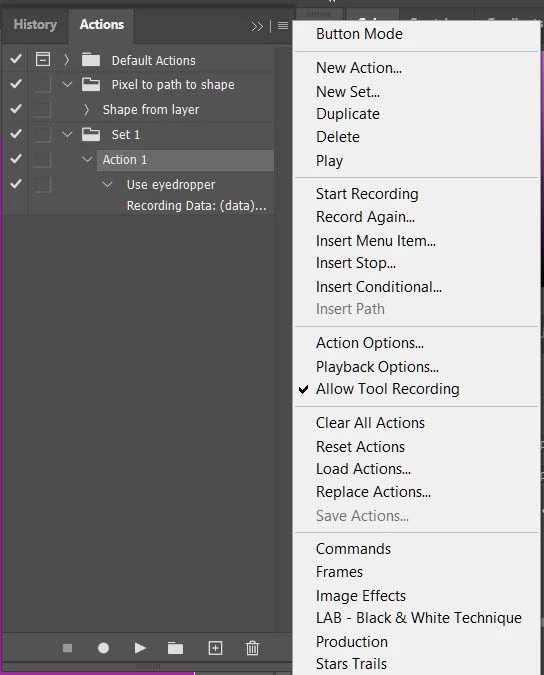
Go to Actions panel menu, expand it then check Allow Tool Recording. Record step to sample color. Use Eyedropper tool. You should see step: Use eyedropper in your action. 

This step will set Foreground color from specific spot on image. Note: it will sample from image not layer if you do not set option for Eyedropper tool to sample Current Layer when playing action.

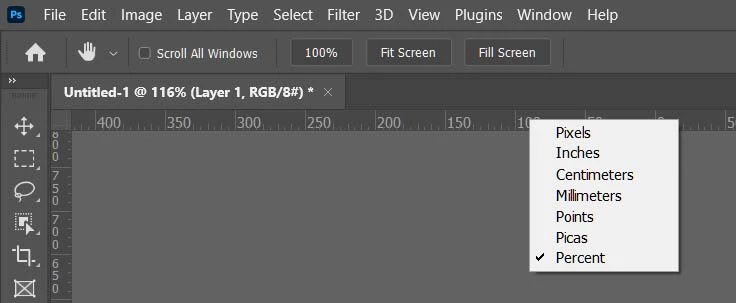
Another note: Eyedropper tool will sample from specific, clicked point on image so you do not have great flexibility there. It seems that sample point is measured using whatever measurement unit is set for Ruler so for greater flexibility set Ruler to Percent when recording step. Action will fail in case that you do not have color at clicked point.


3 replies

Bojan Živković11378569
Community Expert
Community Expert
May 6, 2022

"sample the colour of the intially selected layer (the layer I take the selection from is always a single-colour layer.) and use this as the colour of the new shape (at the moment the action is set to the orange as that what the forground colour when I first created the Action.)"


Go to Actions panel menu, expand it then check Allow Tool Recording. Record step to sample color. Use Eyedropper tool. You should see step: Use eyedropper in your action. 

This step will set Foreground color from specific spot on image. Note: it will sample from image not layer if you do not set option for Eyedropper tool to sample Current Layer when playing action.

Another note: Eyedropper tool will sample from specific, clicked point on image so you do not have great flexibility there. It seems that sample point is measured using whatever measurement unit is set for Ruler so for greater flexibility set Ruler to Percent when recording step. Action will fail in case that you do not have color at clicked point.


Participant
May 9, 2022

Hi Bojan, 


wow thanks this seems exactly what I need! so pleased it to know its achievable! Definately good to know the 'allow tool recording' is an option!


thanks again,

Bett

Bojan Živković11378569
Community Expert
Community Expert
May 10, 2022

I hope you have better luck... When I first recorded the action, it took around 14 seconds to complete this single step. The second time it was around 20 seconds. Now after 30 seconds or so Photoshop locks up and I have to force quit.


At my end everything works smoothly. Which version Ps? I am using 22.5.7 I believe, previous major version.

Stephen Marsh
Community Expert
Community Expert
May 6, 2022

@Bett24334821yjkk wrote:


1. sample the colour of the intially selected layer (the layer I take the selection from is always a single-colour layer.) and use this as the colour of the new shape (at the moment the action is set to the orange as that what the forground colour when I first created the Action.)


2. Less of a proiority - have the action change the layer order when the shape has been created - so move the shape layer down so it becomes the layer that the others are clipped to. I do this manually at the moment but it would be great to know how to make an action that does this. 


#1: I'm still thinking about how this could be done with an action, this may need a script!


#2: Perhaps these can help (subject to layer visibility), it is good for action automation to have unique named layers to easily select them, however, if the layer is always in the same relative position in the layer stack, then use the following relative keyboard shortcuts recorded into the action to select and move layers (use Ctrl and Alt keys in Windows, ignore the + sign):


  • Select/target front (top) layer = Option + .
  • Select/target next layer up = Option + ]
  • Select/target next layer down = Option + [
  • Select/target back (bottom) layer = Option + ,


  • Move current target layer to front (top) layer = Command + Shift + ]
  • Move current target layer up = Command + ]
  • Move current target layer down = Command + [
  • Move current target layer to back (bottom) layer = Command + Shift + [


Chuck Uebele
Community Expert
Community Expert
May 5, 2022

This is really something that should be done with a script. I can be done, as I do something along those line, but I make shapes, then sample a image layer below the shape then apply the colors to a gradient to that shape. Moving layers around with scripts are easier also.

Participant
May 5, 2022

Hey Chuck,


thanks for the speedy response. That's good to know it's possible. Can I ask if you know of the best resources to start learning how to make these? 
cheers,

bett 

Chuck Uebele
Community Expert
Community Expert
May 5, 2022

I would start with the free Adobe guides:

Photoshop-cc-scripting guide - it's gets your feet wet.

Photoshop-cc-scripting reference - resource for scripting, but not really up to date and a bit confusing.

Javascript-Tools-Guide - resources for javascript in mulltiple Adobe programs that use the same type of scripts: file handling, etc.

There are most likely more updated references, but that's a start.