
Participant
June 12, 2020
Answered

Trying to flatten image while retaining overlay effect.

  • June 12, 2020
  • 2 replies
  • 1942 views

I am trying to overlay colour onto a black and white image on Photoshop. When I try to flatten the image all the colour disappears. Can anyone please advise how I can fix this issue?  Attached are some pictures to explain further. 
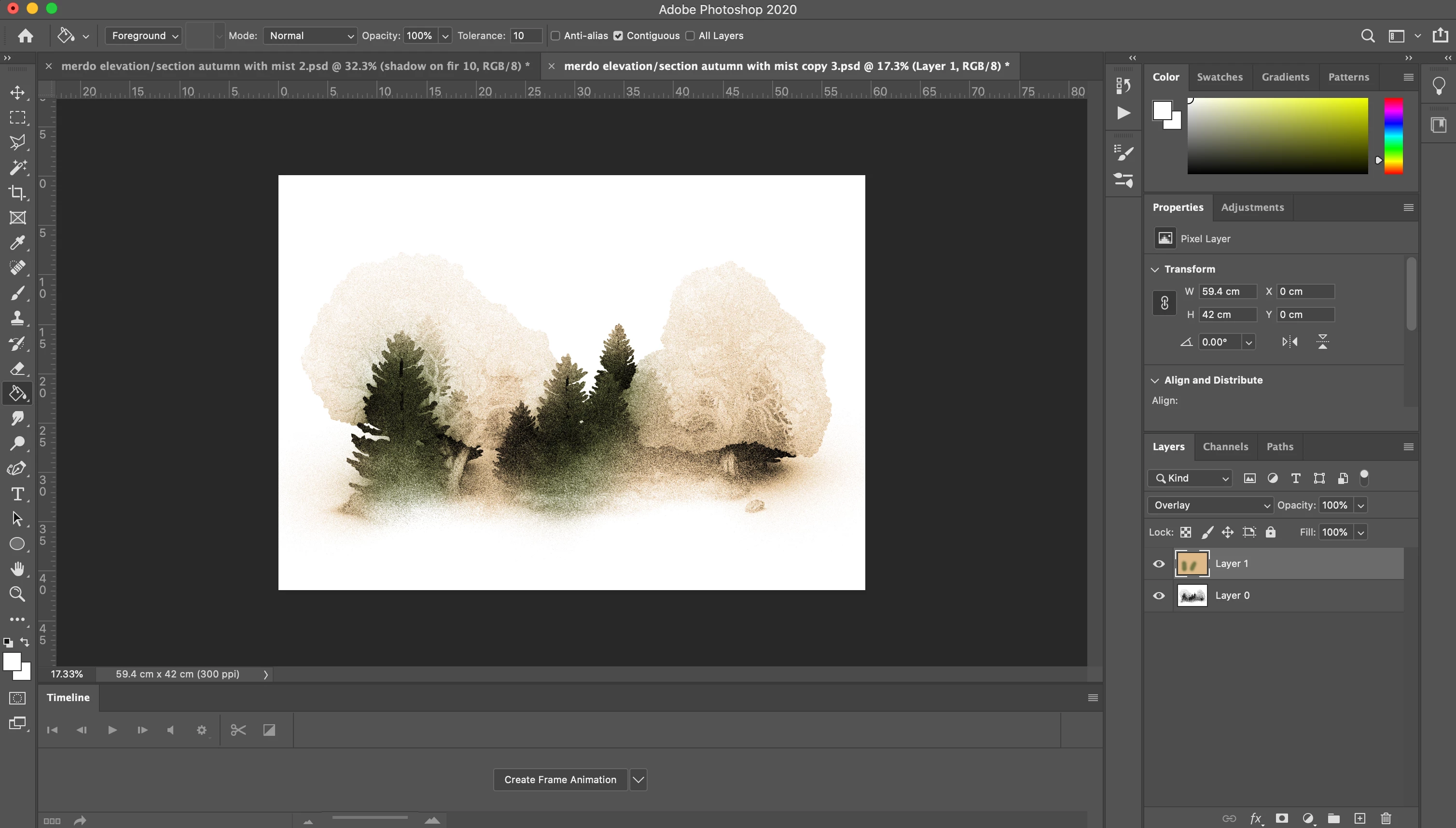
this is before flattening and how I want the image to look when flattened  
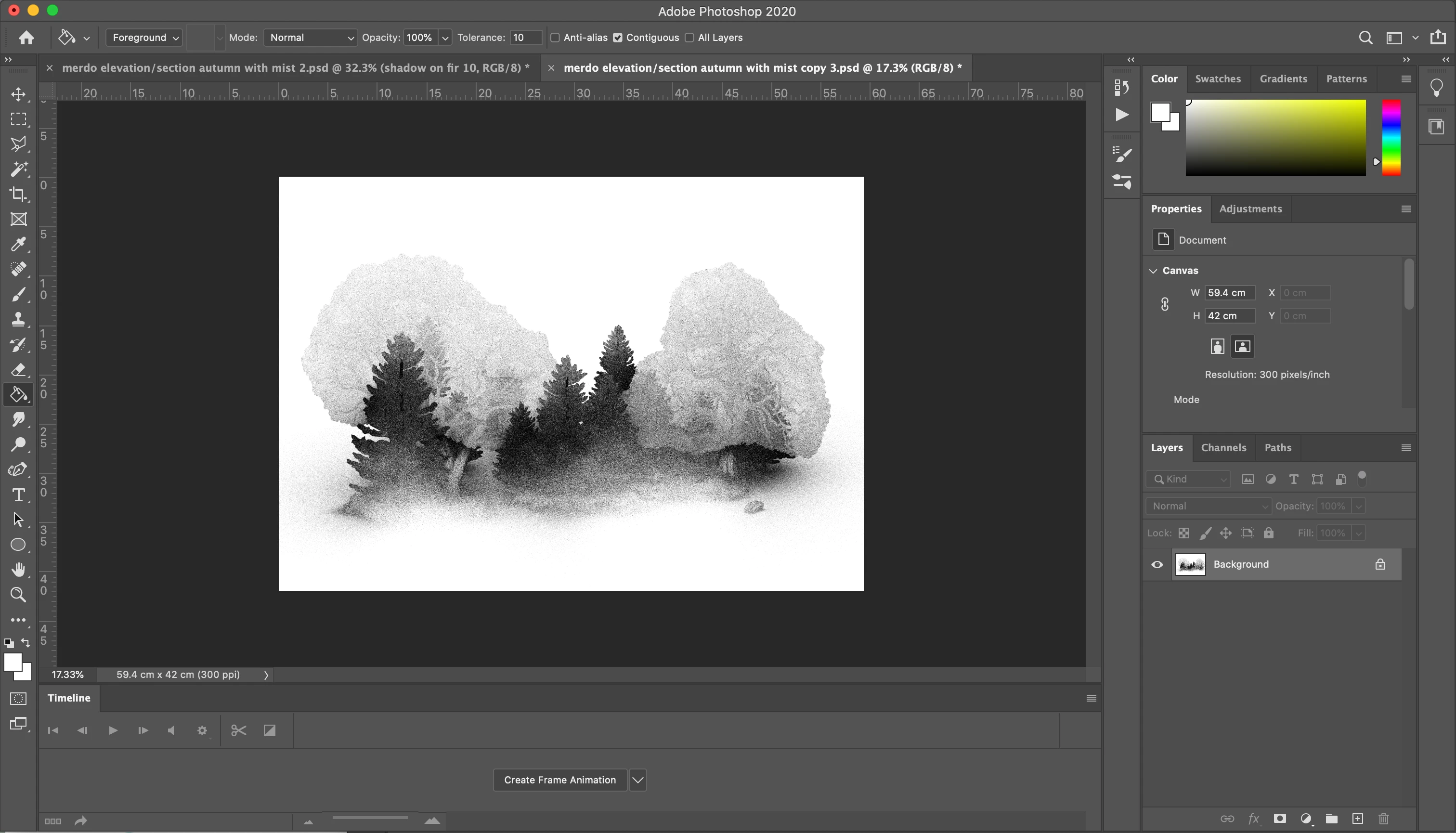
 

 and this is after flattening where all the colour disappears which I don't want to happen. 


Any help would be greatly appreciated


many thanks

James

This topic has been closed for replies.
Correct answer davescm

You must view the before and after at 100%.


Your image looks like it is made of fine "noise" i.e. dots of black and white. Overlaying on black or white results in black /white.

The issue you are seeing is that when zoomed out, the preview is formed by combining those individual black and white dots  to form a grey shaded pixel. Overlaying on that grey colour is giving a coloured image.  So on an image like that always check your layered colouring at 100% zoom, where the full image data is used to blend the preview.


When flattening all image pixel data is used , so it will match what happens at 100% zoom.


Dave


2 replies

Derek Cross
Community Expert
Community Expert
June 12, 2020

Make sure you're in RBG color mode.

Participant
June 20, 2020

thanks a lot!


James

davescm
Community Expert
davescmCommunity ExpertCorrect answer
Community Expert
June 12, 2020

You must view the before and after at 100%.


Your image looks like it is made of fine "noise" i.e. dots of black and white. Overlaying on black or white results in black /white.

The issue you are seeing is that when zoomed out, the preview is formed by combining those individual black and white dots  to form a grey shaded pixel. Overlaying on that grey colour is giving a coloured image.  So on an image like that always check your layered colouring at 100% zoom, where the full image data is used to blend the preview.


When flattening all image pixel data is used , so it will match what happens at 100% zoom.


Dave


Participating Frequently
August 31, 2021

Hi,


I wonder if this is the same issue as I have just had happen?:

PS 2021 on a Macbook Pro. Repairing a scanned-in photograph, which was faded b/w. Yesterday In Curves I gave it more contrast and a blend of magenta and yellow. Repairing by using clone tool. Zooming in and out fine. Today, if I zoom in to continue cloning to remove large scratch the colour disappears and becomes b/w, except for one small pasted layer of background, which retains its colour.

If I try cloning an area the clone tool leaves an outline of the brush in the colour I blended.

What can I do? If I zoom out the colour returns, but the magnification is not great enough to work to remove the scratch.


davescm
Community Expert
Community Expert
August 31, 2021

Hi Dave,

Thanks so much for responding. To add a bit more info to my earlier post:

I am zooming in on an A2 image at 300ppi in CMYK as it is destined for a print. To fit on the workspace it's at 25%, and if I zoom in it's fine up to 66.7%, when the colour changes back to greyscale. If I drag the window to enlarge it the colour returns until I release the window. It made no difference changing to RGB.

I subsequently tried reducing the image to A3 at 300ppi and found I could zoom in indefinitely and still retain the colour, so carried on working at that size. 

I'm using the clone tool in normal mode at full opacity. Layer 'Montage 1' is the layer I was working in with the clone tool; that's the layer I tweaked in 'Curves'.

I look forward to hearing your take on this, Dave.


Hi

At 66.7% zoom, the preview switches from 8 bit to 16 bit (even in a 16 bit document). That can also impact the look. I suspect what is happening with your document is that it is noisy and made of individual black and white dots.

When zoomed out those fine dots are averaged and then the layer blending applied (at 8 bits per channel if zoomed out to less than 66.7%)  When zoomed in to 100%, the layer blending is applied to each individual image pixel and at full bit depth. On some images, particularly those with fine noise/dots, this can make the blend look very different. It is the 100% zoom view that is correct.


Incidentally, you mention working in CMYK. Unless your image is destined to be printed on a printing press and you know which particular CMYK profile is correct for that press, then work in RGB. Desktop printers expect an RGB input.


Dave