
Angieaaa
Known Participant
January 1, 2019
Question

Trying to re-create a previous photoshop gradient...

  • January 1, 2019
  • 1 reply
  • 886 views

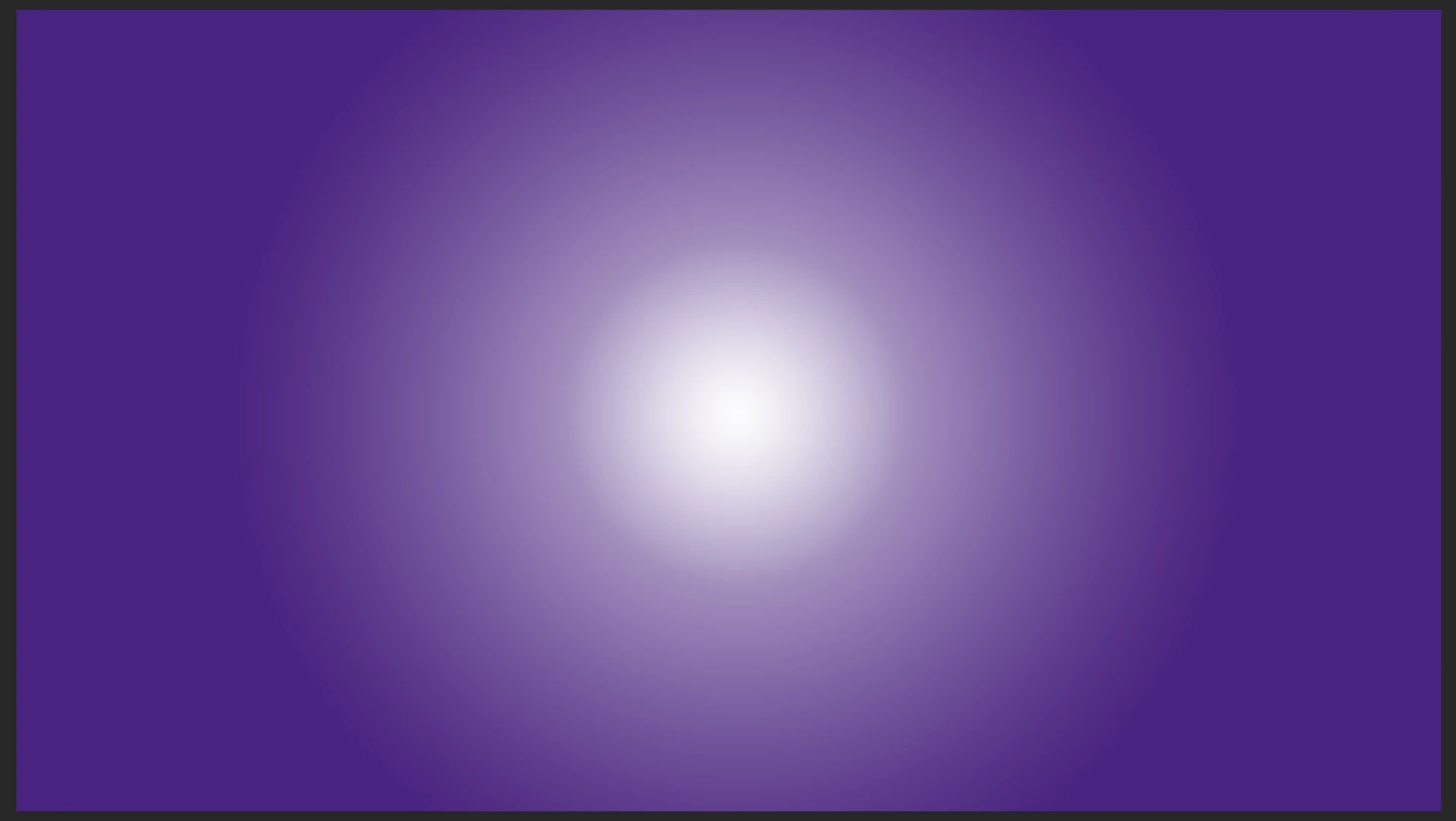
Im trying to reproduce a gradient I created several times in the last year but each time the result is too hard, whatever I do i just cant find a way to get the result i need - any ideas... Im posting screen shots of what I need to do and what is happening....

The top is the default result and the bottom is what i need -

Any suggestions gratefully received! (I will save it in future)
    This topic has been closed for replies.

    1 reply

    c.pfaffenbichler
    Community Expert
    Community Expert
    January 1, 2019

    What is the image’s Color Space?

    What is the Layer Structure?

    Is »Dither« checked for the Gradient Layer?

    Angieaaa
    AngieaaaAuthor
    Known Participant
    January 1, 2019

    RGB on both, yes dither is checked on both, layer structure as in 'normal' or other ? is the same...

    thanks...

    Trevor.Dennis
    Community Expert
    Community Expert
    January 1, 2019

    Both gradients are in the same document - the one I want to recreate is a duplicated layer from another document..

    thank you again!


    Try doing it in stages using more than layer, as c.p. suggested

    Fill a layer with the purple background.

    There are so many ways you can proceed from here, but lets look at the gradient tool to start with.

    With white as your foreground colour, select the gradient tool, and in the Options Bar choose the second option, Foreground to Transparent.

    Drag the gradient from the centre of the screen top the bottom of the screen.  It is important not to go too far, or you'll have a hard edge if you need to modify the gradient

    You can Free Transform the white gradient layer to any shape you prefer

    You can use Gaussian Blur to soften the gradient

    If that makes the gradient too thin, you can copy the layer.

    If that makes it too dense, you adjust layer opacity

    Or  you can practice with the Gradient editor, which is a very useful skill to develop

    Switch back to the first option, which is Foreground to  Background.

    Click on the gradient to open the editor

    Click on either of the end stops (red highlight) which create a central slider (green highlight)

    Drag the central slider to change the gradient

    or

    Or you can click under the gradient to create a new colour swatch

    With the new colour point active (a black triangle above it) select a colour either from the swatch panel, or click on the image

    Or go crazy.  If you make something you like, save it by clicking on New.