
Answered
Trying to script with AI, need some review from someone who knows what they're doing
Hey there,
I'm new to photoshop and scripting and have been trying to build a script with ChatGPT that does the following:
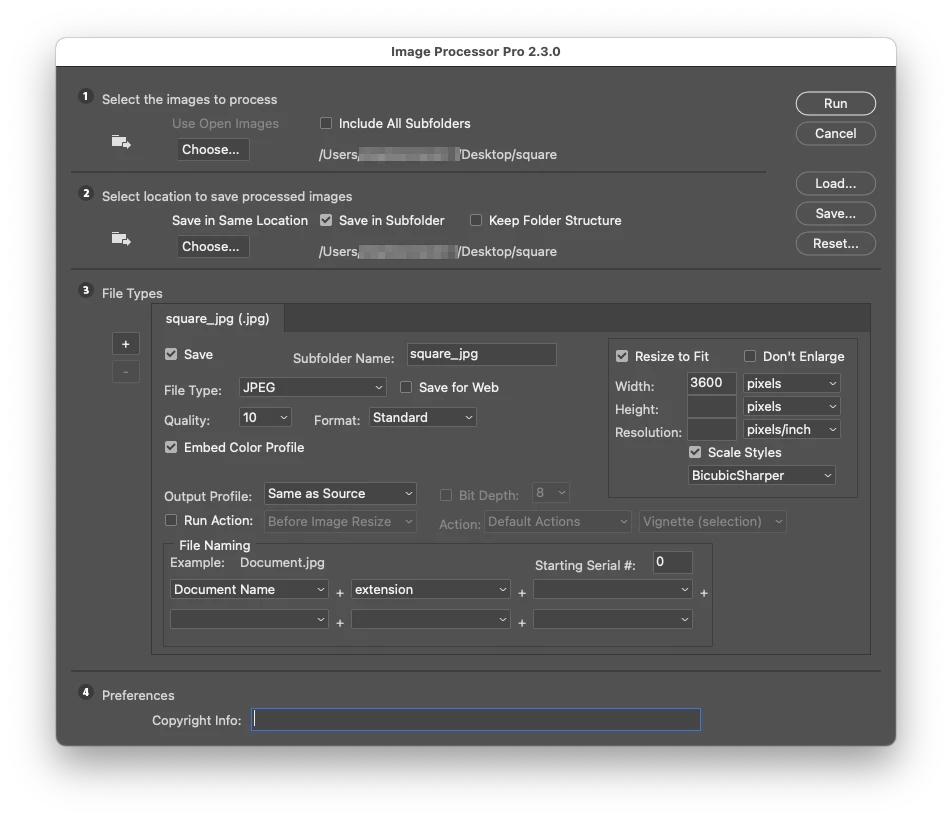
Choose a folder in which all png files will be resized to 3600x3600 and saved as jpg files in an automatically created folder within the source folder that has the same name +jpg.
I've been troubleshooting so many times but chatgpt is just turning in circles.
Thanks for your help, here's the script:
import os
import subprocess
import tkinter as tk
from tkinter import filedialog
# Create a Tkinter root window
root = tk.Tk()
root.withdraw()
# Prompt the user to select the source folder interactively
source_folder_path = filedialog.askdirectory(title="Select Source Folder")
# Create a new folder for saving the JPG files
jpg_folder_name = os.path.basename(source_folder_path) + "_jpg"
jpg_folder_path = os.path.join(source_folder_path, jpg_folder_name)
os.makedirs(jpg_folder_path, exist_ok=True)
# Loop through each PNG file in the source folder
for filename in os.listdir(source_folder_path😞
if filename.endswith(".png"😞
# Set the full path to the PNG file
png_path = os.path.join(source_folder_path, filename)
# Set the full path to the JPG file
jpg_filename = os.path.splitext(filename)[0] + ".jpg"
jpg_path = os.path.join(jpg_folder_path, jpg_filename)
# Build the AppleScript command to open the PNG file in Photoshop
open_command = 'tell application "Adobe Photoshop 2023"\nopen POSIX file "{}"\nend tell'.format(png_path)
# Build the AppleScript command to resize the document to 3600x3600 pixels
resize_command = 'tell application "Adobe Photoshop 2023"\nresize image width 3600 height 3600 resolution 300 resample method bicubicSharper\nend tell'
# Build the AppleScript command to save the document as a JPG file with options
save_command = 'tell application "Adobe Photoshop 2023"\nactivate\ntell front document\nsave as POSIX file "{}" as JPEG with options {{class:JPEG save options, save options: {{class:JPEG save options, quality:10}}}}\nend tell\nend tell'.format(jpg_path)
# Run the AppleScript commands using the "osascript" command-line tool
subprocess.call(['osascript', '-e', open_command])
subprocess.call(['osascript', '-e', resize_command])
subprocess.call(['osascript', '-e', save_command])
Have a great day
Have a great day
 AdChoices