
caleb5
Known Participant
August 9, 2018
Answered

Turn a Work Path Into A Shape With No Fill

  • August 9, 2018
  • 1 reply
  • 17422 views

So I have a work path that I want to convert into a shape.  I would normally do this by going to Layer > New fill layer > solid color, but I do not want there to be a fill, only a shape outline with no fill.

Does anyone here know how to do this?  Thanks.
    This topic has been closed for replies.
    Correct answer Semaphoric

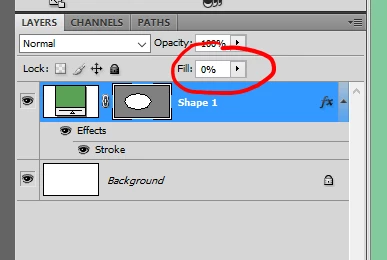
    Make as Solid Fill Layer, add a Stroke Layer Effect, and reduce the Fill Opacity to 0% in the Layers panel:


    This is CS4, but it was the same in CS3.

    1 reply

    davescm
    Community Expert
    Community Expert
    August 9, 2018

    Hi

    Two steps

    1. With the pen tool selected click Make Shape in the options bar

    2. Then click on a shape tool in the tool bar and in the options bar set the fill and stroke as required. These will affect the shape you have just made in step 1

    Dave

    caleb5
    caleb5Author
    Known Participant
    August 9, 2018

    Ok so after selecting the pen tool I do not see the same thing as in Dave's screenshot.  I see this:

    Maybe sense I am using Photoshop CS3 it looks different?  Would anyone know how I would do this in CS3 if that is the case?

    caleb5
    caleb5Author
    Known Participant
    August 10, 2018

    Make as Solid Fill Layer, add a Stroke Layer Effect, and reduce the Fill Opacity to 0% in the Layers panel:


    This is CS4, but it was the same in CS3.


    Thanks for the reply.

    That's what I needed to do.

    Thanks a ton.