
caleb5
Known Participant
August 9, 2018
Answered

Turn a Work Path Into A Shape With No Fill

  • August 9, 2018
  • 1 reply
  • 17461 views

So I have a work path that I want to convert into a shape.  I would normally do this by going to Layer > New fill layer > solid color, but I do not want there to be a fill, only a shape outline with no fill.

Does anyone here know how to do this?  Thanks.
    This topic has been closed for replies.
    Correct answer Semaphoric

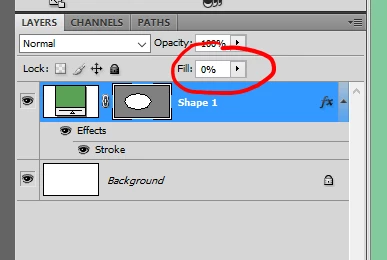
    Make as Solid Fill Layer, add a Stroke Layer Effect, and reduce the Fill Opacity to 0% in the Layers panel:


    This is CS4, but it was the same in CS3.

    1 reply

    davescm
    Community Expert
    Community Expert
    August 9, 2018

    Hi

    Two steps

    1. With the pen tool selected click Make Shape in the options bar

    2. Then click on a shape tool in the tool bar and in the options bar set the fill and stroke as required. These will affect the shape you have just made in step 1

    Dave

    caleb5
    caleb5Author
    Known Participant
    August 9, 2018

    Ok so after selecting the pen tool I do not see the same thing as in Dave's screenshot.  I see this:

    Maybe sense I am using Photoshop CS3 it looks different?  Would anyone know how I would do this in CS3 if that is the case?

    davescm
    Community Expert
    Community Expert
    August 10, 2018

    But Shape strokes wren't introduced until CS6, so one would need to use a layer style in CS3.


    You're right, and I should have remembered that.

    It's funny how we grow so used to certain functions that we think of them as having been around forever. I used to keep a few old versions installed just to check but after a PC rebuild I now just keep the last couple and that is just in case a new version introduces an issue.

    Dave.