Participating Frequently
November 12, 2023
Question

Turn off Anti Alias for Pen Tool

  • November 12, 2023
  • 4 replies
  • 1652 views

Hi, 


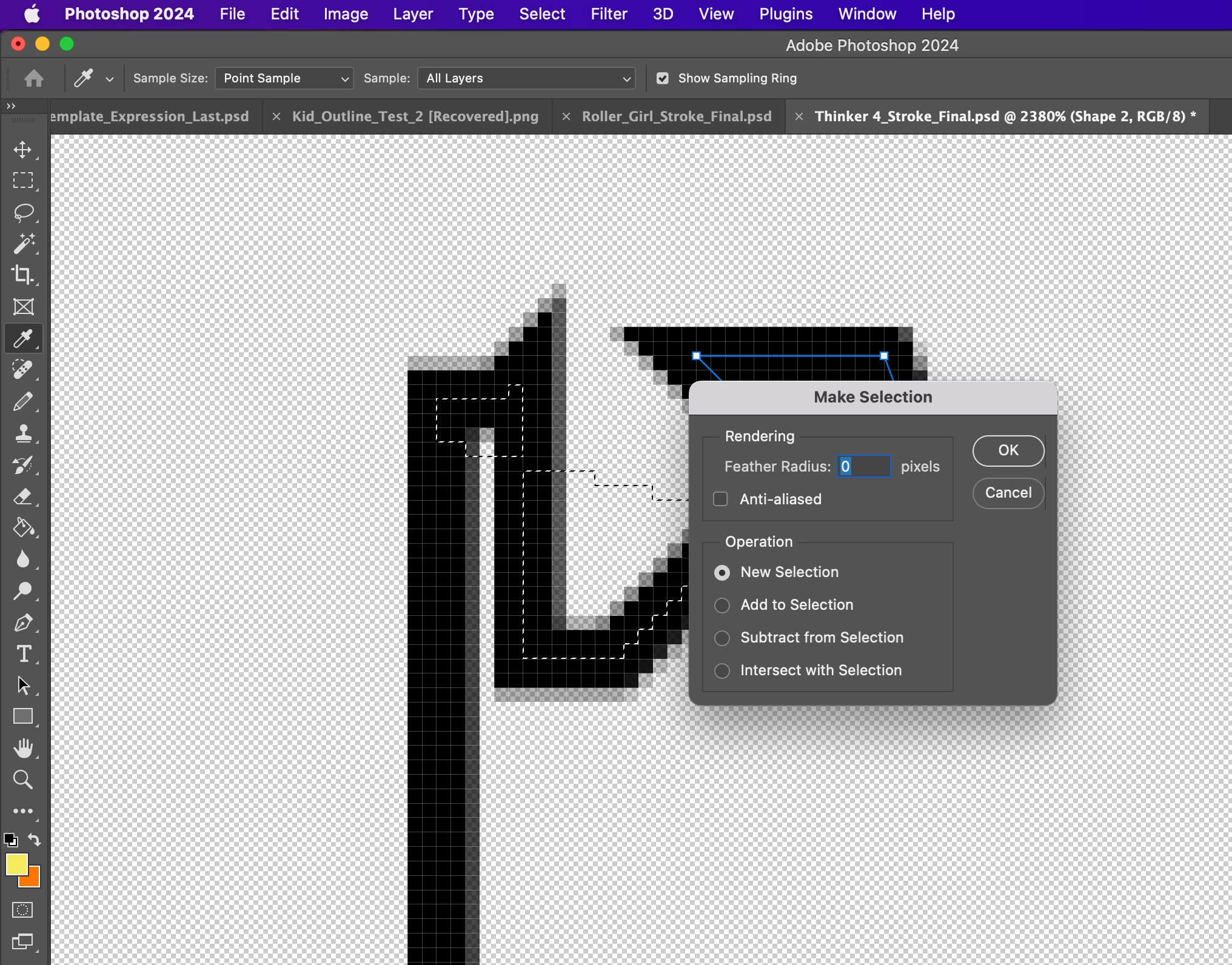
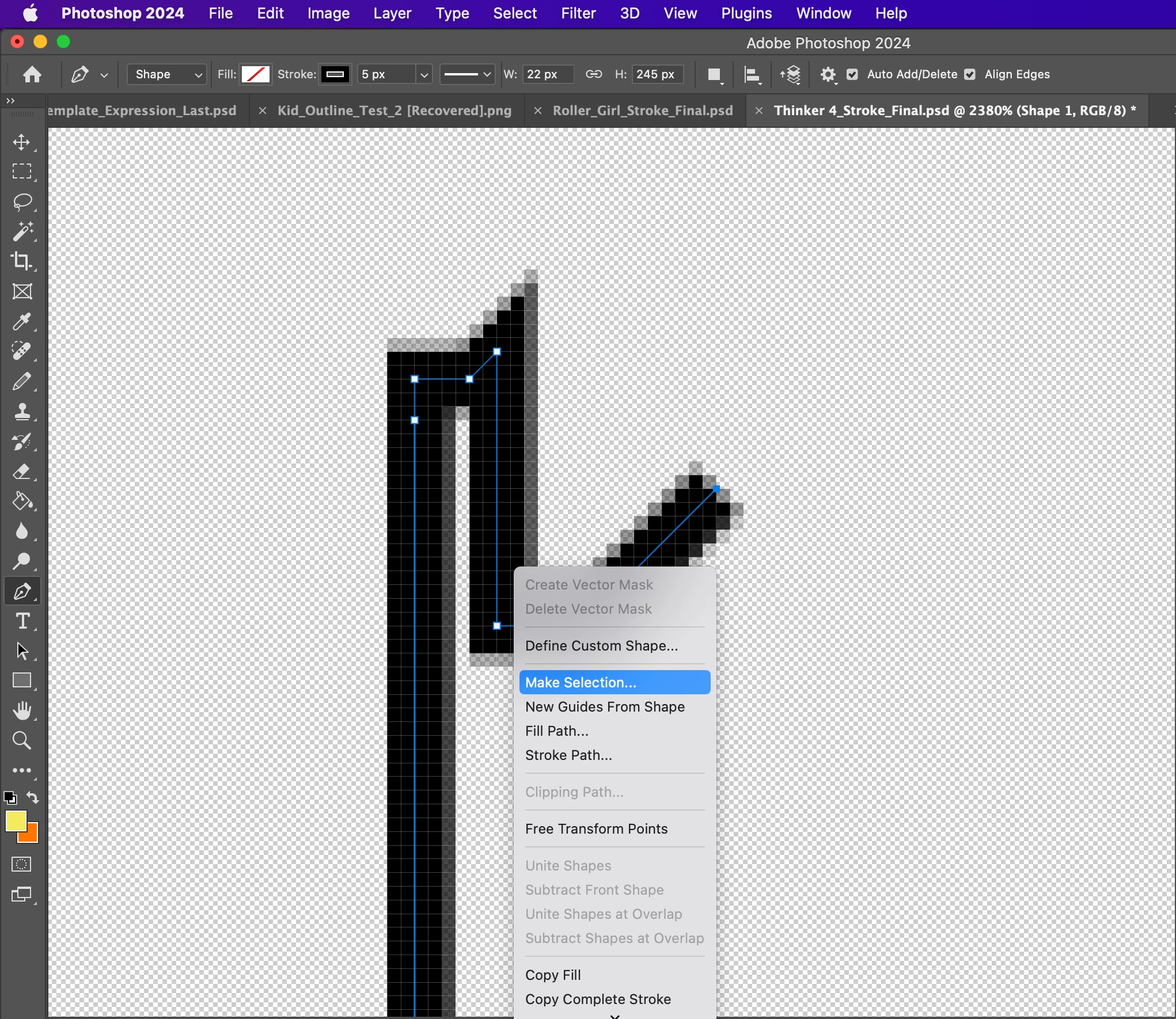
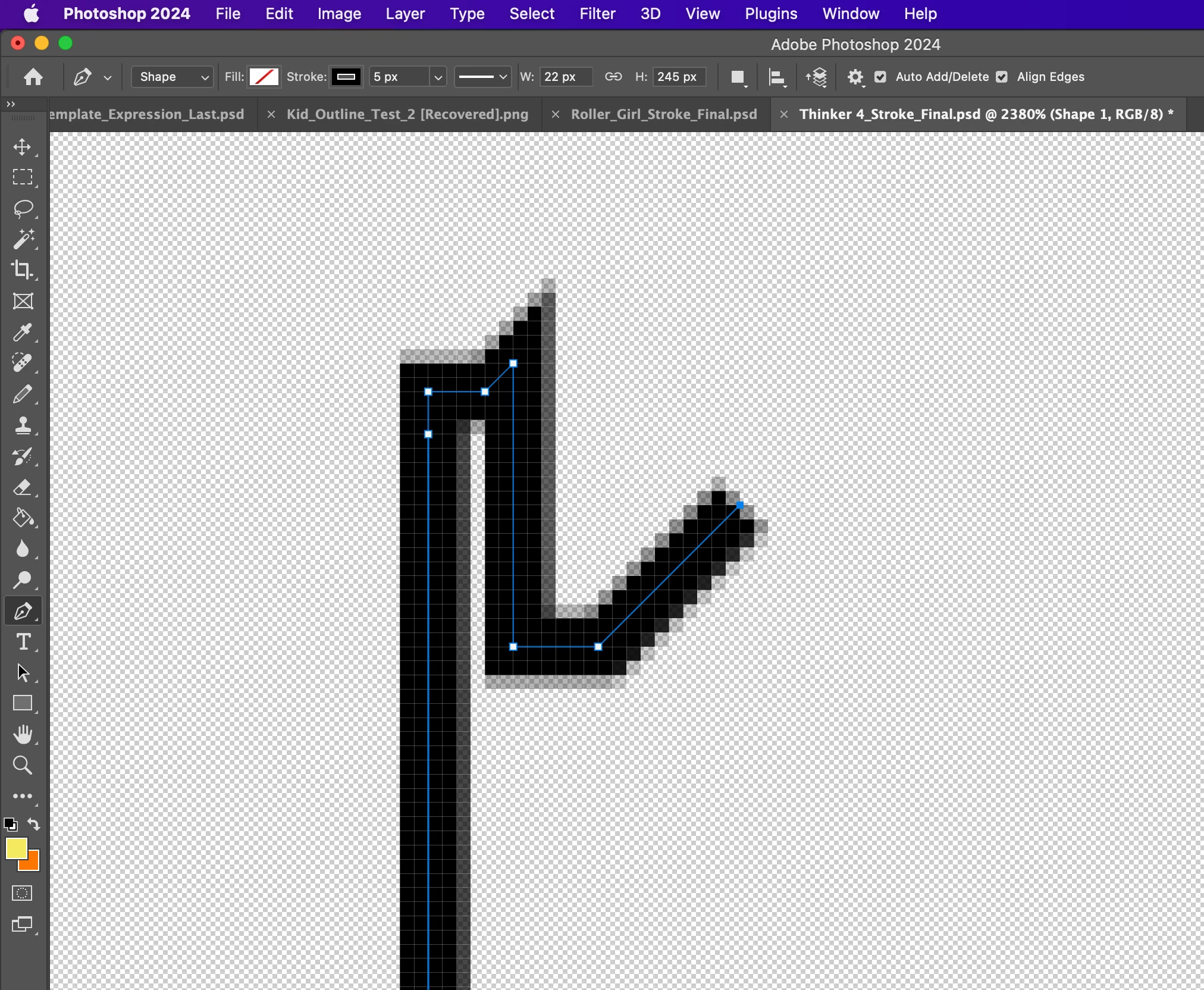
I have tried to turn off anti-alias for the pen tool but no matter what I do it doesnt work. Anti-alias is turned of for everything else but not when I create a stroke with the pen tool. I have removed anti alias on both make selection and fill path. Plese see attached. Its making me CRAZY!! 🙂


Thanks in advance!


/Dejan
 

This topic has been closed for replies.

4 replies

melissapiccone
Community Expert
Community Expert
November 14, 2023

What is the end goal with the path? You have the option set to shape. You can switch to path - which is independent of a layer. You can then choose to fill the path or add a stroke later.

Melissa Piccone | Adobe Trainer | Online Courses Author | Fine Artist
Legend
November 13, 2023

A path is a mathematical line, not just pixels. Paths are not aliased or anti-aliased. When you fill or stroke a path, each pixel (normally square) must be a single color and opacity. Anti-aliasing creates "fill-in" pixels that make a fill/stroke look straight rather than stair-stepped.

Semaphoric
Community Expert
Community Expert
November 13, 2023

What you are seeing is the Stroke of a Shape layer. What you want is a garden variety Work Path

The Stroke and Fill of Shape layers is different from the menu commands of the same names. Shape layers are  rendered at the time of display, while the menu commands directly alter the image itself.

Participating Frequently
November 13, 2023

Hi Semaphoric, 


I dont quite follow regarding the "garden variety Work Path" ? Do I just choose Path instead of shape in the options menue on top? When I do so I cant choose color of the stroke (or can I). With Shape I can choose any color I want on the Now I need to define pixels of the path and fill it with the paint bucket. It begins as anti aliased here as well but after a few fills I manage to get fully filled pixels so this method works but its a process and i dont have full control since the paint bucket paints a couple of pixels outside of the path (even if anti alias is turned off). 


Sorry for all stupid questions... 


/Dejan 

Semaphoric
Community Expert
Community Expert
November 13, 2023

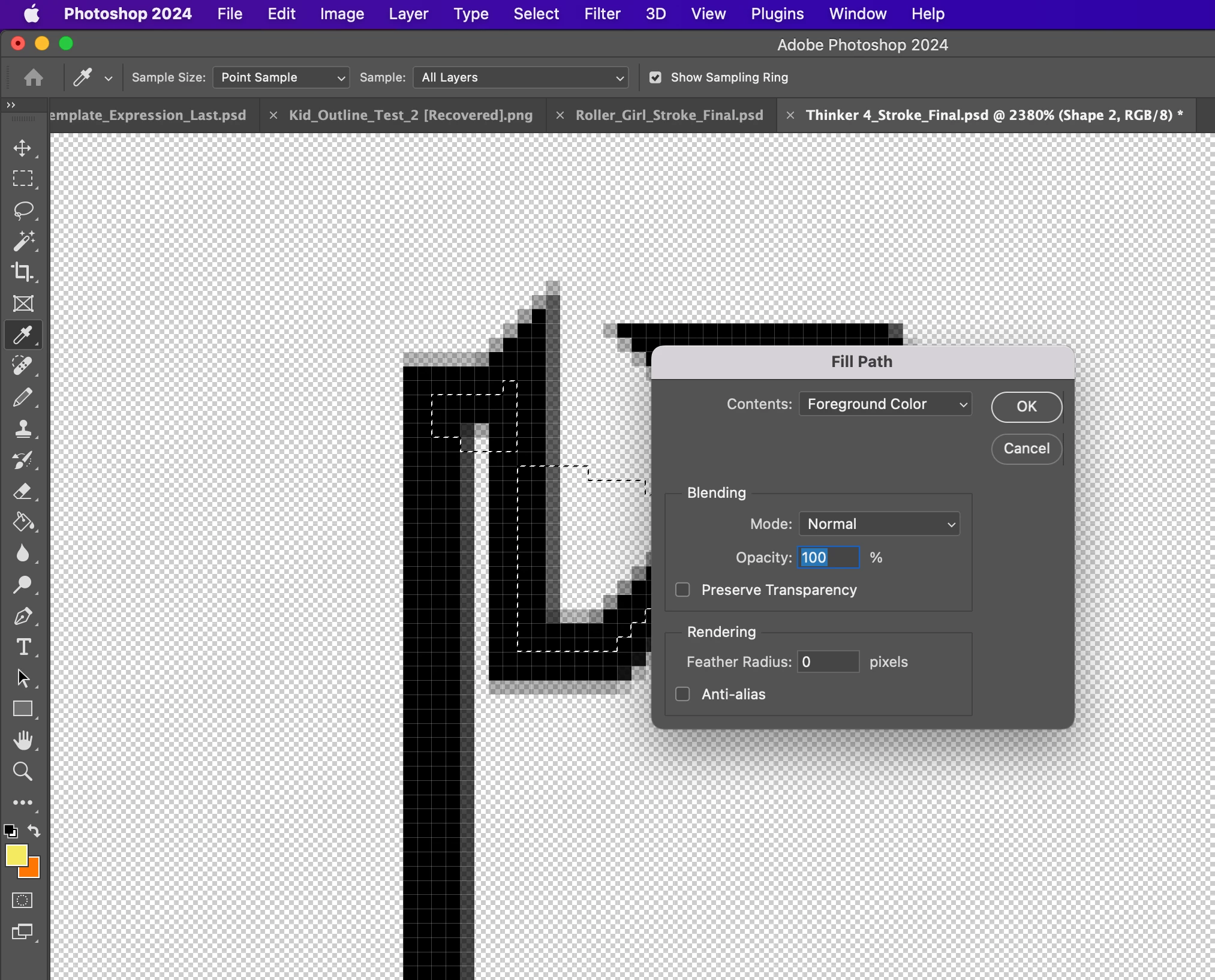
You need to be on a pixel layer to fill and stroke via the menu commands. If you run them on a Shape layer, you see this:

You set the color with the current foreground or background colors when you run the command on an ordinary layer with an active Path. Unlike Shapes, the changes are pemanent, not editable. Shapes seem to always have anti-aliasing, but they remain editable.

Semaphoric
Community Expert
Community Expert
November 13, 2023

In Edit > Preferences > Tools, make sure the 'Snap Vector Tools and Transforms to Pixel Grid' box is checked.

Participating Frequently
November 13, 2023

Hi, 


Thanks but that seems not to be the issue since it was already checked 🙂

Participating Frequently
November 13, 2023

The line is perfect as long as it is the first line drawn and it is straight. The minute it changes direction it gets anti-aliased. Maybe this is some sort of clue 🙂