
Participant
March 1, 2024
Answered

Turn the whites into another color

  • March 1, 2024
  • 5 replies
  • 840 views

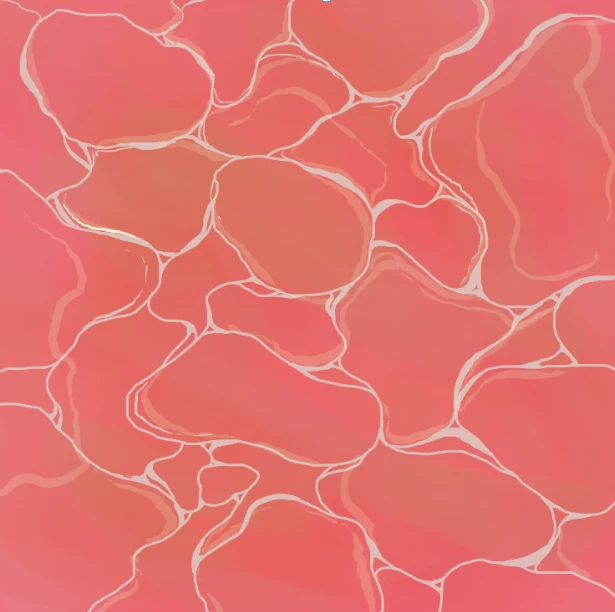
Hey guys, I drew this thing here. You see the brightest white lines. They are on one layer, I copied and pasted it. I need to make them dark red. I tried adjustment layers but nothing seems to affect the whites... Can someone please help me.
 

This topic has been closed for replies.
Correct answer Ivan Zajats

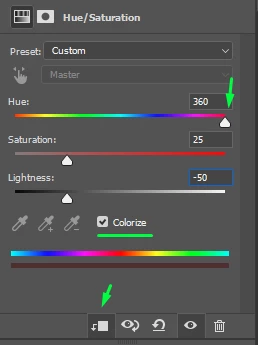
The easiest way: Colorize, decrease the Lightness and choose the Hue 🙂


5 replies

Inspiring
March 1, 2024

Assuming you haven't figured it out by now, here is one way to do it:

  1. Create a new hue/saturation adjustment layer. 
  2. Click on the little box with the arrow pointing down so it only affects the layer below it. (which is your white lines).
  3. Click on colorize. 
  4. Adjust sliders to your heart's content. 

Hope that helped. 

Ivan Zajats
Inspiring
March 1, 2024

@dDembicki, you just repeated my comment, lol 🙂


Inspiring
March 1, 2024

I didn't see your comment (I had it up on my browser for a while and didn't think to refresh), but it's all good. Nice to know someone else would do it the same way. There are so many ways to end up in the same place, visually, with PS. 

Legend
March 1, 2024

quick option (not very high quality)


c.pfaffenbichler
Community Expert
Community Expert
March 1, 2024

Could you please post screenshots with the pertinent Panels (Toolbar, Layers, Options Bar, …) visible? 

Ivan Zajats
Ivan ZajatsCorrect answer
Inspiring
March 1, 2024

The easiest way: Colorize, decrease the Lightness and choose the Hue 🙂


Stephen Marsh
Community Expert
Community Expert
March 1, 2024

You can add a solid colour fill layer above, then use the layer blending option sliders to isolate the colour to the lightest tones of the underlying layer, using the alt/opt key to split the slider range for a graduated effect.


https://helpx.adobe.com/au/photoshop/using/layer-opacity-blending.html