
Known Participant
September 14, 2019
Answered

Type Tool bug - does not allow multiple text lines
  • September 14, 2019
  • 3 replies
  • 1655 views

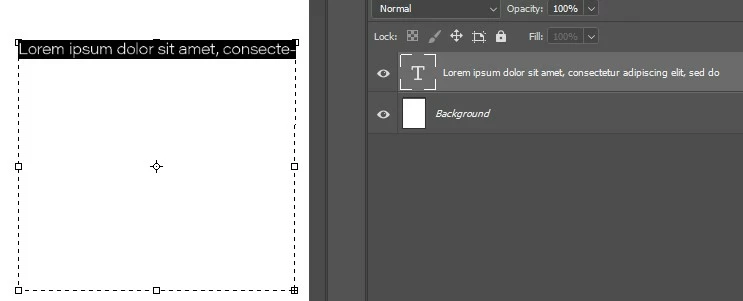
When i enter text and hit return to create a second line the text entered after the line break does not show.  I know the text is accepted as entered as the layer name in the layers panel reflect this.

Similarly, if I create a new text box with plenty of room for several lines and fill it with “Lorem ipsum …” only one top line is shown.

I have not altered Preferences since this last worked

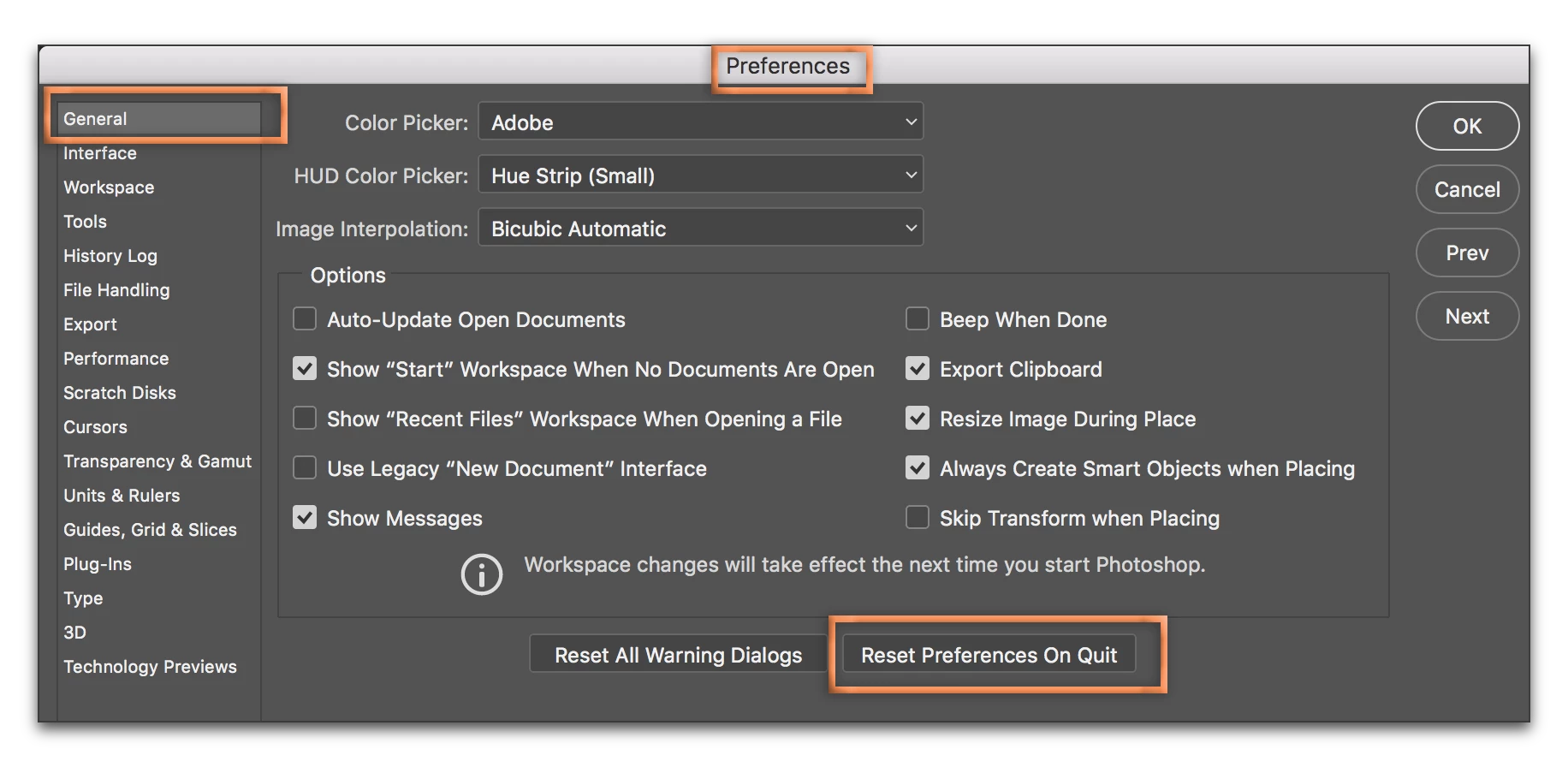
I’ve read about someone solving the same problem by going into preferences and set it all back to Default.  However, I hope not to have to do this as then I have to set up my PS from scratch, and I do not remember all the preference settings I have made over time.

Version CC 2019 20.0.06
This topic has been closed for replies.
Correct answer Barb Binder

Hi Tom:


Jane has worked through all the obvious issues with you. My questions are:

  • Is this happening in all new files, or just in this one?
  • Did you click in the text and then choose Select > All before selecting Reset Character and Reset Paragraph?
  • Would you like to share the file so that we can take a look? 


A note on the preferences: Photoshop saves your preferences when you shut down the application and reads those preferences when you reopen the program. With this much activity, files can become corrupt over time. When the application begins to misbehave, deleting it and allowing Photoshop to recreate the preference file will resolve erratic behavior issues. When you are ready to give it a shot, first save any custom brushes, tool presets, workspace, etc. 

~Barb

3 replies

Barb Binder
Community Expert
Community Expert
September 14, 2019

Great news, Tom. Glad you are back on track.


~Barb

~Barb at Rocky Mountain Training
Barb Binder
Community Expert
Barb BinderCommunity ExpertCorrect answer
Community Expert
September 14, 2019

Hi Tom:


Jane has worked through all the obvious issues with you. My questions are:

  • Is this happening in all new files, or just in this one?
  • Did you click in the text and then choose Select > All before selecting Reset Character and Reset Paragraph?
  • Would you like to share the file so that we can take a look? 


A note on the preferences: Photoshop saves your preferences when you shut down the application and reads those preferences when you reopen the program. With this much activity, files can become corrupt over time. When the application begins to misbehave, deleting it and allowing Photoshop to recreate the preference file will resolve erratic behavior issues. When you are ready to give it a shot, first save any custom brushes, tool presets, workspace, etc. 

~Barb

~Barb at Rocky Mountain Training
Tom E PAuthor
Known Participant
September 14, 2019
Hi Barb. The problem applied to all new files. However your tip ensuring all text was selected when Reset Caracter did the trick! Many thanks!
jane-e
Community Expert
Community Expert
September 14, 2019

Hi Tom,


What happens when your resize the text frame wider?


Can you show a screen shot with your insertion point in the text and the Paragraph panel open?


You might also Reset the Type tool in the options bar — right click the icon on the far left.


Jane


Tom E PAuthor
Known Participant
September 14, 2019
I dont see an option to add a screenshot jpg file anywhere???
jane-e
Community Expert
Community Expert
September 14, 2019
Click the big blue button on your first post instead of the small black Reply to my answer.