Smalish
Participant
March 2, 2019
Answered

Unexpected merging issue

  • March 2, 2019
  • 1 reply
  • 407 views

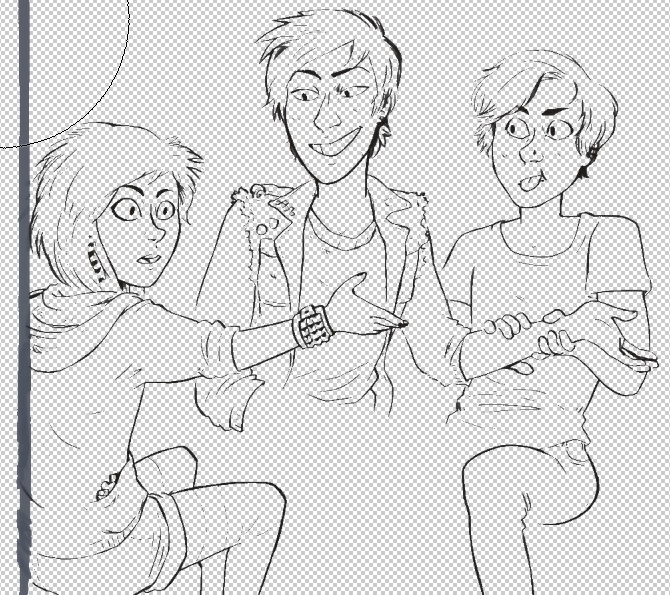
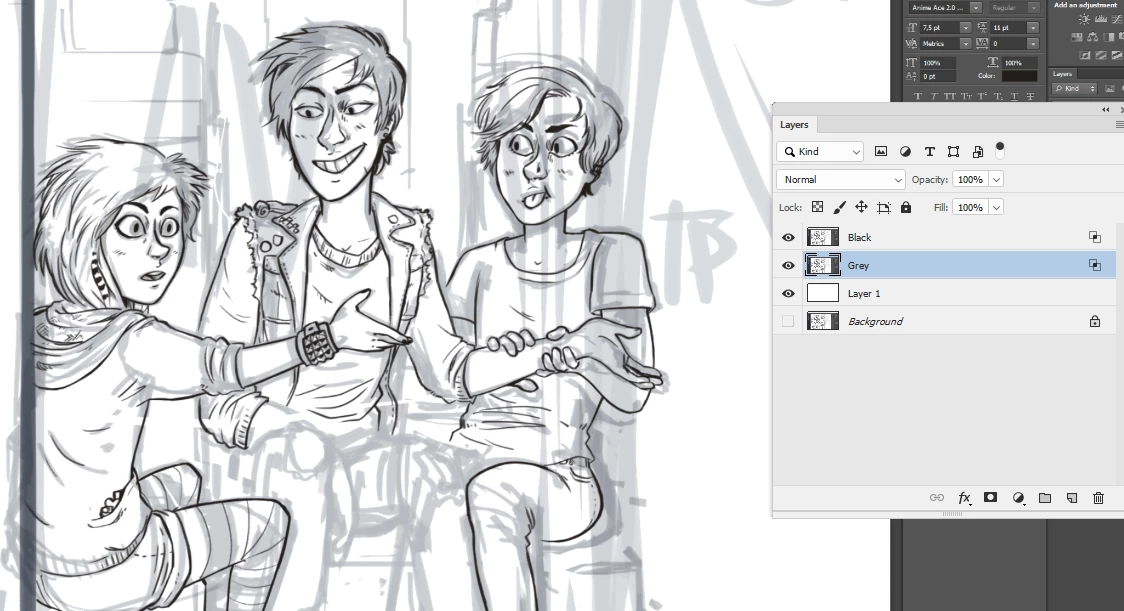
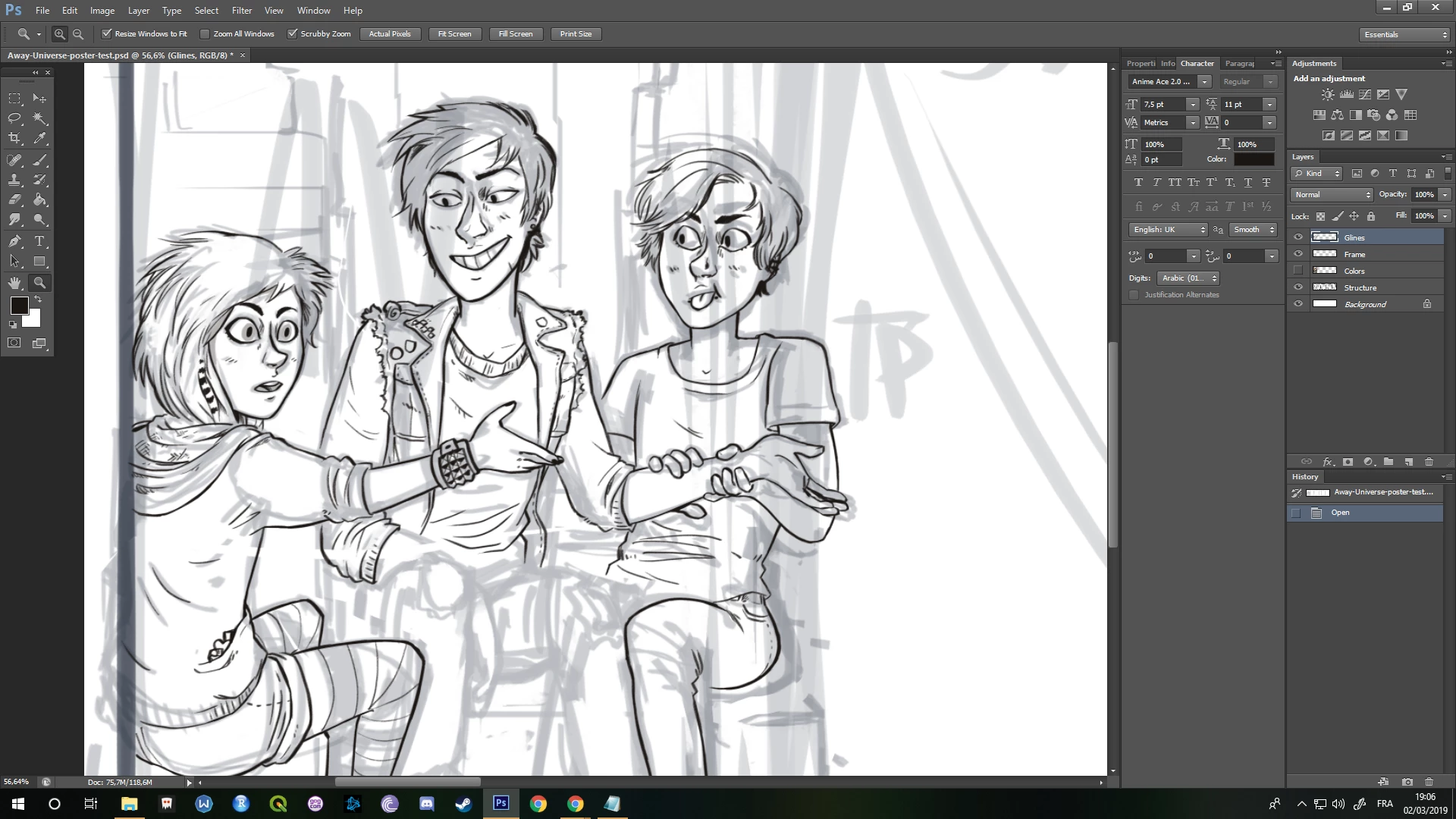
As the title says, I don't know what happened but my guildelines and final line art layers merged accidentally and I only realised it too late so basically, everything is screwed. Or maybe there's a way to save at least the black lining I did and remove all the grey ? What do you think ?

Thanks people.
This topic has been closed for replies.
Correct answer davescm

Try this

Duplicate the layer twice the top one black the lower grey.

Select the black layer and turn off the grey lay (click the eye icon)

Right click the black layer and choose blending options.

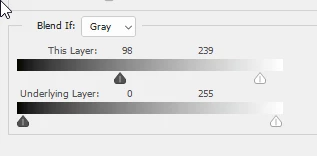
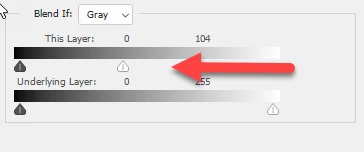
In Blend if move the white slider to the left so you only have your black lines showing

Choose the grey layer and in blending options move the sliders so you only see the grey

Your black and grey are now coming from separate layers

Dave

1 reply

JJMack
Community Expert
Community Expert
March 2, 2019

Dupe the layer you do have.  See if you can select the darker lines perhaps add a levels adjustment first to help separate the lines. Select and do a copy paste to see if you can create an acceptable line art layer.

JJMack
Smalish
SmalishAuthor
Participant
March 2, 2019

Well, the issue is that I am loosing a lot of details when I do that.
Moreover I have no idea how to work with an adjustement layer after I created it. I can't keep drawing on it or add colors in a new layer otherwise the grey appears back again.
I know this isn't clear at all but I've never had this problem before and I don't even know how to explain what's going on.

Norman Sanders
Legend
March 2, 2019

1. If the image layer has a lock, trash the lock

2. Hold down the Cmd key and click on the New Layer symbol at the bottom of the Layers panel to put a blank layer below the illustration layer.

3. Edit > Fill with White

4. Double click on the image layer in the Layers panel to bring up Layer Style

5. As shown above move the top right slider to the left. Then hold down the Options key to split the slider and gently move it further left as shown. (Note the numbers above the top grayscale,)

6. When you are satisfied with the result, (experiment with the sliders) choose Layer > Flatten Image

7. Use the Brush set to white and eliminate any gray lines you want to eiiminate.