
April 2, 2019
Answered

Unknown icon in brush settings panel

  • April 2, 2019
  • 3 replies
  • 4005 views

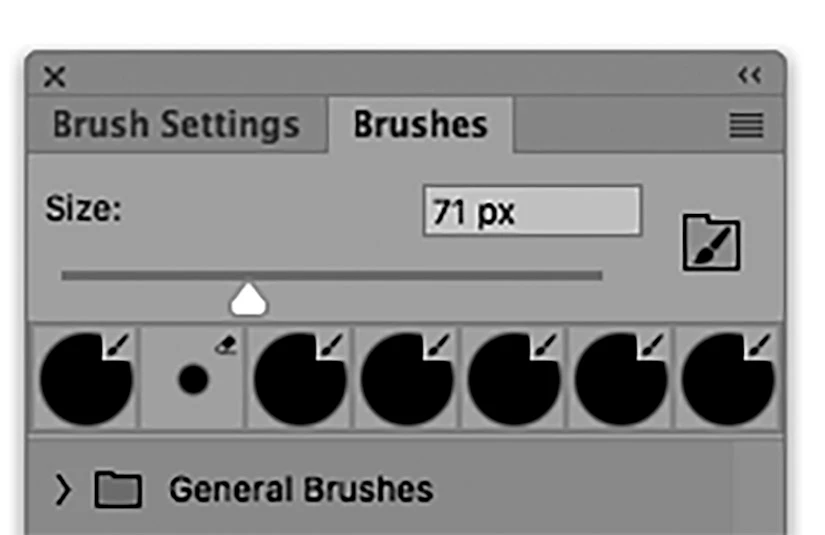
This is going to seem obvious and stupid to most of you, but I just noticed this new icon-looks like Pac-man swallowing a brush icon- showing up in the PS CC 2019 brushes panel. What, pray tell, does it mean, and why are there 6 of them?
    This topic has been closed for replies.
    Correct answer davescm

    Oh - and there are six of them because those are the last six brushes you used

    Dave

    3 replies

    Trevor.Dennis
    Community Expert
    Community Expert
    April 2, 2019

    You can turn it off by right clicking inside the document window with the Brush tool selected, and clicking on the little cog icon.

    Unchecking Show Additional Preset Info will get rid.  It's a good idea to keep it turned on unless you are totally familiar with the presets you are using, as the new brush management system will change tool depending on the preset.  You can see that if you were using the brush, and clicked on one of the presets in the screenshot below, in three cases you'd be switched to the Smudge tool.  You can prevent this happening by holding down Ctrl (Cmd) key when selecting the preset.

    Good luck.

    April 2, 2019

    Thank you for the answers. There is something helpful in all of them. Mr. Dennis, where can I read up on the new brush management system? That terminology confirms my suspicions that things aren't designed to work the way I am used to. Used to was I could pick a size, then an edge hardness, then a degree of opacity, and the same settings (as I recall) would work for brush or for eraser. I could be wrong, because I've been struggling to re-establish that array of choices for months, but without success. And most of the Adobe instructions aren't a lot of help. What is the scoop?

    davescm
    Community Expert
    Community Expert
    April 2, 2019

    Hi you still can.

    Any brush with a preset, can be loaded without its preset (i.e without switching tools) by Ctrl+Alt clicking on the brush.

    My recommendation would be to turn on these options in teh brushes panel so you can see which brushes have tool presets.

    You can save any brush as a new Brush Preset, (top item in the menu above)  at which point you can choose whether to include the associated tool or even the associated colour:

    Dave

    davescm
    Community Expert
    Community Expert
    April 2, 2019

    Hi

    Brushes can now have a tool preset stored with them so that, when the brush is selected, the tool switches to the associated tool.

    Your screen shot shows 6 round brushes with a brush preset and one with an eraser preset.

    Dave

    davescm
    Community Expert
    davescmCommunity ExpertCorrect answer
    Community Expert
    April 2, 2019

    Oh - and there are six of them because those are the last six brushes you used

    Dave

    Sahil.Chawla
    Adobe Employee
    Adobe Employee
    April 2, 2019

    Hi Birck,

    Could you try resetting the preferences and see if it helps?

    Preferences in Photoshop


    Regards,
    Sahil