Exit
  • Global community
    • Language:
      • Deutsch
      • English
      • Español
      • Français
      • Português
  • 日本語コミュニティ
  • 한국 커뮤니티
1

Updated Gradients

Community Beginner ,
Jun 06, 2023 Jun 06, 2023

Hello,


not sure if this is a bug or I'm doing something wrong, but I've been using Photoshop for work for the past 3 years. Never had any kind of similar problem. Since the update 24.5 my gradients are, well horrible...


I'm attaching two pictures:

pic1.png

As you can see, in PS I have this preview of the visual. I want gradient to be full on the left side (as there is lack of stock photo there) and go into opacity 0 on the right. Everything is set right, here's a picture again:
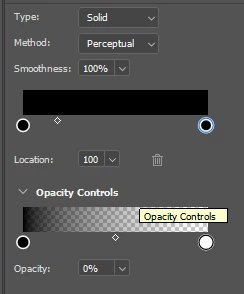
pic3.png

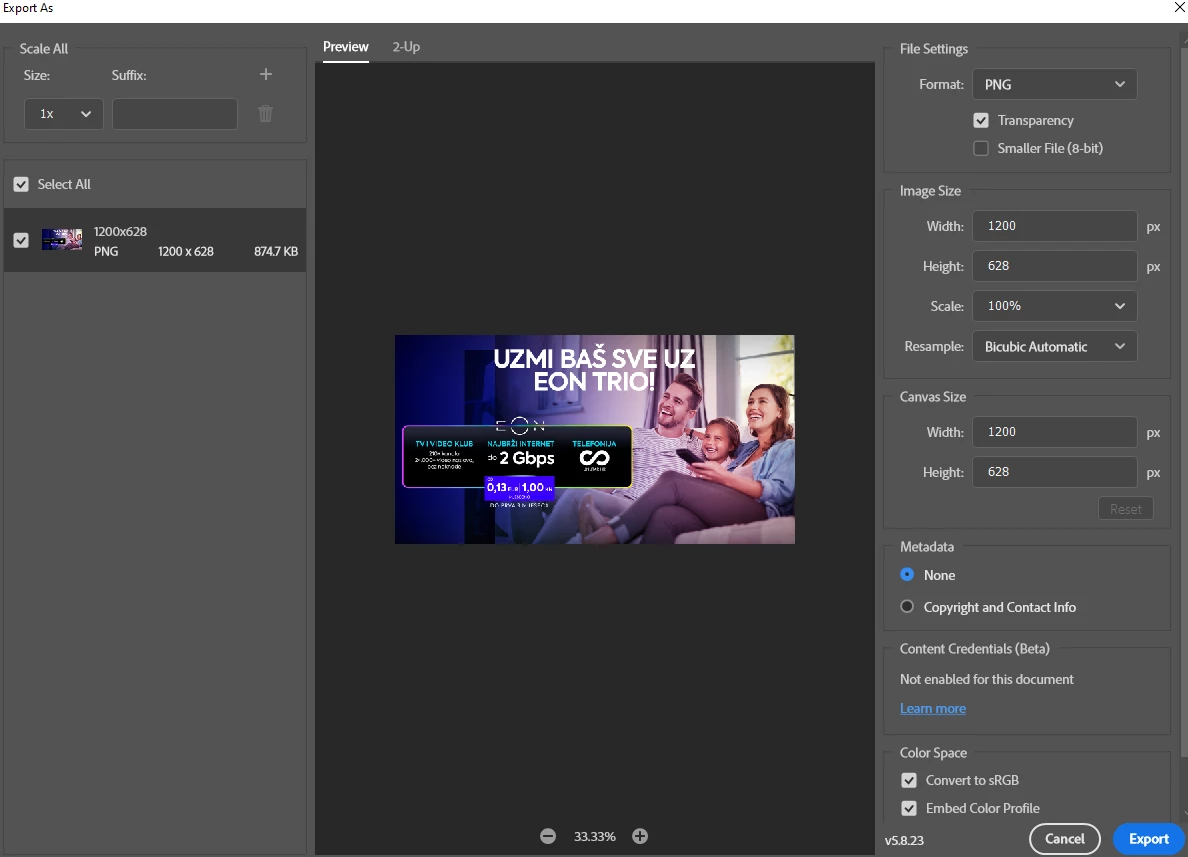
When I export, this is what I get out:pic2.png

The gradient is actually there, it's not that PS completely ignores the layer but it's almost non-existant.


Here's a good example of how random it behaves currently:

1. Inside PS

default011rv177z9ch_0-1686050890536.jpeg

Export of that file:

default011rv177z9ch_1-1686050911462.jpeg


Why did we even ask/got this change on gradients? It's clunky [cursing removed].


Btw. my computer, GPU, all requirements are good, great, excellent... Never had problems before this update.

TOPICS
Windows
306
Translate
Report
Community guidelines
Be kind and respectful, give credit to the original source of content, and search for duplicates before posting. Learn more
community guidelines
Adobe
Community Beginner ,
Jun 06, 2023 Jun 06, 2023

Addition

Even when adding another gradient anchor and pulling the gradient out of the canvas:

BrunoBB_0-1686051142345.png

The result is the same - no gradient on PNG export (or I mean, almost non-existent gradient)

Translate
Report
Community guidelines
Be kind and respectful, give credit to the original source of content, and search for duplicates before posting. Learn more
community guidelines
Community Expert ,
Jun 06, 2023 Jun 06, 2023


@BrunoBB 

See this video from Julieanne Kost to learn how the new gradient tool works.

https://jkost.com/blog/2023/05/discover-the-new-gradient-tool-in-photoshop.html


Or, in the options bar on the far left, you can change from Gradient to Classic Gradient to make the tool work as it did before.

janee_0-1687975439419.png


Jane


Translate
Report
Community guidelines
Be kind and respectful, give credit to the original source of content, and search for duplicates before posting. Learn more
community guidelines
Community Beginner ,
Jun 06, 2023 Jun 06, 2023

Hey @jane-e 

thanks for the reply, yeah the classic gradient works! I understand the controls of the new gradient but this happens:


View in PS:

pic1.png

Perfect, I made it exactly how I want it - the options are nice, and the line is easy to control - great, let's export!

View in the export window (and after export):

pic2.png

The gradient is like 2% opacity - it's the same file, same layers, and same options...


It just removes it in export for some reason. Can't figure out why - there are no filters blocking it, no blending options, and nothing like that. Even if I pull the new gradient to be the topmost layer it does the same.

Translate
Report
Community guidelines
Be kind and respectful, give credit to the original source of content, and search for duplicates before posting. Learn more
community guidelines
Community Expert ,
Jun 06, 2023 Jun 06, 2023
quote

@BrunoBB wrote:

thanks for the reply, yeah the classic gradient works!


You're welcome,  and I'm glad the classic gradient is working for you — I'm not sure why the exporting fails.


Jane

Forum volunteer


Translate
Report
Community guidelines
Be kind and respectful, give credit to the original source of content, and search for duplicates before posting. Learn more
community guidelines
Community Expert ,
Jun 06, 2023 Jun 06, 2023
LATEST

When your exporting are you right clicking on the layer in the layers panel and clicking Export As?


Translate
Report
Community guidelines
Be kind and respectful, give credit to the original source of content, and search for duplicates before posting. Learn more
community guidelines