kristip62558545
Participant
January 28, 2020
Answered

Using a shape as a frame

  • January 28, 2020
  • 4 replies
  • 823 views

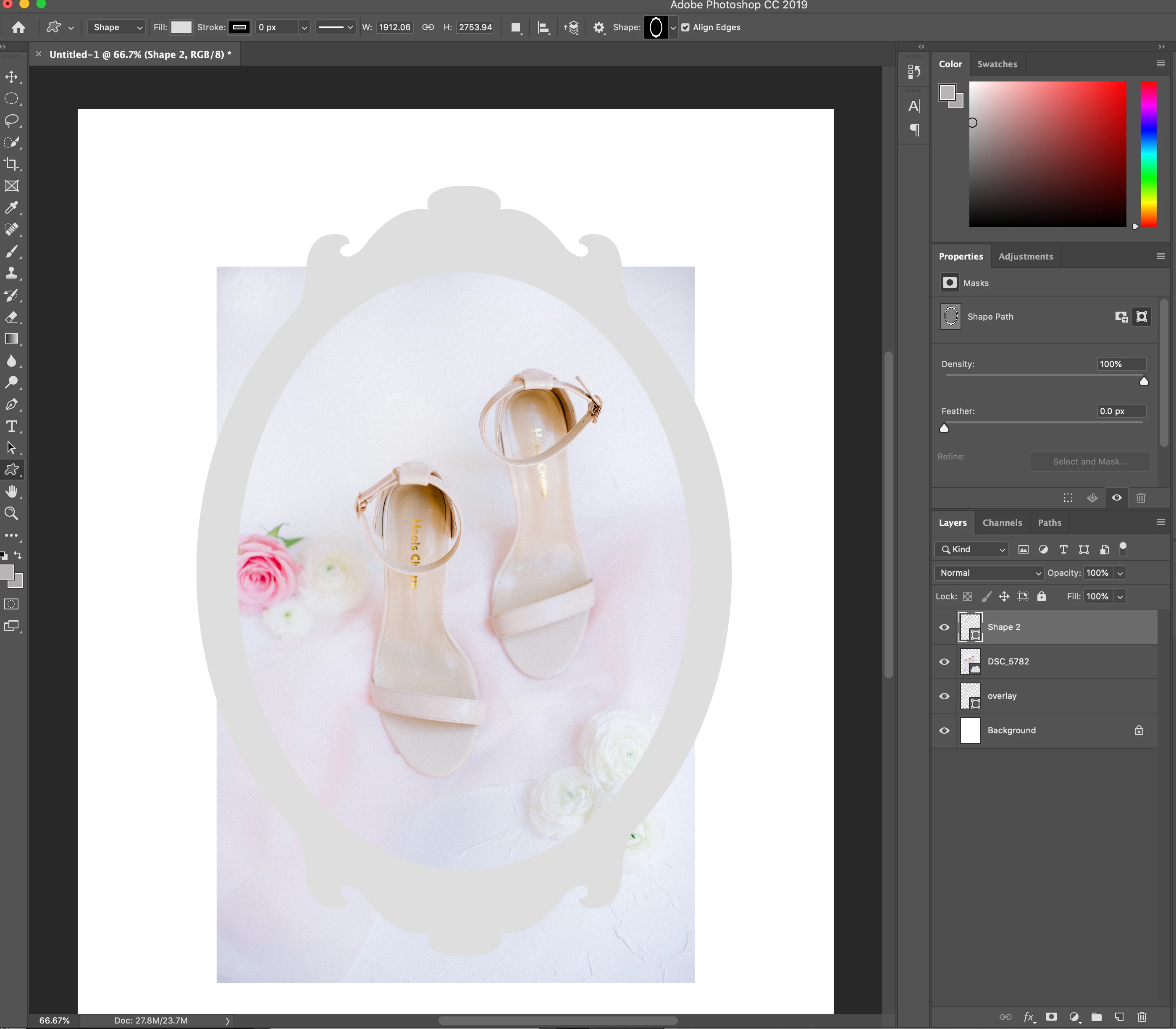
See below image for reference:

How do I make the image disapear on the outside of the border? I am wanting to export this as a transparent background to use for my website?


Also, is there a way to make the border of the shape thinner?

Thanks!
This topic has been closed for replies.
Correct answer Chuck Uebele

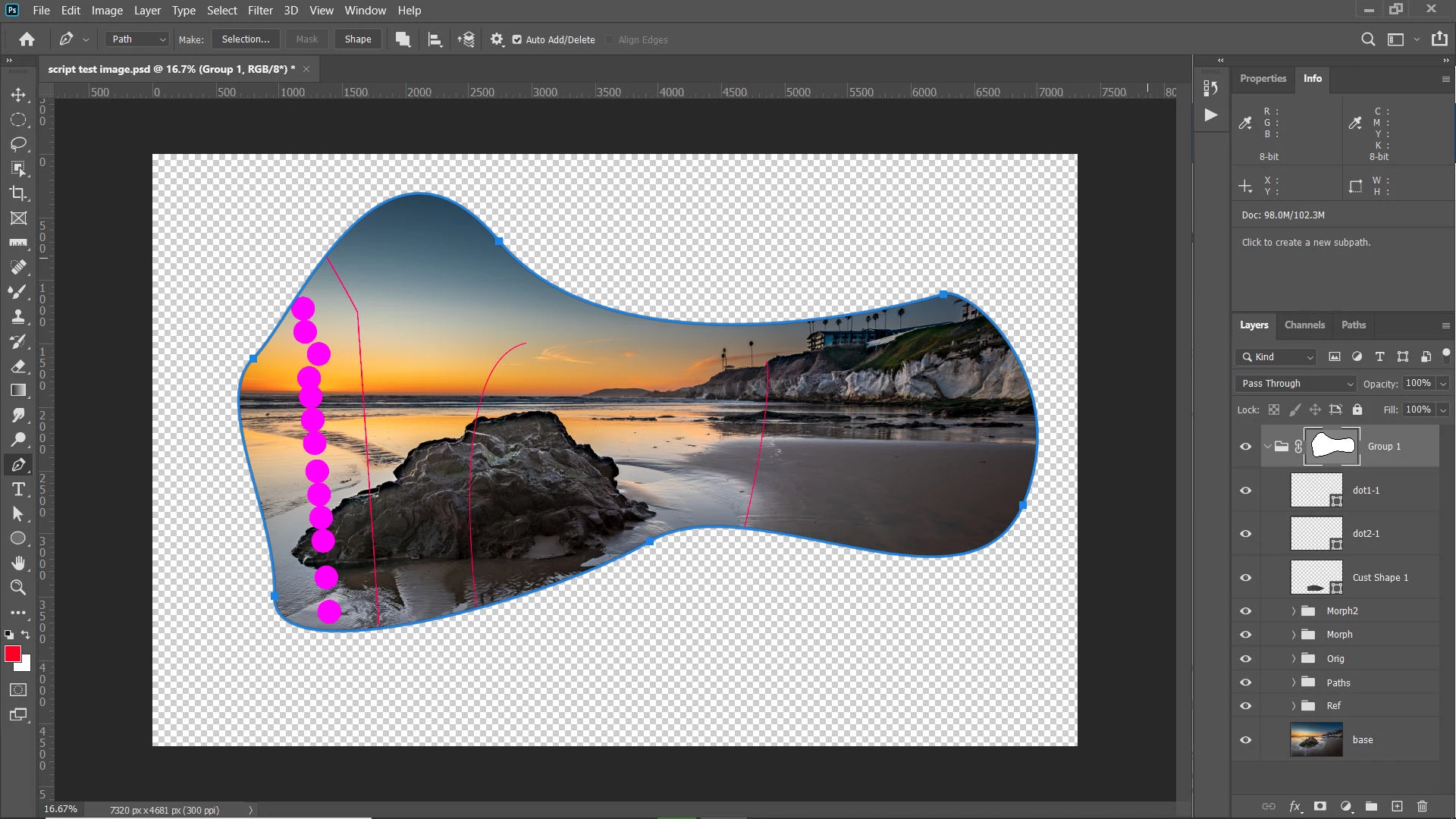
As in my screen shot, put all layers in one group. Use the pen tool set to path and create a path where you want the frame to be. Then ctrl/cmd click on the mask icon in the layers panel while the group layer is selected and while your path is still selected.

4 replies

Chuck Uebele
Community Expert
Chuck UebeleCommunity ExpertCorrect answer
Community Expert
January 28, 2020

As in my screen shot, put all layers in one group. Use the pen tool set to path and create a path where you want the frame to be. Then ctrl/cmd click on the mask icon in the layers panel while the group layer is selected and while your path is still selected.

kristip62558545
Participant
January 29, 2020

Chuck- It worked!!! Thank you very much!

Chuck Uebele
Community Expert
Community Expert
January 29, 2020

Very good!

JJMack
Community Expert
Community Expert
January 28, 2020

Turn off the visibility of the background layers and save a .PGN format image file.

JJMack
kristip62558545
Participant
January 28, 2020

Hi JJMack, thanks for your response. I have done that, but still see part of the image on the outside of the frame, which I am not wanting. I don't know how to get rid of the image on the outside of the frame. Thanks!

JJMack
Community Expert
Community Expert
January 28, 2020

Then you posted the wrong screen capture or the is there is something I can not see in your screen capture. That content is not in your screen capture. There are no layer hidden by layer type filtering, There are no layer mask shown and no later is clipped. The content you are referring is not the background layer for you turned off its visibility.


JJMack
Leslie Moak Murray
Community Expert
Community Expert
January 28, 2020

Is it that the white background layer also forms the center fill of the frame? If so, you can also:

-With the pen tool on the frame (shape) layer, make a selection (in Windows, it's Right Click>Make Selection)

-Select>Inverse

-Go to the white background layer and do Edit.>Cut. The area outside the frame will be cut, while the center of the frame remains.

kristip62558545
Participant
January 28, 2020

I tried to follow your steps but the inverse was in light gray and was unable to click it. I am up for trying a whole different way.

Chuck Uebele
Community Expert
Community Expert
January 28, 2020

Either delete the background layer or turn it to a normal layer by clicking on the lock icon. Group all the layers, the add a vector mask tha create the shape you want with the pen tool, on the vector mask.

kristip62558545
Participant
January 28, 2020

Thanks Chuck for your response. I deleted the background layer, but I want anything on the outside of the frame to be earased as well....I tried to do the vector and pen and it was very unclear to me how that would erase the image on the outside of the frame.