
Inspiring
November 28, 2023
Answered

Using blend modes with 2 white images

  • November 28, 2023
  • 1 reply
  • 695 views

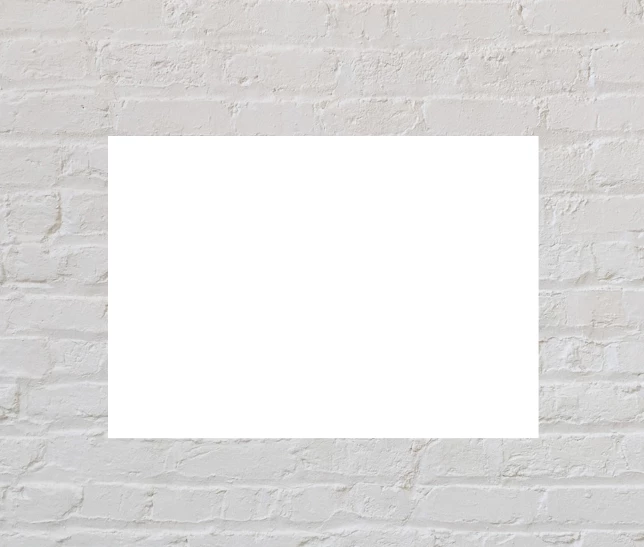
I have a photo of a grey brick wall, and a white rectangle.


I'd like to set a blend mode (e.g. multiply) a and have the dark bits show through.


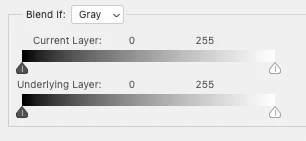
But the rectangle just disappears. I've tried going into the 'Blending options' and changing the settings there, but no luck


This topic has been closed for replies.
Correct answer PECourtejoie

Hi, I would use alt, and split the blend if sliders layers, but it will make parts transparents, other opaque

But the white layer is on top, you might need to copy the bottom layer, place it on top, ALT+click in between them to limit the scope to the white rectangle. Then, you can use a darken, lower the opacity on the bricks.

1 reply

PECourtejoie
Community Expert
PECourtejoieCommunity ExpertCorrect answer
Community Expert
November 28, 2023

Hi, I would use alt, and split the blend if sliders layers, but it will make parts transparents, other opaque

But the white layer is on top, you might need to copy the bottom layer, place it on top, ALT+click in between them to limit the scope to the white rectangle. Then, you can use a darken, lower the opacity on the bricks.

mttplbkpAuthor
Inspiring
November 28, 2023

Thank you! sorry but what do you mean by using 'alt' and spltting the layers?

jane-e
Community Expert
Community Expert
November 28, 2023

@mttplbkp 


The triangles can be split into two halves when you hold down Option (Mac) or Alt (Windows)


You selected that you are using Windows, macOS, Web, and iPadOS. You can't do this on the Web or iPad versions. It also does not apply to Actions, Scriptings, or SDK.


Jane