
Known Participant
January 20, 2019
Answered

Using of Alpha Chanels and different Layers

  • January 20, 2019
  • 5 replies
  • 2015 views

This Problem is for years now so its time for a correction because a new one additionally appeared:

I have documents with several Layers and Alpha-channels to create masks.

When I go from an active Alpha to an active Background, then back to Alpha again very often the colour switches from background- to foreground-colour.

And now, drawing in a Alpha layer, making a mistake, using cmd-z for undo, I get the Background activated instead of the Alpha Channel where I was working, the Alpha gets invisible. This is quite annoying, because you have to constantly interrupt the actual work to activate the right channels or color again.
    This topic has been closed for replies.
    Correct answer JJMack

    Thanks for all the Answers. But they don't hit the point. My probem is a thing that shold be handled by the developers from Adobe.

    I now the colour changes when you change from Layer to Alpha and vice versa, because the colourd are bont to the active Layer/ Alpha Channel.

    What happens in my case is: In Alpha layers I paint with black. Often when I switch the Layer to active and then go back to an Alpha, the ALPHA changes from white to black, it goes from background to foreground colour. Same as you do just by clicking "x"

    The other thing is backstep (cmd z) that annoys me, its not easy to reproduce, just tested it and couldn't. I will observe it and exactly document when it happens again. So best, lets pause the discussion, i'll come to it later, hopfully with screenshots that can be reproduced.


    https://forums.adobe.com/people/eye+of+science  wrote

    What happens in my case is: In Alpha layers I paint with black. Often when I switch the Layer to active and then go back to an Alpha, the ALPHA changes from white to black, it goes from background to foreground colour. Same as you do just by clicking "x"

    The other thing is backstep (cmd z) that annoys me, its not easy to reproduce, just tested it and couldn't. I will observe it and exactly document when it happens again. So best, lets pause the discussion, i'll come to it later, hopfully with screenshots that can be reproduced.

    You stated you were painting black in an Alpha  channel switch to image layer and painted and switch to alpha channel and was painting black again that sounds correct it did not switch to white your alpha brush was  again painting black like you had been.

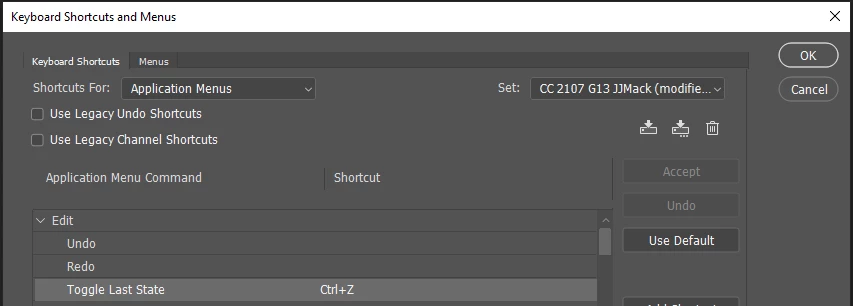
    Yes Adobe changed cmd+Z from Undo to Step back in history.  You can change cmd+z back to Undo/redo  like I did or use Adobe check box is Edit Kneeboard  Shortcuts to use legacy Undo Shortcuts

    legacy undo

    5 replies

    Daniel E Lane
    Inspiring
    January 20, 2019

    of course it isn't. The issue is what is selected over in the layers panel. If you follow what I posted above, you will see what I'm talking about. In the right circumstances, with an undo, it will change from having your layer mask selected over to having your image selected instead. And if you don't notice that change and start painting again, you will be painting on your image again and not your mask.

    JJMack
    Community Expert
    Community Expert
    January 20, 2019

    Actually that depends on what you have Ctrl+Z  a shortcut for the  new step back in history or the  old single undo.  An undo will only undo the paint multiple step backs will change targets.  A single step back should just undo the paint stroke not change targets.

    JJMack
    Known Participant
    January 21, 2019

    Again, that's not the case. Follow what I posted above and it will happen. Every time you set it up like that. But again, only on the first time. If you start painting again and undo, it won't happen again.  With this version or the older version of the CMD+z (ctrl+z) as I said before, I've seen this for years. Many many years. Its an odd little glitch that has been around for many versions and is still there in the newest version. For me it was just something I noticed once many years ago and decided on a workflow that eliminated it. But the person who started this thread has just encountered it for the first time and doesn't know how to deal with it.


    Thanks for all the Answers. But they don't hit the point. My probem is a thing that shold be handled by the developers from Adobe.

    I now the colour changes when you change from Layer to Alpha and vice versa, because the colourd are bont to the active Layer/ Alpha Channel.

    What happens in my case is: In Alpha layers I paint with black. Often when I switch the Layer to active and then go back to an Alpha, the ALPHA changes from white to black, it goes from background to foreground colour. Same as you do just by clicking "x"

    The other thing is backstep (cmd z) that annoys me, its not easy to reproduce, just tested it and couldn't. I will observe it and exactly document when it happens again. So best, lets pause the discussion, i'll come to it later, hopfully with screenshots that can be reproduced.

    Daniel E Lane
    Inspiring
    January 20, 2019

    Ok, you guys are way overthinking the issue in your answers. The issue is really simple. Follow these steps to duplicate as it only happens when you first create the mask..

    1.     Have two layers set up.

    2.     Add a layer mask to the top layer.

    3.     Click on the mask in the layers panel, then start paining

    4.     stop painting and hit undo

    5.     More than likely, it no longer has the layer mask highlighted, but rather the image it's self is now highlighted, so if you go to paint, you are painting whatever color it happened to be on over the image and not black or white into the mask.

    Base layer

    Added a solid color below just to have something there.

    Paint on the layer mask to reveal color below.

    Click undo, and it undoes what you did on the layer mask, but it is also now highlighting the image, not the layer mask, so if you go to paint again, it defaults to being what ever color you had up last and paints on the image, not the mask.

    It only seems to do this once. After you click undo, then reclick on the mask and paint again, if you press undo again, it seems to stay on the mask now. It only seems to do this right after you create the layer mask and start painting.

    I've encountered this for many years, but have gotten used to it happening, so don't think much of it and have a workflow that eliminates it for me now, but it's still there. I remember this happening as far back as Photoshop 7 or the beginning of the CS versions. A little too long ago to remember exactly... lol

    JJMack
    Community Expert
    Community Expert
    January 20, 2019

    I believe if you look in the tool bar and switch targets between a layers content and it  layer mask will see the bush switch.   The colors can be very different it not just a switch between color and grayscale.

    JJMack
    JJMack
    Community Expert
    Community Expert
    January 20, 2019

    I have CC 2014, CC 2018 and CC 2019 installed on my Windows Workstation.  Also I have CS6 installed. What Platform and software versions are you using? You seem to be using a Mac. Adobe changed the CMD+Z shortcut in CC 2019. Adobe changes CMD+Z the step back in history. Are you actually editing a single channel Grayscale document or a color document with neutral color. It look like you may be editing a grayscale dcument I see what looks like the Channels palette the show Grayscale and alpha channels.

    I'm a bit confused by what looks like your background layer and the bottom alpha channel the looks like it may has some relation to the background layer the inverse of Alpha 1 channel.

    With the paletts you show you would be painting on alpha 3 and the image window will have overlay the composit of all the  alpha channels that have their visibility on.

    I do not understand what function your alpha channels provide

    JJMack
    Known Participant
    January 20, 2019

    I use Mac. OS 10.12 Sierra

    The Alpha Layers are "Masks" to colour the different content of the greyscale images. The Alpha can be converted to select (don't know if this is the right word in english I mean the running ants lines like you do with the lasso-tool)

    As you use windows, I think you will not be able to reproduce the problem.

    nonetheless, thanks for trying to help

    JJMack
    Community Expert
    Community Expert
    January 20, 2019

    Still the testing I just did with a grayscale documemt  Photoshop still seems to switch between two brush types . One paint in the targeted image layer  which and is also reflected into the top channel in the channels palette the composite of visible grayscale layers. The other Brush paint in other channels Layer masks and alpha channels. So Photoshop seems to have two current brushes.  One brush used to paint on image layer pixels and a Channels brush that paint on Layer Mask and alpha channels.

    So in a color document the  image brush would paint on a  targed image layer's pixels and  also be reflected into the composite color channels like( RGB, Red, Green and Blue).  The Channel brush a grayscale brush would paint  on other channels Layer Mask and Alpha channels.

    You would see the brush switching reflected in the tool bar swatches.

    JJMack
    JJMack
    Community Expert
    Community Expert
    January 20, 2019

    An Alpha channel is a single channel  in make  no difference what color you select for brush you will be painting with a gray tone the luminosity of the brush.

    So there is a paint switch that does happen  when you switch between a color brush like the RGB channels and the CMYK Channels the Lab channels and you switch to a single Grayscale channel.

    You will see two different behaviors in the Swatches Icons in the tool bar.   The Swatches icon  has basically 5 inner icons in it.  Their states will change  in one of two different ways when you switch between a color brush and a gray channel brush.

    The two two states or the bottom two states in gray mode the little swatched will always be Black and white a for a color brush the swatches can be diffent colors.

    for a color brush the defaults D shortcut the colors are Black foreground  and White background but a colored brushes can have any foreground and any background color for examples blue foreground yellow background

    Switch to a channel brush you will see  channel brushes can only have neural colors white to black

    The swatches represent the current brush type foreground and background color.   Colors or grayscale

    JJMack
    Known Participant
    January 20, 2019

    I work with Photoshop CC, actual Version. As mentioned, the Problem is very old, but cummulates with "cmd-z" now what makes it worse.

    My Layers are Greyscale. (no RGB)

    In Alpha Chanels I know, it's greyscale, but you can use white, black or any greyscale between to paint in a Alpha-Channel.

    Sometimes I switch one of the three Layers on and of to see the content in the Layers then I adapt the painting I do in the Alphas. By this switching often the "colour" of the Brush changes from Background to foreground.

    The second problem -NEW- is making "cmd-z" changes the active and visible Alpha/Background. Annoying.

    jane-e
    Community Expert
    Community Expert
    January 20, 2019

    Hi,

    Working in Alpha channels has not changed substantially since Photoshop was first released.

    May I ask why are you switching between the layer and the alpha channel?

    ~ Jane

    Daniel E Lane
    Inspiring
    January 20, 2019

    What version of photoshop are you running? I remember encountering things like that on some of the earlier versions, but not in the last version or two.