
Participating Frequently
November 13, 2016
Answered

Using the Straighten Tool in Photoshop CC

  • November 13, 2016
  • 2 replies
  • 1575 views

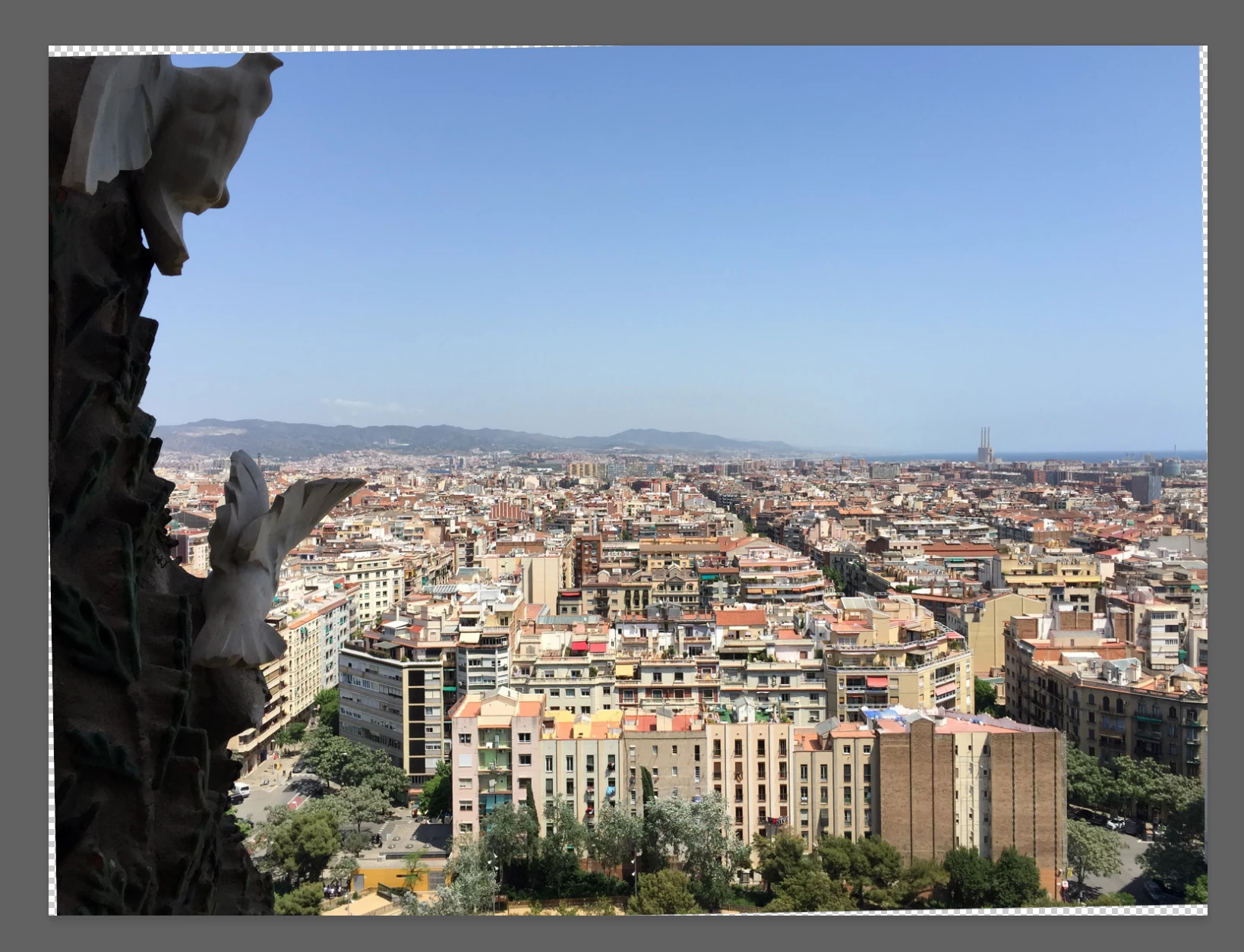
Can anyone tell me how to use the Straighten tool in Photoshop CC (and not get the transparent background?  I'm used to CS5.  All I had to do was draw the line and it straightened and cropped on it's own.  I don't know how to straighten and not get this transparent background. Thanks in advance for any help you can give me!
    This topic has been closed for replies.
    Correct answer barbara_a7746676

    As you noticed, Straighten works a little differently now. It straightens and converts the Background to a regular layer at the same time. If you don't want transparency, these are a couple of approaches:

    You could use the Crop tool to straighten and check Content-Aware in the Options bar before doing so. Photoshop will fill the resulting transparent area with pixels.

    You could use the Straighten tool and afterwards right click on the layer and choose Flatten Image. The transparent areas will fill which the current Background color.

    2 replies

    postrophe
    Inspiring
    November 13, 2016

    Hi

    3) You could use the Straighten tool and afterwards use the crop tool.

    Pierre

    Participating Frequently
    November 13, 2016

    Thank you, Pierre!!  It was better in CS5 - it did both in one click (straighten and crop) - I don't know why they made it harder!

    postrophe
    Inspiring
    November 13, 2016

    Hi

    Well .. I'm an old fart user of this software, even before it was call "photoshop" and bought by Adobe.

    Over the years, some "magic" algorithm plugins have been added to it, but ... most of the time I prefer to use my own brain.

    Pierre

    barbara_a7746676
    Community Expert
    barbara_a7746676Community ExpertCorrect answer
    Community Expert
    November 13, 2016

    As you noticed, Straighten works a little differently now. It straightens and converts the Background to a regular layer at the same time. If you don't want transparency, these are a couple of approaches:

    You could use the Crop tool to straighten and check Content-Aware in the Options bar before doing so. Photoshop will fill the resulting transparent area with pixels.

    You could use the Straighten tool and afterwards right click on the layer and choose Flatten Image. The transparent areas will fill which the current Background color.

    Participating Frequently
    November 13, 2016

    Thank you so much Barbara!!  I much prefer the CS5 way (much simpler) but I appreciate knowing how to do this with Photoshop CC on my new iMac!!  Thanks again for the prompt response!