Participant
March 31, 2018
Answered

Using Trim Tool to remove white Borders

  • March 31, 2018
  • 3 replies
  • 6351 views

Hi,

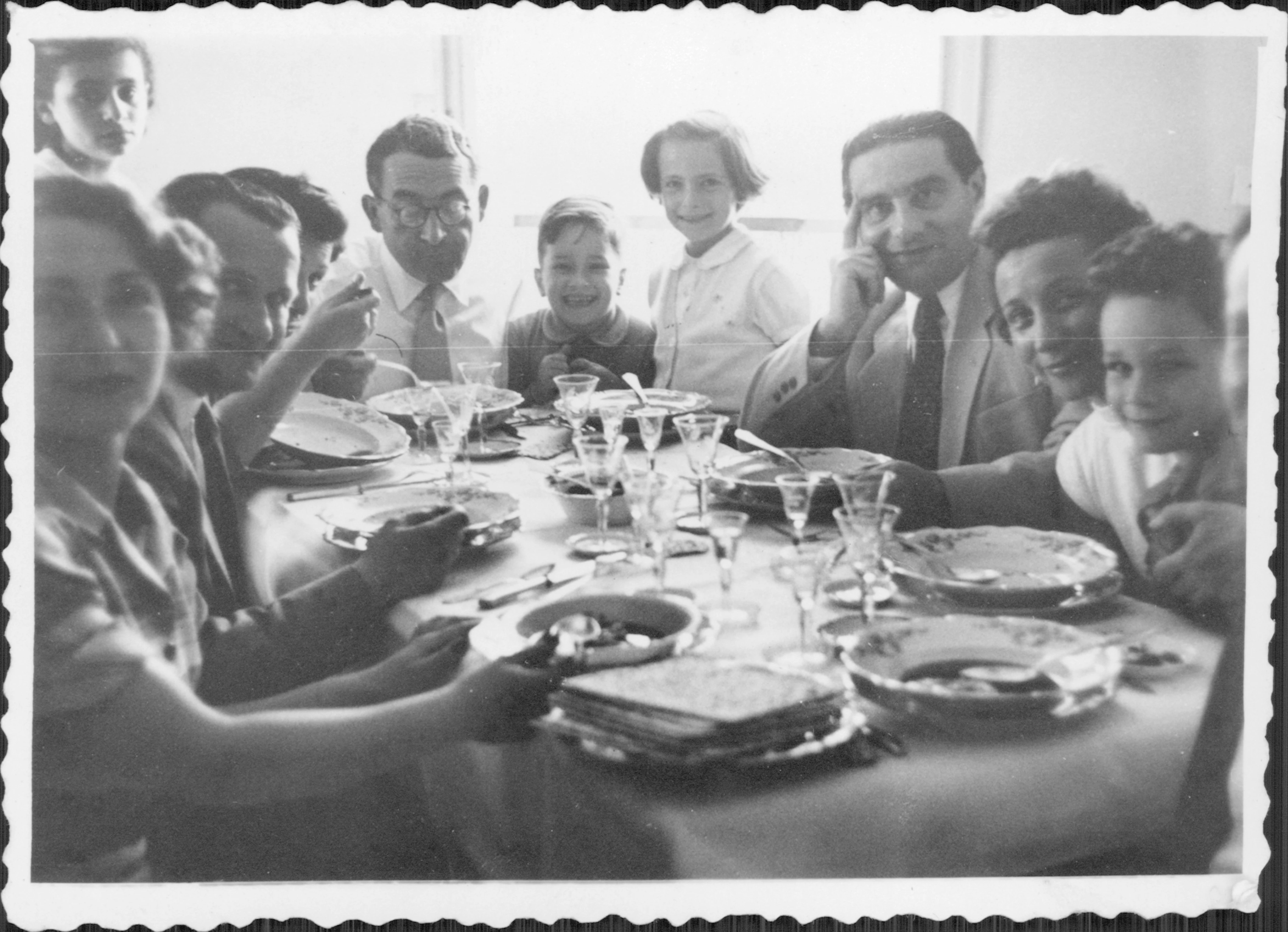
Fore some reason I cant get the trim tool to remove the white borders on a scan job. I dont want to have to continue to use the crop tool manually to the 1000 plus scans. Any help would be greatly appreciated.

This topic has been closed for replies.
Correct answer Norman Sanders

Mar, I have a suggestion for an Action that may work for you if all the images are positioned similarly.

Open a file

Edit > Canvas size. Relative. Enter a minus figure in both height and width, about the size of the image border. You will be told that you will clipping area. Click: Proceed

It will trim to a borderless image which can be Saved

Note that even though you may have different sized images, since the adjustment in canvas size is relative, it will trim the images to their individual size.

One more thing:  A longer Action could then increase the canvas size to provide a white margin, if desired.

3 replies

Norman Sanders
Norman SandersCorrect answer
Legend
March 31, 2018

Mar, I have a suggestion for an Action that may work for you if all the images are positioned similarly.

Open a file

Edit > Canvas size. Relative. Enter a minus figure in both height and width, about the size of the image border. You will be told that you will clipping area. Click: Proceed

It will trim to a borderless image which can be Saved

Note that even though you may have different sized images, since the adjustment in canvas size is relative, it will trim the images to their individual size.

One more thing:  A longer Action could then increase the canvas size to provide a white margin, if desired.
marphotoAuthor
Participant
April 2, 2018

Hi Norman,

I didnt think of your suggestion but that would probably work. The images have a sloppy border and the black area that is shown is from the bulk scanner where the print was uneven. I thank you for your suggestion and will use this in the future.

Best Regards,

Mike

Trevor.Dennis
Community Expert
Community Expert
April 2, 2018

A wee addition to this thread.  You can see that the scan is not a perfect rectangle, but Perspective Crop would fix that

You could simply add canvas is you were not worried about the stamp edges

Norman Sanders
Legend
March 31, 2018

The reason Trim is not working for you is that it is designed to produce a rectangle, not to erase an area. With a scalloped edge you cannot eliminate all the black with Trim. 

JJMack
Community Expert
Community Expert
March 31, 2018

To me it looks like trim work fine. Trimmed all black borders to the bounds of the white frame.  I see a rectangle.

JJMack
Norman Sanders
Legend
March 31, 2018

JJ I am referring to removing the black "valley" between the white crests. Trim is not the tool for that. To remove the white border entirely requires a crop. (To compound the problem, some of the image area is the same tone as the border.)

JJMack
Community Expert
Community Expert
March 31, 2018

Looks like your Black borders have been trimmed to your images white frame. The image does not have white borders.

JJMack