
Mwarren
Inspiring
May 22, 2018
Answered

Vanishing Point: Can't paste artwork into blue grid

  • May 22, 2018
  • 6 replies
  • 20278 views

I found a number of threads in this forum by people with this issue, but none of the solutions have helped me at all. So here I am, asking the same question. At least I brought pictures.

First, the technical stuff: I'm using (an up-to-date) Photoshop CC 2018. I'm on 64-bit Windows via a Dell Core i5 @ 2.8Ghz w/32GB of RAM.

In this project, I am mocking up some new artwork onto one of our walls. Here is the image along with the blue-grid vanishing point buildout:

Here is the sequence of key-presses & clicks that I have taken.

  1. Before Vanishing Point: Copy the artwork to my clipboard
  2. Before Vanishing Point: Create a new, empty layer that I intend to paste the artwork into
  3. Now I formally enter vanishing point mode; the blue grid above is, by default, selected
  4. I CTRL-V to paste my artwork from the clipboard. Instead of pasting, I see this:
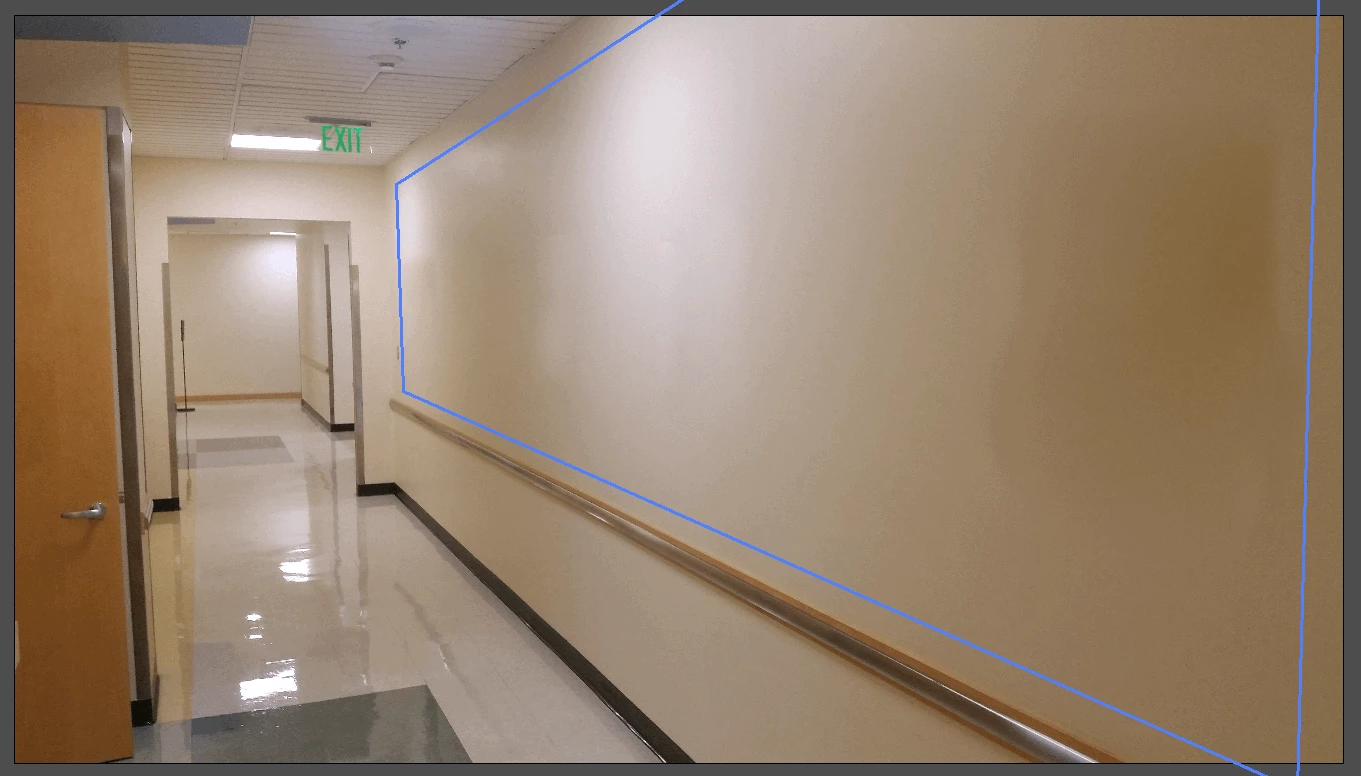
Big, fat nothing. After that nothing happens, the info panel at the top reads: "Click+drag in a plane to select an area on that plane. Alt+drag a selection to copy an area to a new destination. Ctrl+drag a selection to fill the area with the source image." Try as I click, I can't put anything there. I have tried a number of different types of artwork.

Due to the nature of this particular project, I can probably get away with just skewing the image, but am very irritated that I can't execute this technique properly since it appears so straightforward.

Any guidance would be much appreciated. Thank you.

Correct answer Mwarren

If the grid was created using the Background layer, but Cmd+V didn't deposit the image, could the error lie in the Copy phase...your Step 1. Did you copy a flat image or a layered image. Is the to layer an image layer? If Layered, you try it with a flattened file.


I tried that too. I have done this with a completely new, single image with no other layers - and no other fussing about - and it doesn't matter. This functionality straight-bites as far as I can tell. I've watched probably ten tutorials. I think I'm done with this nonsense. Skew it is.

6 replies

Participant
April 26, 2021

Hey man I had the same problem you had. All I did was unlock my background layer and allowed me to paste a smart object into the vanishing point.

Participant
April 25, 2020

That happened to me then I converted the picture to jpeg rather than png and it worked! I'm not sure why or how but maybe try that

Astonished_neighbor98A5
Participant
June 23, 2020

Mwarren, Thank u so much. I was suffering with the same problem since long every time i continue to try a few days then quit. U are the life saver :))) Ur trick worked like a charm. Salute to u. Keep the good work gpoing.

Known Participant
February 16, 2019

You are right. Vanishing point is one of the most annoying, complicated, and self-contradictory filters in all of computer processing. It just took me 30 minutes to paste a simple graphic into a picture.

Participant
October 7, 2018

Hey I had the same problem today and I figured out quite an easy fix. Reading ur long thread I thought u might need it.

basically use the square crop tool and crop ur image, ctrl-c to copy it. try pasting it into a new layer to see if u got it.

now do the same, open up the vanishing point tab, and u should be able to copy to image in with ctrl v.

this solved it for me, i am not a pro at photoshop but it worked.

let me know if it works for u

basically copy the image with crop selection tool rather than copying the layer itself or hitting ctrl-t then copying.

Goodluck! I hope I explained it ok

Mwarren
MwarrenAuthor
Inspiring
October 8, 2018

Oh wow, a blast from the past. Thank you for your response!

I posted that back in May. I am happy to report that I resolved my Vanishing Point problems. In fact, I dove in and decided to understand as much as I could about the thing. And a few weeks after this issue was resolved I started working on a video. It ate a lot of free time...for the next five months. Anyway, here it is:

I would, of course, love any constructive criticism anyone has. Especially if they can better elucidate a point or, even better, correct an error. Thanks for the input!

Participant
September 16, 2019
I have been so frustrated cause I knew there had to be some setting that I need to do. THANK THANK this has been driving me crazy.
JJMack
Community Expert
Community Expert
May 22, 2018

Can you not just simply place in your artwork then do a perspective transform on the smart object art layer

JJMack
Mwarren
MwarrenAuthor
Inspiring
May 22, 2018

Pasting and then doing a perspective transform sadly is not good enough. I have too little control over the transformation controls and the results always look terrible.

Ironically, using good old fashioned ​Skew​ has rendered the best results. Going to use that I guess.

Mwarren
MwarrenAuthor
Inspiring
May 28, 2018

An other way to look at your grid is 10 block high.  You image 3:4 aspect ratio would be 7.5 block wide and 10 blocks high.


I'm revisiting this because it continues to elude me. Am working on a completely different project with completely different artwork and the problem persists.

I appreciate you telling me all about aspect ratios and what not, but - again - I must note: I can't even get to that. Because when I hit CTRL-V nothing happens. That is the problem. I hit that combo and nothing happens. Forget about whether it fits or not. The core function of 'put the thingy in the upperleft corner (to be dragged into the grid)' - which happens for everyone else (based on all the videos I've watched) does not work for me.

I am actually on to things like ending every other process on my PC just in case there's some weird interaction. But no luck. I have confirmed this problem on both my work and home PC also. It's beyond maddening.

Update: I created a video stepping through my problem.

Norman Sanders
Legend
May 22, 2018

The Vanishing Point grid should be drawn on the background layer and not on the transparent layer.

Mwarren
MwarrenAuthor
Inspiring
May 22, 2018

Sadly, it doesn't matter if it's a blank layer or a background layer. Nothing pastes regardless.