
karim khawatmi
Participating Frequently
January 23, 2024
Question

visible brush strokes

  • January 23, 2024
  • 4 replies
  • 5083 views

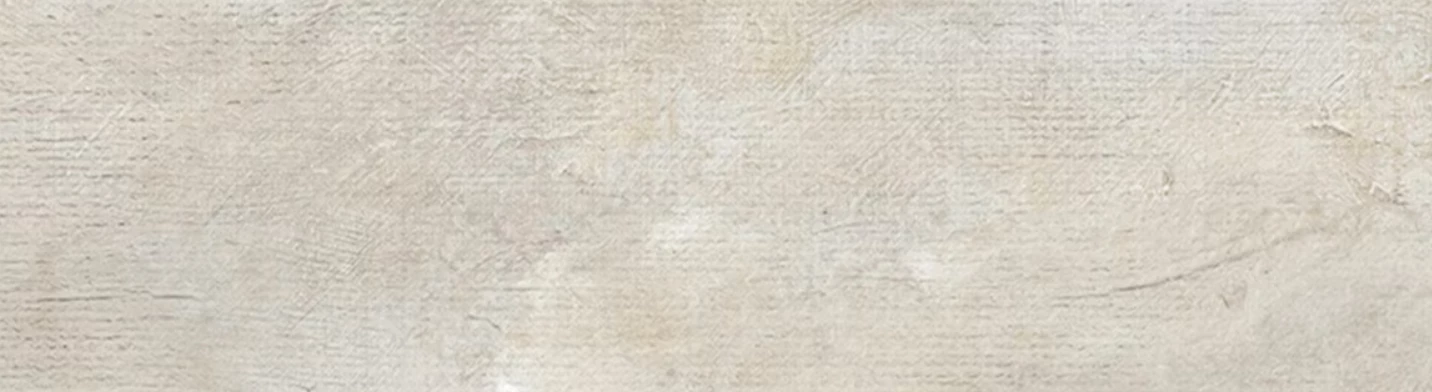
hello there... i would like to create a brush stroke effect on an already existing digital painting. I would like to have it like an overlay effect with the texture of the brush strokes, but without smearing the actual digital painting too much. i attached an example of the effect below. is that somehow possible in Photoshop ?
This topic has been closed for replies.

4 replies

Myra Ferguson
Community Expert
Community Expert
January 28, 2024

If you want to make an image that is not a painting appear to have brush strokes, then you could apply the Oil Paint filter (Filter > Stylize > Oil Paint) to it. There are settings that you can adjust the settings to fine tune how you'd like the effect to be applied.

melissapiccone
Community Expert
Community Expert
January 26, 2024

There is no magic button that will do this for you. You can create your brush strokes and add bevel and emboss layer style. Play with texture to make it look like canvas. Here is a sample I was playing with - I used the smudge tool on a new layer, use different layers for the effect, add texture. 

Melissa Piccone | Adobe Trainer | Online Courses Author | Fine Artist
didiermazier
Community Expert
Community Expert
January 23, 2024

You could apply brush strokes with a blending mode like darker color and appropriate brush settings to got transparency.

Also to get thickness effect you can apply emboss fx  to the brushed layer.

Myra Ferguson
Community Expert
Community Expert
January 23, 2024

Use the texture image as a displacement map for the brush strokes. Here's how:

  1. Save the texture as a PSD
  2. Draw your brush strokes on your image
  3. Convert the brush strokes layer to a Smart Object to apply the displacement non-destructively (right-click and select Convert to Smart Object)
  4. With the Smart Object selected, go to Filter > Distort > Displace
  5. Use or modify the default settings and click OK
  6. (The Choose a displacement map window will open) Navigate to the PSD file of the texture and click Open


Here's more information about displacement maps:


karim khawatmi
Participating Frequently
January 24, 2024

Thank you so much for your reply, but it seems like i cannot produce the desired effect. when you say draw your brush strokes on my image, do you mean to first create a tranparent layer, or a layer copy ? and how do i paint with the brushes.. can i use transparent brushes? i do not know exactly how to describe it, but i only want a brush texture overlay onto an already existing image with visible brush strokes...the sample i put above was just an example of the texture i would like the final image to have.. sorry, for all the confusion... 😉


c.pfaffenbichler
Community Expert
Community Expert
January 28, 2024

thank you so much for all your help.. yes, here is the image that i am working with and and an image with the effect i would like to create on top of my image.. i mean theses old, sometimes a bit smeary visible brush strokes, to make my digital picture more realistic. Thank you for all your help !!


That’s the unedited source image?