
phoenixknight
Known Participant
March 3, 2019
Answered

Weird artefacts when trying to paint a 3D object in Photoshop
  • March 3, 2019
  • 1 reply
  • 2246 views

So I have a trial version of Photoshop, testing its 3D features.

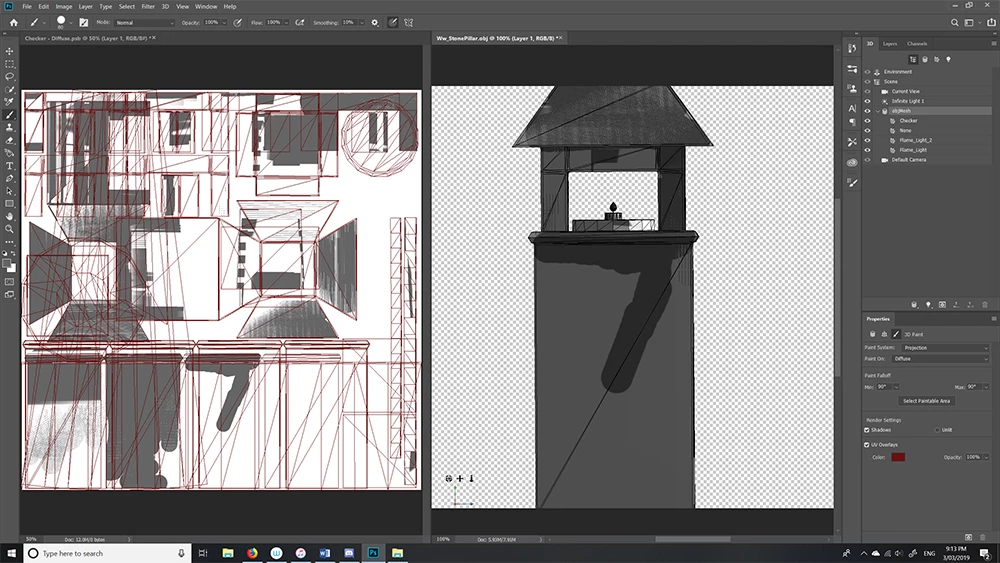
I want to hand paint an object directly in Photoshop but when I paint I get these weird line artefacts.

How do I fix them?

At first I just thought it was my model but I tried a Photoshop generic cube mesh and same thing.

What am I doing wrong?

Also is there a way to lock views to the front so the painting doesn’t go on the sides?

Thanks
    This topic has been closed for replies.
    Correct answer davescm

    Keep it simple to start and try this on a cube /sphere just to see whether it is a model issue or a system issue on your set up.

    Open a preset sphere and paint on the model with a simple round brush set to 100% opacity and brush mode normal.  Do your strokes come out correctly on that?

    If that showed issues, paint on the texture PSB itself (you may need to hit Save to see the model update) - does that work correctly?

    Check your 3D settings - in particular the interactive rendering. Is "allow direct to screen" set and is shadow quality set to high?

    Dave

    1 reply

    davescm
    Community Expert
    Community Expert
    March 3, 2019

    Hi

    I can't see from your screenshot which artifacts you refer to. Your UV appears to have many overlapping islands so painting is going to cause issues.

    If you have separate materials on each face you can restrict the painting to a single face using the 3D Paint system - texture or projection.

    You can also select an area for painting using Select Paintable Areas with the selection tools (quick select etc) the

    Dave

    phoenixknight
    Known Participant
    March 3, 2019

    Thank you for the fast comment

    the weird artifacts I am referring to is the weird diagonal banding lines. Like it is not painting / displaying a flat colour .

    Yes I accidentally brought over another object with the UV. But it was doing it with a cube so I left this as my example.

    Sorry about that.

    Cheers I will have a go at those two options

    davescm
    Community Expert
    davescmCommunity ExpertCorrect answer
    Community Expert
    March 3, 2019

    Keep it simple to start and try this on a cube /sphere just to see whether it is a model issue or a system issue on your set up.

    Open a preset sphere and paint on the model with a simple round brush set to 100% opacity and brush mode normal.  Do your strokes come out correctly on that?

    If that showed issues, paint on the texture PSB itself (you may need to hit Save to see the model update) - does that work correctly?

    Check your 3D settings - in particular the interactive rendering. Is "allow direct to screen" set and is shadow quality set to high?

    Dave