Participant
November 26, 2012
Answered

What is the difference between merge down, merge visible, and flatten image?

  • November 26, 2012
  • 2 replies
  • 40059 views

Hello, what is the difference between merge down, merge visible, and flatten image?

Correct answer dhosford

Hi there,

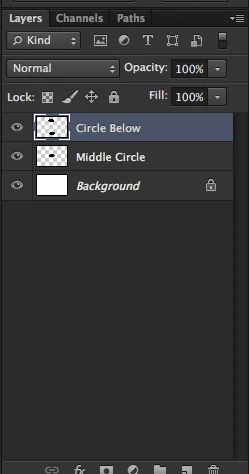
  Merge Down combines the layer below the currently selected layer and the selected layer together into one singular layer. The layer name will change to the name of the layer below the selected layer. In the screenshot below, I chose to Merge Down from the layer "Circle Top". As you can see, afterward I have a new layer named "Circle Below" that has both layers combined.

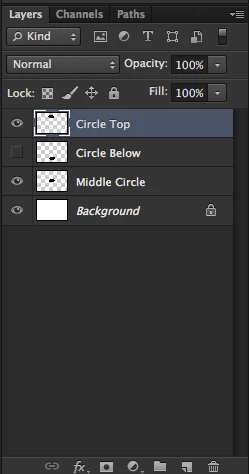
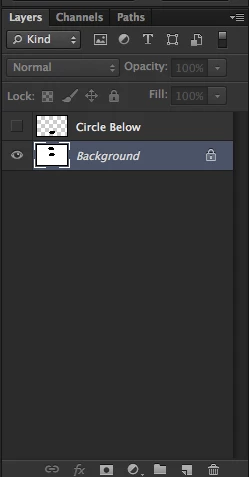
  Merge Visible will merge all visible layers into one singular layer. Merge Visible will ignore any layer that has it's visibility toggled to "Off".  In the example below, I have 4 layers, with the layer "Circle Below"'s visibilty set to "Off". After I choose Merge Visible, all of the layers are combined excluding "Circle Below".
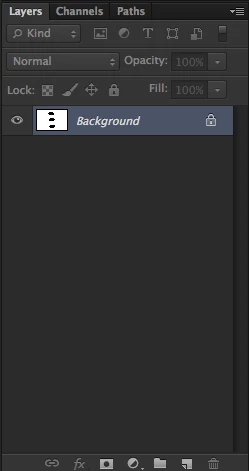
  Flatten Image will combine all of the layers into one "flattened" image or layer. You will be prompted to choose whether or not to discard hidden layers before doing so. If you choose "Ok" to discard hidden layers, Photoshop will ignore any layer with it's visibility toggled to "Off". If you choose "Cancel", Photoshop will cancel the flattening process. If you want the hidden layer included in the flattened image, you will have to toggle it's visibility to "On". The following screenshot is what a flattened image's layer pallete looks like:
  I hope this helps! If you need further clarification on this let me know! : )

2 replies

Silkrooster
Legend
November 26, 2012

There are 4 types of merges in the full version of photoshop (I do not know what types are available in the Elements version)

Merge Layers - All layers that are selected are merged into a single layer

Merge visible - All layers that are not hidden will be merged into a single layer

Flatten Image - Will merge all layers and discard any layers that are hidden (moot point to keep them when you only have 1 layer anyway)

Hidden Feature - Create a new layer and place a copy of the Merged Visible layers into that new layer leaving the original layers intact. {Hold down the following keys at the same time - ctrl-alt-shift-e}

dhosford
dhosfordCorrect answer
Participating Frequently
November 26, 2012

Hi there,

  Merge Down combines the layer below the currently selected layer and the selected layer together into one singular layer. The layer name will change to the name of the layer below the selected layer. In the screenshot below, I chose to Merge Down from the layer "Circle Top". As you can see, afterward I have a new layer named "Circle Below" that has both layers combined.

  Merge Visible will merge all visible layers into one singular layer. Merge Visible will ignore any layer that has it's visibility toggled to "Off".  In the example below, I have 4 layers, with the layer "Circle Below"'s visibilty set to "Off". After I choose Merge Visible, all of the layers are combined excluding "Circle Below".

  Flatten Image will combine all of the layers into one "flattened" image or layer. You will be prompted to choose whether or not to discard hidden layers before doing so. If you choose "Ok" to discard hidden layers, Photoshop will ignore any layer with it's visibility toggled to "Off". If you choose "Cancel", Photoshop will cancel the flattening process. If you want the hidden layer included in the flattened image, you will have to toggle it's visibility to "On". The following screenshot is what a flattened image's layer pallete looks like:

  I hope this helps! If you need further clarification on this let me know! : )

Participant
March 19, 2018

Merge Up (wishlist item)

Merge Up modifies each of the selected layers. It neither creates nor destroys layers. For each selected layer, it fills in holes in the layer by copying pixels from visible layers below.

This is a feature that I would use over and over when I'm working on screenshots for a demo. Each layer will become an image in a time sequence. Typically I'll have to redo parts of an image, and I don't want to have to make the same fix in all 17 layers in the time sequence. So I punch holes in the each layer above the fix so it can see through to the fixes in layers below. Then I use shift-cmd-C to copy the layer (with all the fixes merged in) to the clipboard. This I have to repeat 16 times. Doing the Merge Up by hand is even more tedious, by a lot.

Nancy OShea
Community Expert
Community Expert
March 19, 2018

PS engineers rarely if ever come to this user forum.  Please file your bug reports and feature requests through the official PS Family site where product engineers will see it.

Photoshop Family Customer Community

Nancy O'Shea— Product User & Community Expert