
Exit
  • Global community
    • Language:
      • Deutsch
      • English
      • Español
      • Français
      • Português
  • 日本語コミュニティ
  • 한국 커뮤니티
0

What is the fastest/most convenient way to view resolutions of an open psd document on screen ...

Engaged ,
Nov 16, 2024 Nov 16, 2024

... without selecting anything or doing anything similar? I know that there is in the lower left corner possibility to show dimensions. However, I need to see all the following at one look (if possible): resolution (in pixels/cm or inche), dimension in cm/inches and pixels. In Bridge, this info is available but Bridge isn't always open and I wouldn't like to switch between apps just to see this simple data. Suggestions?
tuomasvirtanenNET
TOPICS
macOS
482
Translate
Report
Community guidelines
Be kind and respectful, give credit to the original source of content, and search for duplicates before posting. Learn more
community guidelines

correct answers 2 Correct answers

Engaged , Nov 16, 2024 Nov 16, 2024

OK. I found it - by myself ... Just click the lower left corner!

Translate
Community Expert , Nov 16, 2024 Nov 16, 2024

The status bar will only show you one set of dimensions, depending on the unit the rulers have been set to.

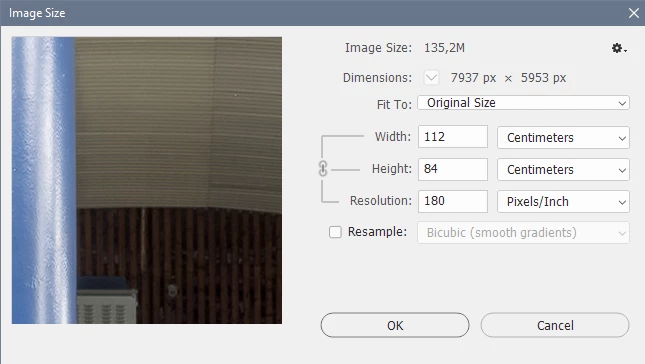
The Image size dialog will show you everything – pixel dimensions, physical dimensions and PPI.

Go to Image > Image size, or press Cmd + Option + I


image.png

Translate
Adobe
Engaged ,
Nov 16, 2024 Nov 16, 2024

OK. I found it - by myself ... Just click the lower left corner!

tuomasvirtanenNET
Translate
Report
Community guidelines
Be kind and respectful, give credit to the original source of content, and search for duplicates before posting. Learn more
community guidelines
Community Expert ,
Nov 16, 2024 Nov 16, 2024

The status bar will only show you one set of dimensions, depending on the unit the rulers have been set to.

The Image size dialog will show you everything – pixel dimensions, physical dimensions and PPI.

Go to Image > Image size, or press Cmd + Option + I


image.png

Translate
Report
Community guidelines
Be kind and respectful, give credit to the original source of content, and search for duplicates before posting. Learn more
community guidelines
Engaged ,
Nov 20, 2024 Nov 20, 2024
LATEST

Thanks! So I now have 2 usuable ways to get the info!

tuomasvirtanenNET
Translate
Report
Community guidelines
Be kind and respectful, give credit to the original source of content, and search for duplicates before posting. Learn more
community guidelines
Community Expert ,
Nov 16, 2024 Nov 16, 2024

There are a number of ways to display that info, depending on what you want.


Status bar: You already figured out this one, change what’s displayed in the status bar. This is actually the best way if you want to monitor multiple open documents, because each document window’s status bar can show that document’s dimensions and resolution.


Info panel: This is a good solution if you’re annoyed that the status bar can show only one value at a time, because if you customize the Info panel options, you can have the Info panel display multiple lines of status info at once. The Info panel is also nice if you use Photoshop full screen mode (View > Screen Mode > Full Screen Mode or press F), because the status bar isn’t available in that mode.


Properties panel: If nothing is selected in the active document, the Properties panel displays Canvas properties such as dimensions and ppi resolution.


Photoshop-Info-panel-with-options-and-Properties-panel.jpg

Translate
Report
Community guidelines
Be kind and respectful, give credit to the original source of content, and search for duplicates before posting. Learn more
community guidelines
Community Expert ,
Nov 16, 2024 Nov 16, 2024

Worth mentioning that the keyboard shortcut for the Info panel is F8, which is how you'd want to toggle it on and off in Full Screen mode.

Translate
Report
Community guidelines
Be kind and respectful, give credit to the original source of content, and search for duplicates before posting. Learn more
community guidelines