Till Krueger
Inspiring
March 20, 2017
Answered

What replaced the former "3D Scene Position" timeline?

  • March 20, 2017
  • 1 reply
  • 4060 views

I have spent my entire Sunday trying to find a solution to what should be a super-simple task: to animate the rotation of a 3D Moon object around its own Y axis.

It seems that all the tutorials I found use old versions of Photoshop (CS6 and CC) which still have a timeline called "3D Scene Position", but this item has gone away shortly after, it seems, and all the forum posts that I could find addressing its puzzling absence, some going back to 2014, have been ignored by Adobe staff.

I used to be a 3D animator by profession and usually know my way around 3D software rather quickly, but to not be able to keyframe the Y rotation (or any other positional parameters) of an object is about as necessary and basic for 3D animation as it gets. I must be missing something obvious here as I cannot imagine Adobe removing this timeline without making its functions accessible in some other way. But how does one accomplish something as simple as an animated globe rotation around its own pivot point now? Could someone help me out and point me to the answer?

A new project requires me to animate certain layers of a rather complex Photoshop file that I created for a client, and while it's possible, in theory, to pick up some new skills for - say - Cinema 4D, it would be sooo much simpler to animate the elements I need in Photoshop itself...and that is what its 3D module is supposed to let you do, no?

Hope there is a solution!
This topic has been closed for replies.
Correct answer davescm

Hi

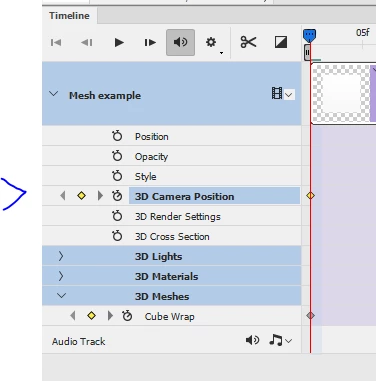
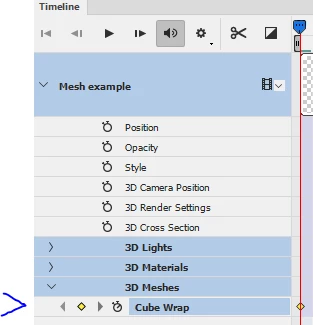
See screenshot below (Photoshop CC2017.0.1).

The object is called Mesh Example which was just a preset Cube map.

In timeline, use Create Video timeline -then :

To move the object :

Click on the down arrows next to the object in the timeline till you see 3D meshes then click on the clock symbol and add you keyframes to the timeline. Note if you move the timeline cursor then move the object - the keyframes will be added autonamtically

To move the camera :

As above, then enable the clock next to camera position and add keyframes

Note : Once you have added your keyframes , there is a current bug (it has been reported) , which means you have to click on another track (e.g. the audio track), before hitting play. Otherwise you won't see the movement. Not a big deal but it can have you scratching your head until you know how to get around it.

Dave

1 reply

davescm
Community Expert
davescmCommunity ExpertCorrect answer
Community Expert
March 20, 2017

Hi

See screenshot below (Photoshop CC2017.0.1).

The object is called Mesh Example which was just a preset Cube map.

In timeline, use Create Video timeline -then :

To move the object :

Click on the down arrows next to the object in the timeline till you see 3D meshes then click on the clock symbol and add you keyframes to the timeline. Note if you move the timeline cursor then move the object - the keyframes will be added autonamtically

To move the camera :

As above, then enable the clock next to camera position and add keyframes

Note : Once you have added your keyframes , there is a current bug (it has been reported) , which means you have to click on another track (e.g. the audio track), before hitting play. Otherwise you won't see the movement. Not a big deal but it can have you scratching your head until you know how to get around it.

Dave

Till Krueger
Inspiring
March 20, 2017

Oh Dave, what a relief! Such a simple solution made difficult only by not finding the place where this action had to take place. Brilliant!
I'll try to take the next steps now and hope that you won't mind if I ask another question or two here in this thread, but I know you can't be my Photoshop 3D tutor. Hope it will be self-explanatory from here on out, more or less. (a few Google and YouTube searches are always part of the process)

Can't thank you enough, brother!

Till Krueger
Inspiring
March 20, 2017

https://forums.adobe.com/people/Till+Krueger  wrote

I had to Force Quit Photoshop just now after trying to render at full retraced quality (don't have my main iMac5K in front of me but an older iMac from 2009, so...) and the "Cancel" option wasn't responding...after starting up Photoshop and loading in the file again it appears as if my keyframes were "baked in" and are not appearing in the "3D Node" timeline for the rotating sphere anymore...do you know whether this is expected behaviour? what if I changed my mind and wanted to change those keyframes now (which is what I'll need to do).

No that does not sound normal. Rendering can take a long time - depending on the image pixel size, render quality settings and number of frames. However I have not had any issue with the saving and later moving/altering/deleting the keyframes. It may be the force quit has done something.

However - just a thought - when you re-open and re-enter the timeline you need to click on the clock gain to see the keyframes.

Also, even though keyframes timeline animation is in my blood, I don't seem to get Photoshop to behave as my logic would expect it to...for the cloudy night sky behind the moon I set a keyframe at the beginning, then moved the playhead 8secs in and moved the night sky by 100px to the right...a keyframe was not automatically created and when I create one manually and move the playhead back and forth, no motion is happening...both keyframes will show whatever the last x value I put in.

Your logic sounds right. Make sure you have the move tool open when you add your first key frame (and if it doesn't look like the first keyframe has taken give the model a slight move e.g. 1px left then 1px right so it is in the original position but the key frame will take).

The main lacking of 3D in Photoshop, compared to other programmes, is the lack of tools for manipulating the actual mesh. So the models you can create can be limited. The render quality is not bad although it can take a while to render.

Dave


Hmm, I wonder whether the Force Quit could have caused this...worst comes to worst I'll have to start that part from scratch.

But your tip about making sure the Move Tool was selected did do the trick. I was using Cmd+T (Transform) instead bc I initially wanted to both move and scale the sky over the course of the first 8secs, but apparently that doesn't seem to be possible (wonder why, bc it is something I often try to do).

You rock, Dave!