
JennethLeeD
Known Participant
February 20, 2025
Question

When I color pick my pasteboard, Photoshop gives me a completely different color value.

  • February 20, 2025
  • 2 replies
  • 421 views

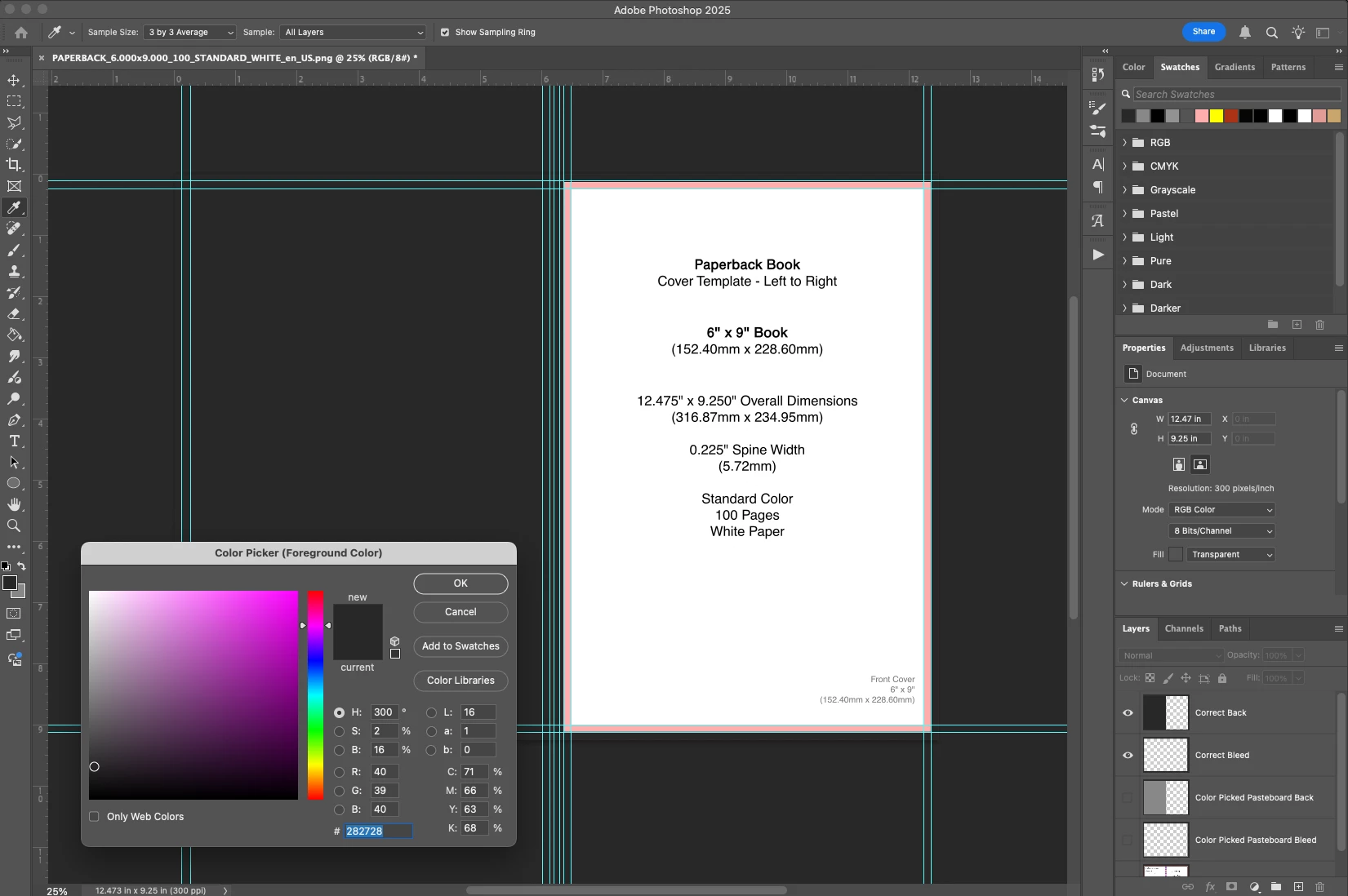
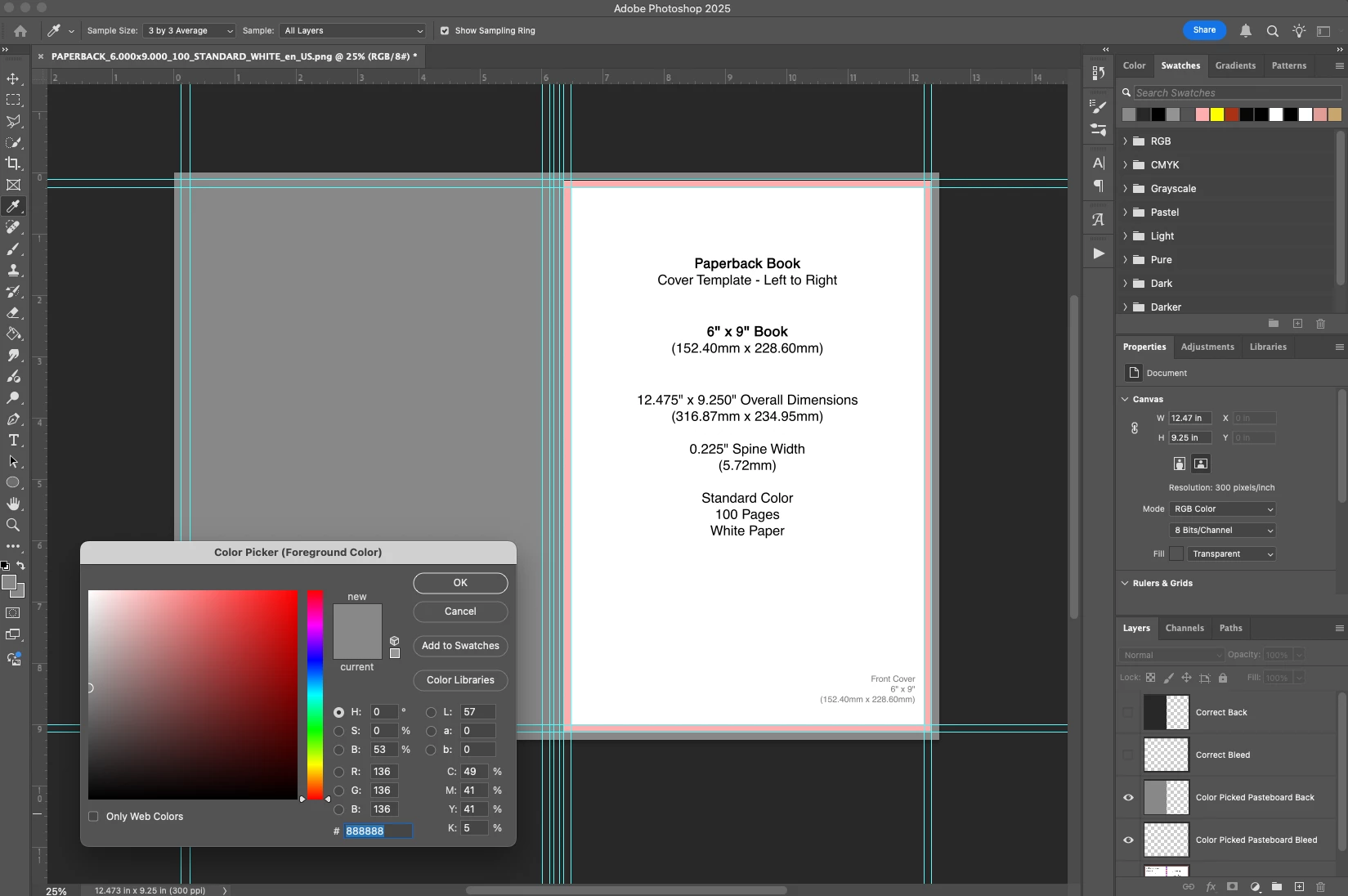
Not sure if this is a question or a bug, but we'll start as a discussion first. I'm a cover designer, and typically when I start working, I'll block off the back, spine, and bleeds so I can see what the cover is going to look like in isolation. To avoid distraction, I'll actually color pick the pasteboard (the grey background in Photoshop) so the blocked off bits look like they're part of the pasteboard itself.


This works perfectly fine 100% of the time, until today. When I color pick the pasteboard (which is #282728 btw) the color picker gives me a lighter shade of grey (#888888). My workaround would be to save the accurate color as a Adobe Cloud asset or something, but I rather just pick and go, and I also want to be sure it's not part of a larger issue that's going to bite me.


Attached are examples. I'm running the latest version of Photoshop (26.3.0, for post posterity) and on OS Sequoia 15.3.1.
 

2 replies

JennethLeeD
Known Participant
February 21, 2025

There seems to be some confusion over what my problem is, so I'm adding a third image to try to explain (see below). 


I know I'm probably design-splaining, but just to be clear on terms, the pasteboard is the dark grey background of the application, not the canvas background. It's a nonprintable area, but in the past, I've still been able to color grab from it to get the exact same grey. I use that dark grey to make layers that block off the spine and back cover of a book design so I can focus on the front exclusively. If everything goes smoothly, it results in the OP's first photo: a dark grey rectangle and bleed area that looks identical to the Adobe pasteboard behind it, giving the illusion that I'm only working on a front cover canvas.


However, today when I tried to color pick the pasteboard, I got a light grey that isn't remotely close to the color of the pasteboard. See the photo below. The ring is my eyedropper tool picking the color of the pasteboard, but it's picking a light grey, not a dark grey.


I've been designing professionally this way for literally years, so I'm not crazy, even though right now I feel crazy. But the color picker should be picking up a dark grey with a hex of #282728. That is the hex color of the pasteboard. But instead, the color picker is sampling the pasteboard and picking a hex #888888 instead. Everything I color pick directly on the canvas is accurate, but not the color of the pasteboard.

D Fosse
Community Expert
Community Expert
February 21, 2025

OK, got it. Does seem like a bug. Not at my workstation right now, but I'll try later and see what happens.

davescm
Community Expert
Community Expert
February 21, 2025

I can't replicate that here with v26.3 on Windows 11. Have you tried any troubleshooting steps such as a tool reset for the eyedropper tool or a preference reset?


Dave

D Fosse
Community Expert
Community Expert
February 20, 2025

Not sure I understand the problem - according to the Layers panel, the light color is the top layer in the lower screenshot? Your color picker is set to "sample all layers", so that checks out too.


There may be something wrong here, but your screenshots seem perfectly fine?

Trevor.Dennis
Community Expert
Community Expert
February 20, 2025

Hah!  I read the OP and thought I'd better page Dag, but here you are already.  What I was expecting you to say is that #282728 value is meaningless in isolation or similar.

JennethLeeD
Known Participant
February 20, 2025

I'm talking about sampling the pasteboard itself, not the canvas, so "sample all layers" isn't a factor here. I'm color picking the grey application window that the canvas is surrounded by, but instead of getting that dark grey that you see on all Adobe pasteboards, I'm getting a random light grey. 

Am I making sense?