
Inspiring
February 9, 2023
Answered

when I save file it creates new file with same name

  • February 9, 2023
  • 7 replies
  • 1401 views

I'm using the latest 24.1.1 PS on a Macbook Pro running Ventura 3.1. For a week when working on a file (.psd or .jpg) I will save the file. (File>Save or CMD-S.) I save the file a number of times to make sure my work doesn't get lost. Now, if I save the file PS saves the file to the original disc UNDER THE SAME NAME, so that after five saves I have five different files under the same name. I click on any one of them in Bridge, but it's like they're not there. Can't open them. 

     Anyone else experiencing this? I haven't changed settings, and checked all settings to see if there was one that addressed this, but can't find one. See attached. PS shouldn't save under the same name w/o a popup that says "Replace"?

     Thanks.
This topic has been closed for replies.
Correct answer Kevin Stohlmeyer

Hi @Paul Giglia after reading this over and over, I dont think the issue lies with Photoshop. I think its your Bridge.

There really is only one file that is what your Finder shows and why you also cant click the multiple copies in Bridge - even though it shows multiples, there really is only one file.

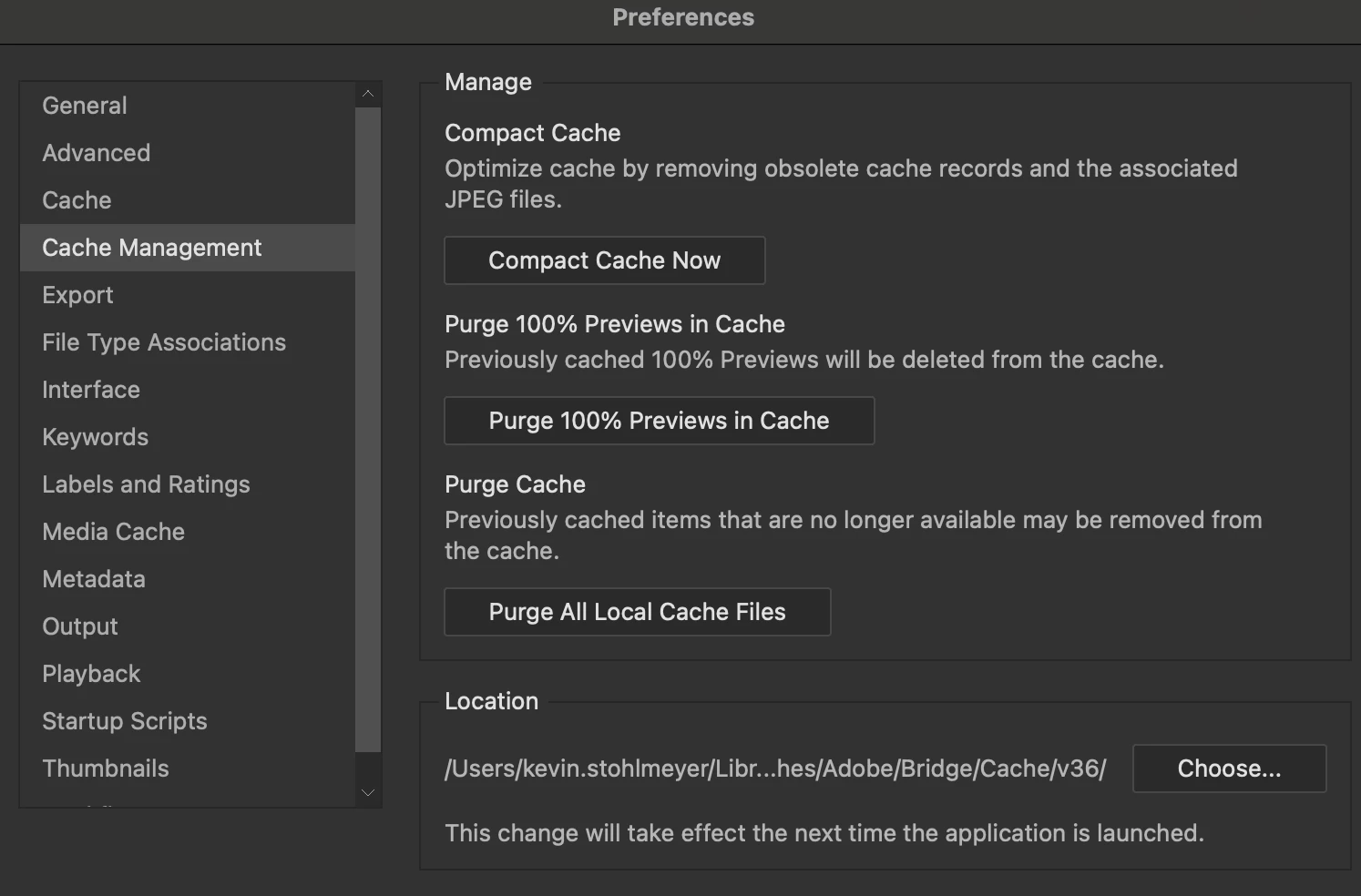
Try going to Bridge preferences and clearing the cache.


Then go to Apple System Prefs/Security and Privacy and make sure Bridge and Photoshop are listed under Full Disk Access.

7 replies

Kevin Stohlmeyer
Community Expert
Kevin StohlmeyerCommunity ExpertCorrect answer
Community Expert
February 10, 2023

Hi @Paul Giglia after reading this over and over, I dont think the issue lies with Photoshop. I think its your Bridge.

There really is only one file that is what your Finder shows and why you also cant click the multiple copies in Bridge - even though it shows multiples, there really is only one file.

Try going to Bridge preferences and clearing the cache.


Then go to Apple System Prefs/Security and Privacy and make sure Bridge and Photoshop are listed under Full Disk Access.

Inspiring
February 10, 2023

Thanks, Kevin. Did both. Saving with File>Save did NOT create a duplicate file. CMD+S also did NOT create a duplicate file. So back to it working properly again. 🙂 For how long I'm not sure. So I'll keep working tonight and tomorrow and see if it repeats. Appreciate your time and effort. PG

PECourtejoie
Community Expert
Community Expert
February 10, 2023

Hello, please do not crop the interface when you post a screen capture, important elements/relevant information might be on the edges.

In Bridge, if you changego the  View menu and select As detail , which information is visible for the fantom files?

Indeed, you should be getting a warning, I'd try to restore your preferences to the default using this manual method:
https://helpx.adobe.com/photoshop/using/preferences.html#Manually it lets you keep a copy on the desktop that you can use to revert the process.

Did you also give all necessary Disk Access permissions to Bridge and Photoshop in System Preferences/Privacy?


Inspiring
February 10, 2023

Update: After two weeks of this problem happening whenever I saved a file, yesterday (and today) it stopped happening. Not sure WHY, because I didn't change any settings, do updates, or anything else. So for now, I think I'm okay. Thanks to all who looked into this problem and tried to help. If it begins to happen again I'll post an update.

Inspiring
February 9, 2023

Almost the same.

Inspiring
February 10, 2023

Correction: After posting an update that it stopped happening - it's happening again. No idea what's going on. So any solutions you might have I can still use. Thanks.

CShubert
Community Manager
Community Manager
February 9, 2023

Curious @Paul Giglia what are you settings in Preferences/File Handling?


Thank you,

Cory

Inspiring
February 9, 2023

Thanks, Kevin. My first comment had the screen shot of what's in my Bridge folder. (There were 10 more.) I'm attaching my finder folder as requested. As you can see, it only shows ONE file with that name (Cloud Ship 2). However, as stated, if I go into Bridge and try to open or view any one of the files, it doesn't highlight any, so can't use. I don't believe they're going to the cloud, as when I save as I don't click Save to Cloud. But what I am doing is just going to File>Save or CMD>S, which should just sacve the one file with changes. I know it's strange, but hoping someone can tell me what I'm doing wrong. Thanks in advance.

Kevin Stohlmeyer
Community Expert
Community Expert
February 9, 2023

Can you share a screenshot of your Finder window in list mode showing the various files with the same name?

Are you sure these are not saving to the cloud with the versions showing?