Participating Frequently
March 5, 2025
Answered

Where did the Regular Lasso TOOL go? Find only Magnetic Lasso Tool?

  • March 5, 2025
  • 3 replies
  • 2912 views

I noticed that Photoshop has received another update, and the icons have been rearranged. Previously, the Lasso tool was located in the top left corner. I used to select the Lasso tool, outline some jeans to remove wrinkles, apply Generative AI, and achieve great results quickly.

However, I have now spent an hour searching for this tool.

Am I missing something? I found the Magnetic Lasso tool, but not the one I was using just eight hours ago.

If anyone knows where to find it, please let me know. Thank you.
Correct answer Trevor.Dennis

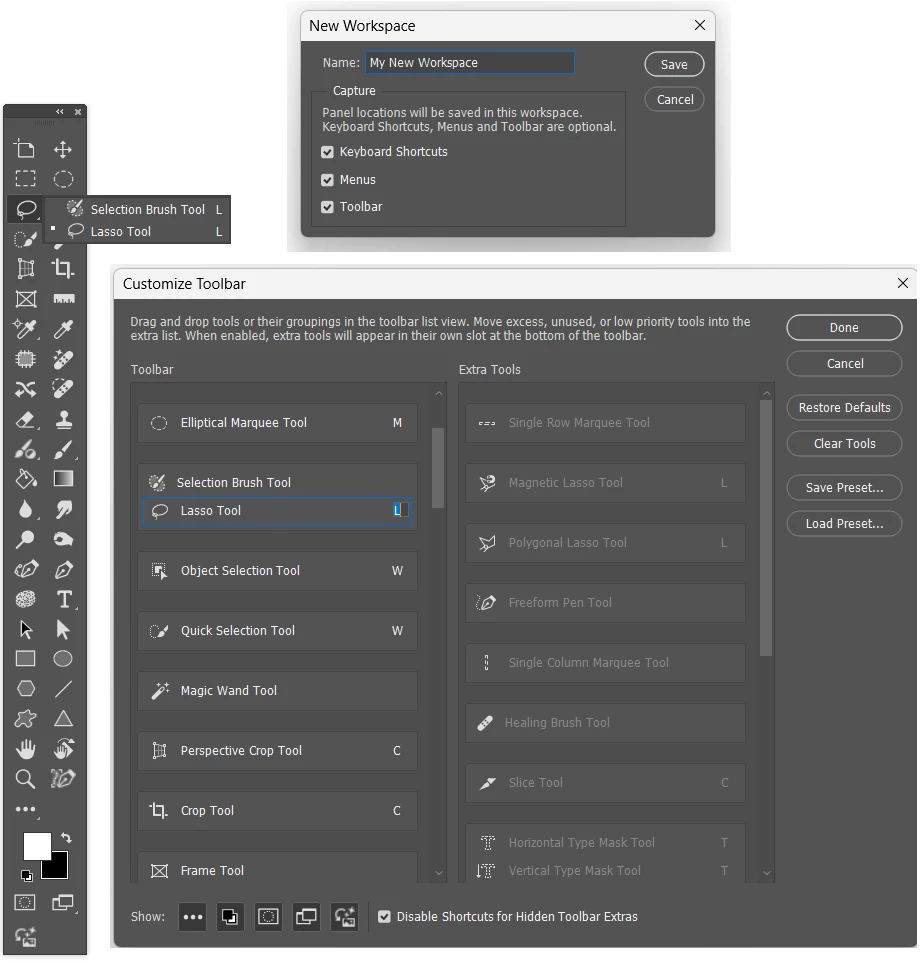
Think about removing the shortcut from the selection tools you don't use, so when you hit the L key, you know you'll get the plain lasso tool.

Or better still, remove them from your toolbar completely, and save it as a custom workspace.


3 replies

Trevor.Dennis
Community Expert
Trevor.DennisCommunity ExpertCorrect answer
Community Expert
March 5, 2025

Think about removing the shortcut from the selection tools you don't use, so when you hit the L key, you know you'll get the plain lasso tool.

Or better still, remove them from your toolbar completely, and save it as a custom workspace.


Participating Frequently
March 5, 2025

Awesome, thank you!

Nancy OShea
Community Expert
Community Expert
March 5, 2025

Hit the 3 dots icon on your Toolbar to launch the Edit Toolbar panel.  In my example, the Lasso tools are Extras.


Drag & drop from Extras to Toolbar.  Repeat with other frequently used tools. 

When done, SAVE your Preset.


Hope that helps.


Nancy O'Shea— Product User & Community Expert
Semaphoric
Community Expert
Community Expert
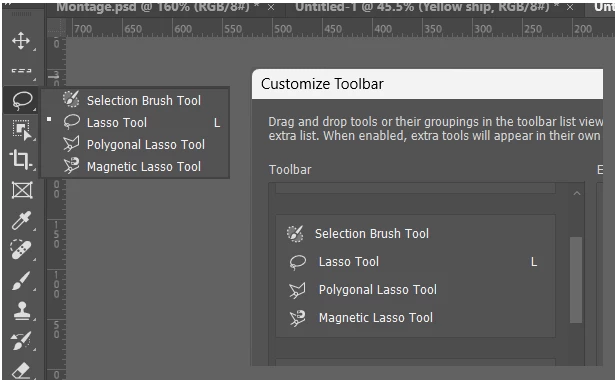
March 5, 2025

The various Lasso tools are in the same slot in the toolbar. If you click and hold it, it opens a small menu of the choices. Also, Shift+L will cycle through the lassos.