
Known Participant
January 17, 2024
Question

Where does Photoshop 2024 keep it’s preferences in OS Sonoma

  • January 17, 2024
  • 4 replies
  • 6611 views

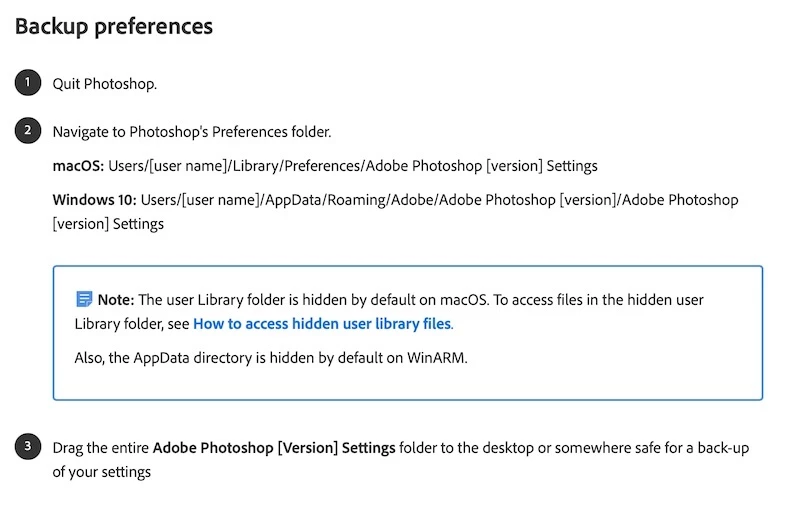
According to Adobe's onlne help Photoshops preferences on a Mac are kept in


macOS: Users/[user name]/Library/Preferences/Adobe Photoshop [version] Settings. (See attached screenshot)

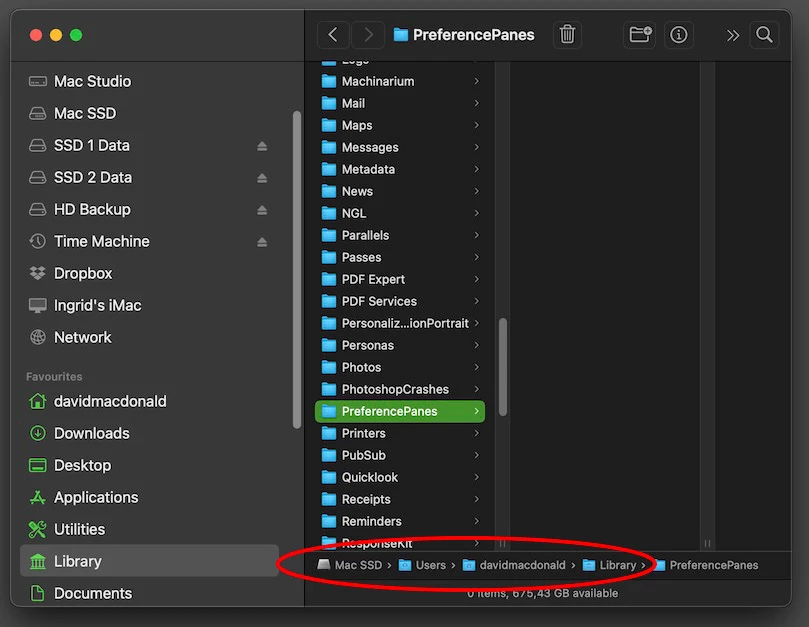
When I navigate to my user library there is no Preference folder at all - only Preference Panes. (See attached screenshot).

Somehow Photoshop is remembering tailored settings like my very individual workspace for example. It's keeping them somewhere. So where, if this Preferences file does not exist where Adobe tells me it should? Its not in the presets directory, I've checked that very carefully.

I've used directory searches everywhere with no success. 

Please can anyone enlighten me. I really want to back up my preferences but cannot do this in the way Adobe instructs me.


4 replies

Trevor.Dennis
Community Expert
Community Expert
January 17, 2024

I have looked and can't see the file locations link, so I'll add it just in case.

https://helpx.adobe.com/nz/photoshop/kb/preference-file-names-locations-photoshop.html


Conrad_C
Community Expert
Community Expert
January 17, 2024

I have a test Mac on macOS 14.2 Sonoma, and the Preferences folder is exactly where it should be, and the preferences for Photoshop 2024 and older versions of Photoshop are there. And I have not read anywhere that Apple changed anything about this in Sonoma.


The posted screen shots look correct because the path is shown, as long as Mac SSD is the currently booted system volume. If they are correct, then here is the thing: The missing Preferences folder contains the preferences for every application on that Mac, including Apple applications. If the Preferences folder is really missing, any customized preferences in any app should also be gone. 


Therefore, it’s very clear that this is not actually a Photoshop problem; it needs troubleshooting at the macOS level because a missing Preferences folder should affect everything. (It would be a Photoshop problem if the Preferences folder was easily found with all expected app preferences in it, and the only thing missing was the Photoshop preferences folder. But that is not the case here.)


If other apps are showing customized preferences, then that would be weird, it means Preferences does exist, because other Mac apps can get them, so just figure out where they are looking, although that isn’t as easy as it sounds. One way to back-door that is to think of an app that has a button in it that reveals its Preferences file, but I can’t remember which ones do that specifically.

Jeff Arola
Community Expert
Community Expert
January 17, 2024

A couple of things to try:


1. Click on your desktop then in the Go menu click Go to Folder

   and paste in ~/Library/Preferences and click Return


2. In the Go menu hold down the Option/Alt key and Library will appear.

     That's your User Library


jane-e
Community Expert
Community Expert
January 17, 2024

@Jeff Arola 

He is in the User Library. Can you look at what David circled in red?

Jane

Conrad_C
Community Expert
Community Expert
January 17, 2024

You can see from the path that In have outlined in my original attachement hat I appear to be on the correct drive and path. 


But now the plot thickens! Jeff's first suggestion using go to folder with ~/Library/Preferences takes me right there ... and there it is! But it's greyed out! (See attached screenshot)

So it exists but is hidden. Certainly all my software, including Photoshop, are respecting their preferences and are reading this invisible folder. As Conrad C has pointed out this seems to be a system problem.

I have the normally hidden user library visible in the usual manner. The question is how do I make this one hidden folder within it visible?


quote

I have the normally hidden user library visible in the usual manner. The question is how do I make this one hidden folder within it visible?

By @DavidMacDo


OK good, you established the Preferences folder really exists, which is why your whole system isn’t broken. 🙂


You can hide/show visibility of files and folders in many ways. The most basic way is to use a Terminal command, which you can quickly find in a web search. There are many Mac utilities that will do that for you by clicking a switch; if you have some Mac utilities look through them. One of them is Onyx (free but requests donation). Be sure to download the version specifically made for macOS 14!


The first screen shot is where the setting is in Onyx for changing one file or folder; try that one. The second screen shot is for changing the visibility of all files that are hidden by default, including the obscure Unix ones. You should not have to change the setting in the second picture unless you want to, because Preferences should be visible by default (if Library is visible).


jane-e
Community Expert
Community Expert
January 17, 2024

@DavidMacDo 


I'm not on Sonoma yet, so I'm not sure if this has changed. It looks like you are already showing hidden files.


I've moved your post from Creative Cloud Desktop to the Photoshop forum for you.


Jane

Known Participant
January 17, 2024

Thank you Jane. Didn't realise I had misposted. Silly me. 

jane-e
Community Expert
Community Expert
January 17, 2024

No worries, @DavidMacDo . It's our job, not yours, to make sure posts are in a place where they can get help.


If no one answers, I can tag someone I know uses Sonoma.


Jane