Inspiring
October 25, 2023
Answered

Where has scale option in the pattern fill box (in Photoshop) gone?

  • October 25, 2023
  • 2 replies
  • 2389 views

The scale option in the Pattern Fill box isn't showing any longer?  Does anyone know why, is it a bug or has it been removed from Photoshop?   


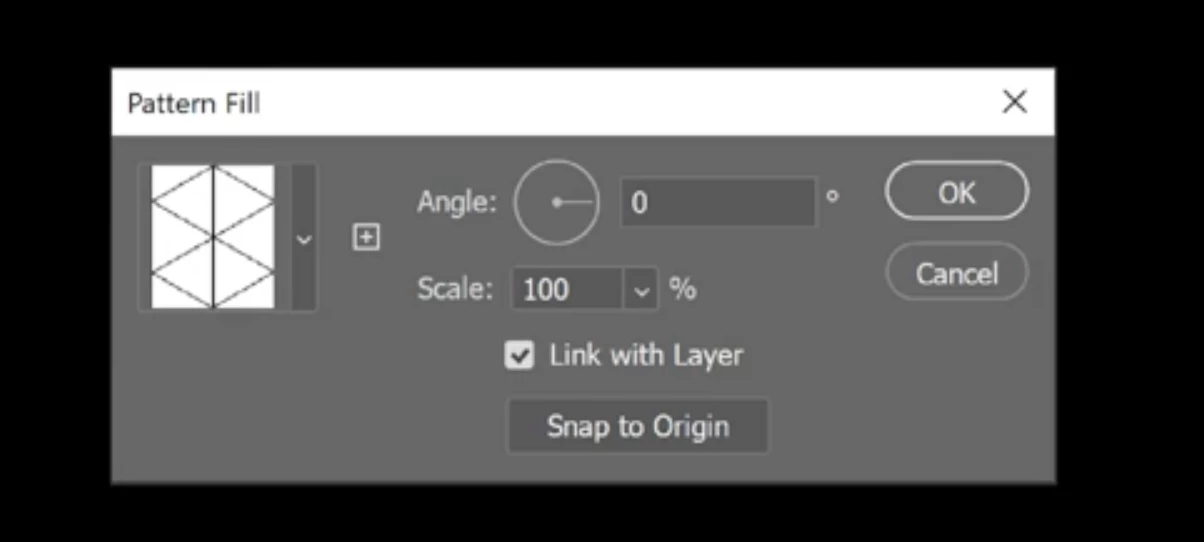
This is what i'm looking for:


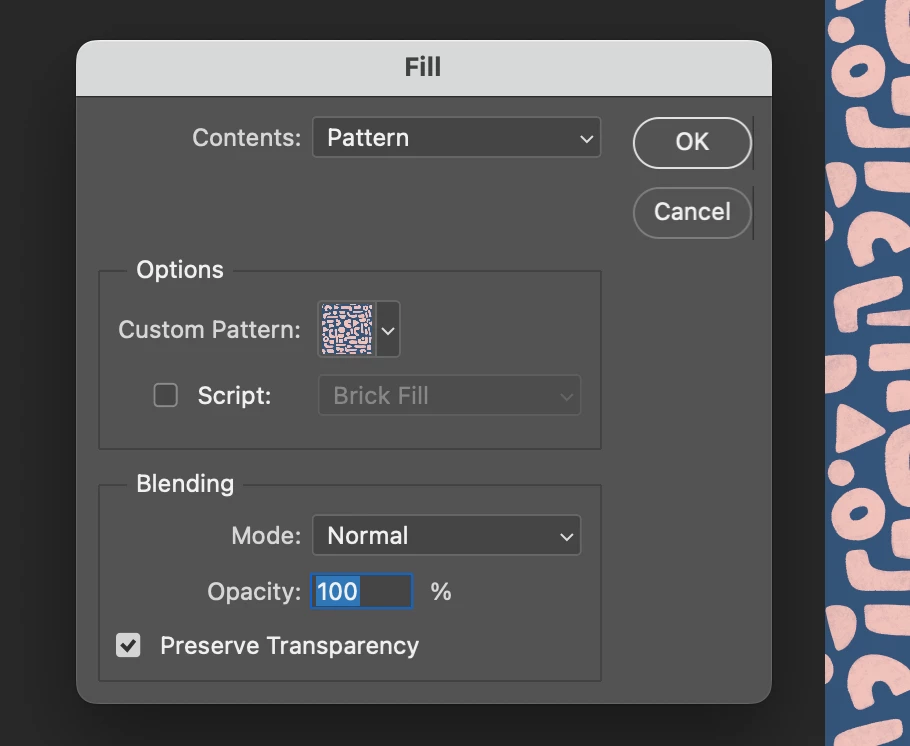
This is what i'm getting:


Any help appreciated.

Thanks 😊


This topic has been closed for replies.
Correct answer Conrad_C

Those are two completely different features.


Your first screen shot shows the Pattern Fill dialog box, which you get when you create a Pattern Fill layer (Layer > New Fill Layer > Pattern, or by choosing Pattern from the Create a  New Fill Layer button at the bottom of the Layers panel). A Pattern Fill layer can be edited and revised at any time, and it offers the Scale option.


Your second screen shots shows the Fill dialog box, which is what you get when you choose Edit > Fill. This is usually not the preferred method for a number of reasons. One is that it doesn’t have the Scale option, as you noticed. It also paints rendered pixels, so unlike a Pattern Fill layer, the pattern is permanent once applied so you can’t edit it other than doing it over.


Editable, scalable patterns are available in other parts of Photoshop where patterns can be used, such as the Pattern Overlay layer style (Layer > Layer Style > Pattern Overlay).


So if you want to have the Scale option, apply a Pattern preset through a new Fill Layer or Pattern Overlay.

2 replies

Conrad_C
Community Expert
Conrad_CCommunity ExpertCorrect answer
Community Expert
October 25, 2023

Those are two completely different features.


Your first screen shot shows the Pattern Fill dialog box, which you get when you create a Pattern Fill layer (Layer > New Fill Layer > Pattern, or by choosing Pattern from the Create a  New Fill Layer button at the bottom of the Layers panel). A Pattern Fill layer can be edited and revised at any time, and it offers the Scale option.


Your second screen shots shows the Fill dialog box, which is what you get when you choose Edit > Fill. This is usually not the preferred method for a number of reasons. One is that it doesn’t have the Scale option, as you noticed. It also paints rendered pixels, so unlike a Pattern Fill layer, the pattern is permanent once applied so you can’t edit it other than doing it over.


Editable, scalable patterns are available in other parts of Photoshop where patterns can be used, such as the Pattern Overlay layer style (Layer > Layer Style > Pattern Overlay).


So if you want to have the Scale option, apply a Pattern preset through a new Fill Layer or Pattern Overlay.
Inspiring
October 26, 2023

You're right, I was looking in the wrong place.  It's been a while since i've created a pattern in PS.  Thanks for the help! 

Participating Frequently
October 25, 2023

Hi,

You can have what you are looking for by choosing "create a new fill layer" or by clicking on the symbol (the circle black and white) at the bottom of the layers panel. Then you have to choose "pattern" as your option.

I hope it can help you.

Inspiring
October 25, 2023

Sorry, I don't think I was very clear in my post, but i'm looking for the scale option so I can play around with the size of pattern in the fill area. 

Participating Frequently
October 25, 2023

If you follow the steps, you will see the window 'Pattern Fill" you are looking for. In this window, you are able to modify the angle and the scale of the pattern.

If you want to modify something after creating the fill layer, you have to double-click again on the icon of the pattern in the layers panel. This action opens again the "Pattern Fill" window with the angle and scale options.