
Participant
March 30, 2023
Répondu

white flashing canvas

Hi community, After the last update Photoshop opens but when I open an image I get a white flashing canvas. All tools work well its only the canvas. When I move the cursor over the canvas, it flashes more intensely. never had any problems before. Working on windows 10
Ce sujet a été fermé aux réponses.
Meilleure réponse par Ged_Traynor

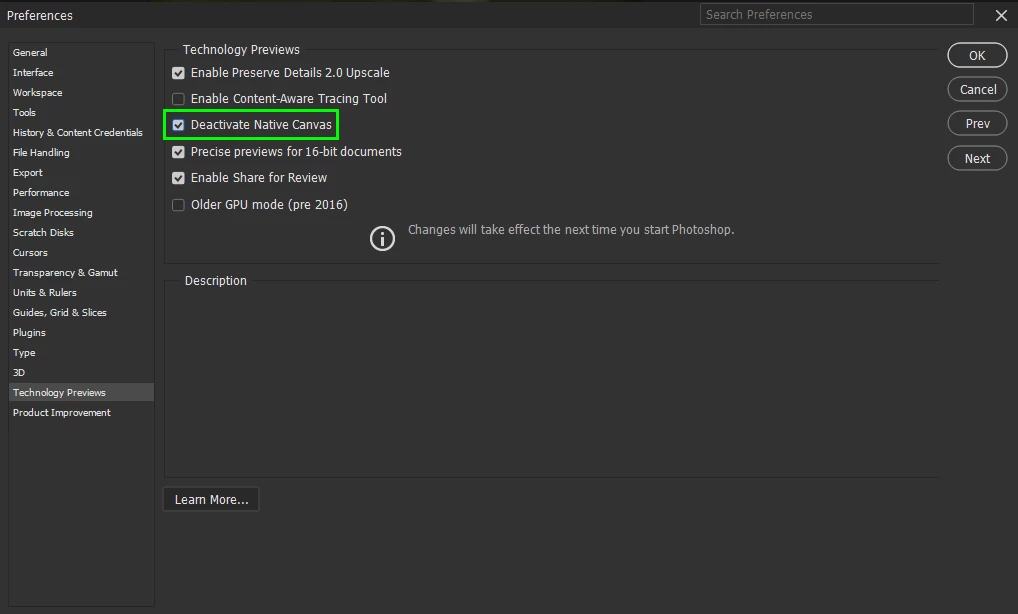
@CornReclame go to Edit > Preferences > Technology Previews and enable this option, then restart Photoshop

4 commentaires

Participant
June 2, 2023

I hope you can help me, it turns out that recently, when working with artboards, when performing a normal dragging of text or image, is replaced by white squares filling and covering where objects move. I have already done several things, even reinstall windows from scratch and the same thing keeps happening to me, also remove the GPU acceleration, uncheck the G-SYNC and still the same, I hope someone can help me. Attached video to make it clear what I mean.


Kevin Stohlmeyer
Community Expert
Community Expert
November 22, 2023

@Evan331150759tip revert back to 2023 and check Disable Native Canvas under preferences/technology preview. It is missing in 25.1 and will be back in an update. For now 2023 has it.

Derek Cross
Community Expert
Community Expert
April 30, 2024

is this a joke? not an option to deactivate the stupid canvas, I cannot work anymore, can't do ANYTHING in photoshop, you charge a lot for freakin nothing.......!!!!!!!!!!!!!!!!!!!!!


Have you tried in Photoshop Settings under the Performance tab, unticking "Use Graphics Processor", then closing and reopening the application?

Ged_Traynor
Community Expert
Community Expert
March 30, 2023

You're welcome 🙂

Participant
March 30, 2023

Thank you Ged, it works. 

Ged_Traynor
Community Expert
Ged_TraynorCommunity ExpertRéponse
Community Expert
March 30, 2023

@CornReclame go to Edit > Preferences > Technology Previews and enable this option, then restart Photoshop

Participant
April 14, 2023

Thank you, that solved my problem instantly.