Participant
August 3, 2020
Answered

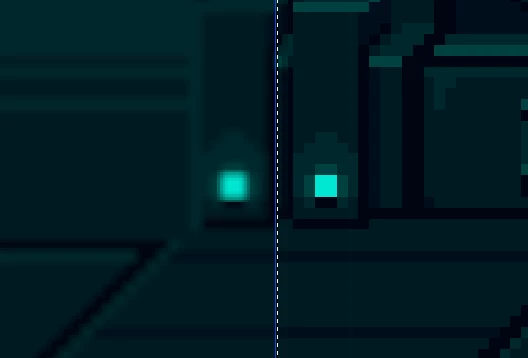
Why are pixels blurring only when I place my image?

  • August 3, 2020
  • 2 replies
  • 1906 views

Hi,
I am trying to work on some pixel art but when I bring in my pixel art, photoshop is trying to feather the harsh lines or something. What is going on here and what do I need to address to fix it? 
thank you!


This topic has been closed for replies.
Correct answer Michael Bullo

Are you placing a very small file (in terms of pixels), dramatically enlarging said file and then finding the pixels are blurring? If so, I believe your issue is related to Image Interpolation. When Photoshop scales content up or down in size, it can apply different algorithms that dictate how the new pixels appear.


The setting you are looking for is called Image Interpolation and it can be found in the General tab of the Photoshop Preferences.


When resizing, you generally want an option like Bicubic Automatic that will give smooth results. However, if your intention is to retain hard pixel edges, set Image Interpolation to Nearest Neighbor (preserve hard edges). Don't forget to revert this setting when you are done or any future resizing of photographs, for example, will give you crunchy results.


When you Place a file it comes in as a Smart Object. Everything that I have said above is true for the resizing of Smart Objects in general. If, however, you are Free Transforming a regular layer, note that an Interpolation option will be visible in the options bar running along the top of Photoshop.

2 replies

JJMack
Community Expert
Community Expert
August 4, 2020

Place has three preferences settings and if you are not careful Place can severely  degrade your images.  The worst setting you can possible have are  these:

Skip Transform when Placing will bypass the interactive Place transform Place automatically transform you image based on the Image file being Place in print resolution compared the current document's current resolution.  When Always Create Smart objects when placing is not checked the Layer created will be a raster layer and if it was transformed it will be permanently degraded and will degrade more if the layer is transformed again.  If Resize Image During Place is check  and the layer created is  larger then the document canvas the Layer will be transformed to fit on canvas you image could be degrades a second time.


These are IMO the best settings


You always want to create as smart Object Layer so you can preserve and recover your image's quality.   With Skip transform when placing is not checked there will be and interactive object transform.  If the Automatic Scaling based the Image file place  Print resolutions scales the image to small or to large you can scale the image for its use in the document.   With Resize Image During place is not checked and the layer will be created larger than the canvas size  You Cam use the interactive Place transform to fit the to how you want to use it in the current document.

JJMack
Michael Bullo
Community Expert
Michael BulloCommunity ExpertCorrect answer
Community Expert
August 4, 2020

Are you placing a very small file (in terms of pixels), dramatically enlarging said file and then finding the pixels are blurring? If so, I believe your issue is related to Image Interpolation. When Photoshop scales content up or down in size, it can apply different algorithms that dictate how the new pixels appear.


The setting you are looking for is called Image Interpolation and it can be found in the General tab of the Photoshop Preferences.


When resizing, you generally want an option like Bicubic Automatic that will give smooth results. However, if your intention is to retain hard pixel edges, set Image Interpolation to Nearest Neighbor (preserve hard edges). Don't forget to revert this setting when you are done or any future resizing of photographs, for example, will give you crunchy results.


When you Place a file it comes in as a Smart Object. Everything that I have said above is true for the resizing of Smart Objects in general. If, however, you are Free Transforming a regular layer, note that an Interpolation option will be visible in the options bar running along the top of Photoshop.