
Participating Frequently
September 7, 2018
Answered

Why do my animation timeline frames go out of alignment & jitter in playback?

  • September 7, 2018
  • 3 replies
  • 11705 views

I'm trying to create a "simple" (or so I thought) animated gif in Photoshop CC from appx 15 layers but keep butting up against this problem:

When I playback a timeline frame animation, the frames jitter around even though they're all in alignment in the layers panel. Could it be because my images are larger than the 300x90 window I'm working with? My layers were composited together from several layers but they all used the identical bottommost layer so that the animation would take place above a stationary background. That bottommost layer was considerably larger than the window, and the rest of that image is still there when I use the move tool on the layer. I tried inverting the selection tool to get rid of the image beyond the window, but get a 'no pixels are selected' message. is there any way to lock the layers into place or are the frames going out of alignment for some other reason? I see there are other ways to create animations but they all look even more complicated. HELLLLP!!!
Correct answer JJMack

It sounds like you are creating a Frame animation and change layers positioning with the move tool in frames.  My guess it the way you used the move tool that caused  the jitters. Your movement were not carefully controlled.   you would be better off  perhaps using the move tool once and use Photoshop tween  feature the generate the frame between the starting and end position of the move.  Here is and example I posted many times.   I created two layers the top layer with an unlinked layer mask that actually mask the content for the mapping of the lower layer.   I create the two frame the first and last frames.  Where I moved the position of the content of the top layer from the first to the last frame.  I then had Photoshop generate the frames and mover for the frames between the first and last frames.

I think the more frames you tween the smoother the movement will be but its still like a staircase move. Up or down a staircase

3 replies

Participant
January 31, 2023

For those who are searching for why their artwork is JITTERY/JITTERING, It's because you may have your timeline layer effects on "Resize to fill canvas". Turn this off: Right-click on the layer you added an effect on, in the timeline, and uncheck the box. God bless you and remember that Jesus Loves you.

Participant
January 31, 2023

*Update* Sometimes, Photoshop will glitch, jitter, and make your artwork disappear for a split second, but the actual artwork is still fine. So do the export check: Render the video/gif (128 dithered x 256 colours) and then see if the export is fine. Most likely, it will be 🙂

JJMack
Community Expert
JJMackCommunity ExpertCorrect answer
Community Expert
September 7, 2018

It sounds like you are creating a Frame animation and change layers positioning with the move tool in frames.  My guess it the way you used the move tool that caused  the jitters. Your movement were not carefully controlled.   you would be better off  perhaps using the move tool once and use Photoshop tween  feature the generate the frame between the starting and end position of the move.  Here is and example I posted many times.   I created two layers the top layer with an unlinked layer mask that actually mask the content for the mapping of the lower layer.   I create the two frame the first and last frames.  Where I moved the position of the content of the top layer from the first to the last frame.  I then had Photoshop generate the frames and mover for the frames between the first and last frames.

I think the more frames you tween the smoother the movement will be but its still like a staircase move. Up or down a staircase

JJMack
Participating Frequently
September 7, 2018

Sorry, no. I'm creating discrete individual frames & trying to create an animation timeline to sequence them. I only used the move tool to make the sure the background was perfectly aligned in all of them (stacking 2 & making one half-transparent) before flattening those separate layers into a single layer to use in the animation, which is how I realized there was more to the background image than what was visible in the 300x90 window.

JJMack
Community Expert
Community Expert
September 8, 2018

I think I understand what you're saying - that you can select from the layers pallette (if that's the right word) which layers are composited into each frame as you go along. (I definitely need to learn how to use these tools; my tendency is to stick to the "simplest" way of doing things even if they're the most time-consuming.)

Anyway, I think I understand what you're saying. I made up a chart trying to visualize your advice but as you can see I still don't have it quite right as I'm not sure what happens to those two middle frames:

I'm sure I'm overlooking something quite simple as obviously those lowered opacity frames need to overlap.


Yes the frame animation timeline stores composite for each frame you create and uses the current blending mode layer position and opacity layer effects when you create frames and later target and edit a frame.  Photoshop can also make incremental layer moves between frames for you like I showed in my previous append.  Teen has parameters for these options. It is how I made my 150 frames animation.  I only created the first and last frames.  Photoshop generated the 148 frames between them. In frame one the top layer was position high and mostly off canvas on the left and in the last frame I positioned the layer low and mostly off canvas on the right.  The layer Mask was not linked so it was not moved when I moved the top layer's content. down and to the right.  Tween made the layer moves for the 148 frames generated by tween,

JJMack
Sahil.Chawla
Adobe Employee
Adobe Employee
September 7, 2018

Hi Joestrike,

Could you please share a screenshot of your Photoshop workspace displaying the timeline, canvas and the layers panel, so that we can review it at our end?

Also, what exact version of Photoshop you're working on?

Regards,
Sahil

Participating Frequently
September 7, 2018

I'm using CC version 19.1.6

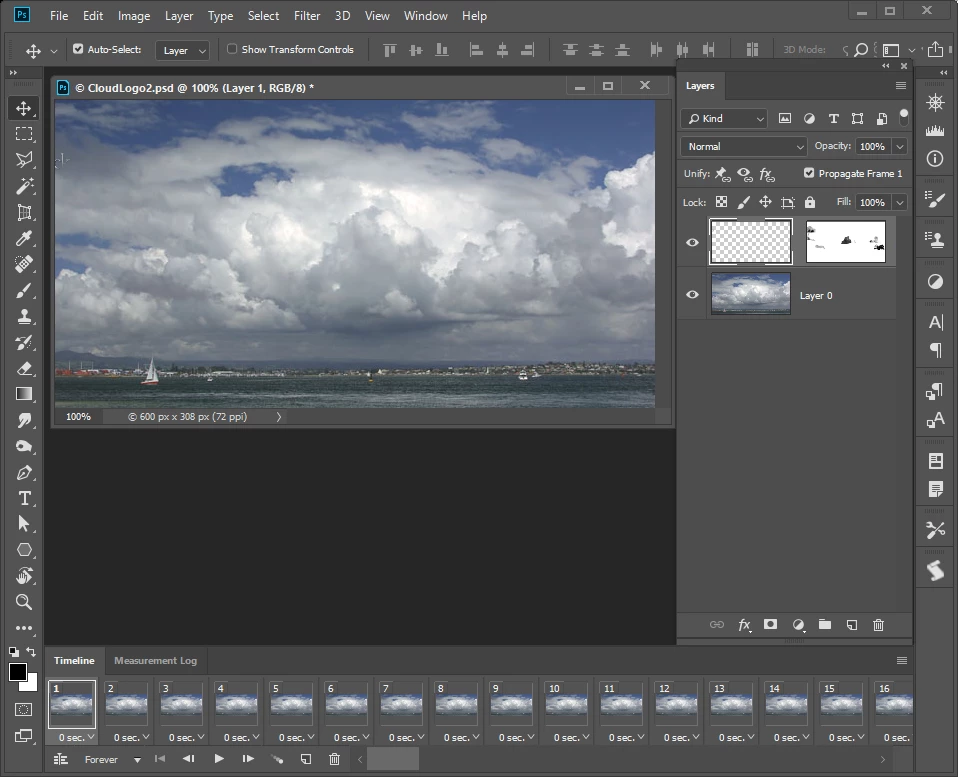
Here's a screencap of a single transition I was experimenting with before I started working on the entire sequence which would be a series of transitions.

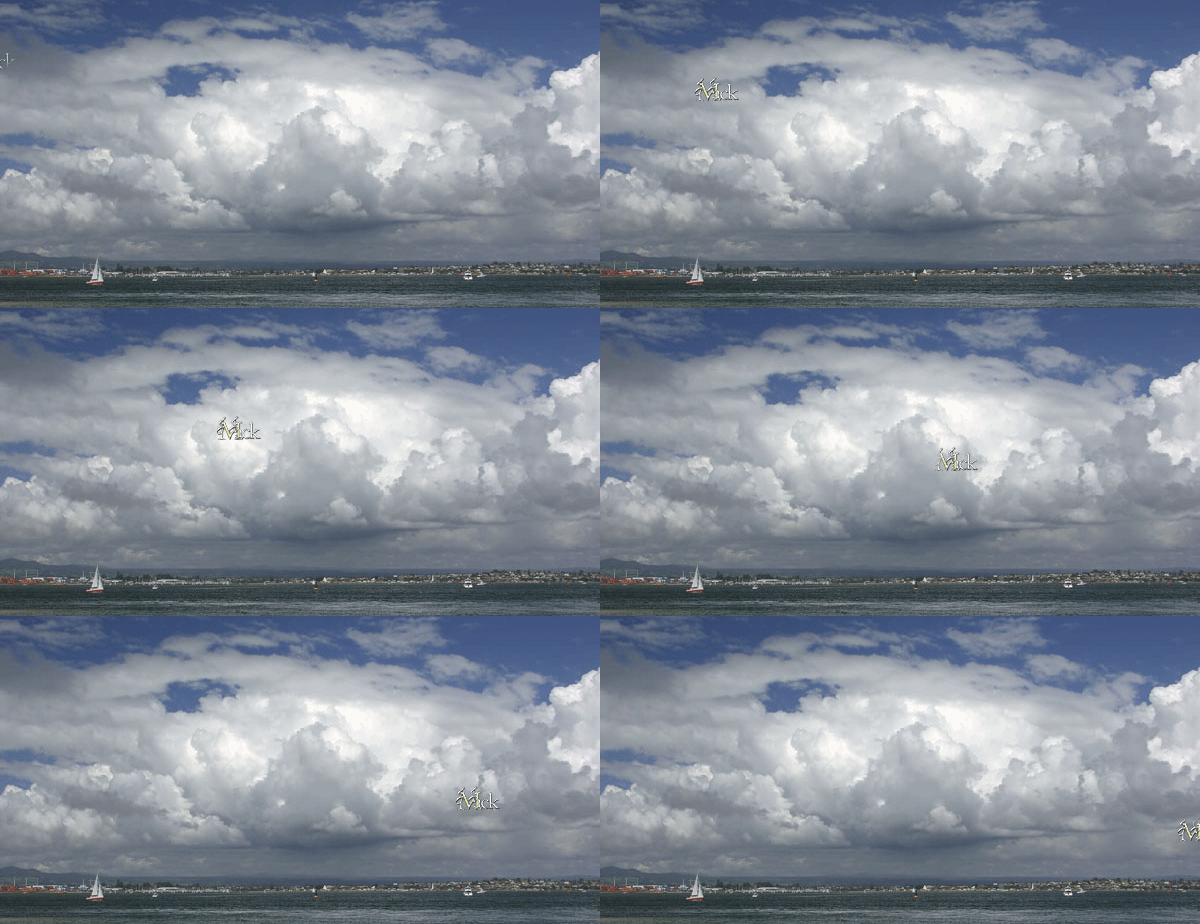
Here's the gif of the above: Seems like every frame is in a different position